Customer Portal User Guide
Published: 2026-05-01 Revised: 2026-05-12
Informational Preview Only: We are currently transitioning systems. These instructions are intended for review only and will be activated for hands-on use following the official decommissioning of our current system.
The customer portal is your one-stop place to track orders, manage repairs, view invoices, and keep your account information up to date. This guide walks through every section of the My Account area from a customer's perspective.
To request customer portal access, please email customer-care@support.ldartools.com from your company email. Please include your cell phone number and company name if not obvious from your email.
Logging In
Open the portal URL in your browser and sign in with the email address and password assigned to your account. After you log in, you'll land directly on the My Account dashboard.
My Account Dashboard
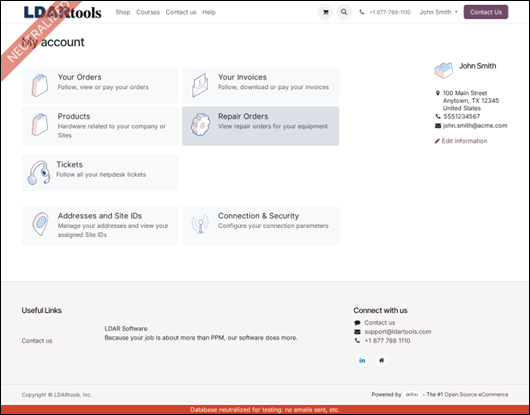
The dashboard is your home base. Each tile takes you into a different area of the portal. The card on the right shows the contact and address on file for your user — click Edit information to make changes.
Your Orders
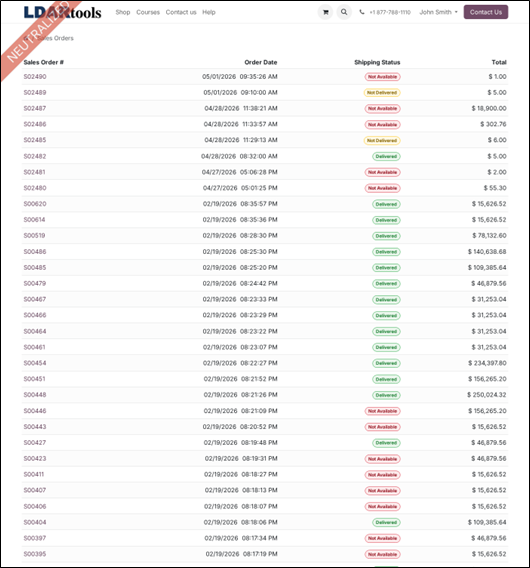
The Your Orders tile shows every sales order on your account. Each row lists the order number, date, shipping status (Not Available, Not Delivered, Delivered), and total.
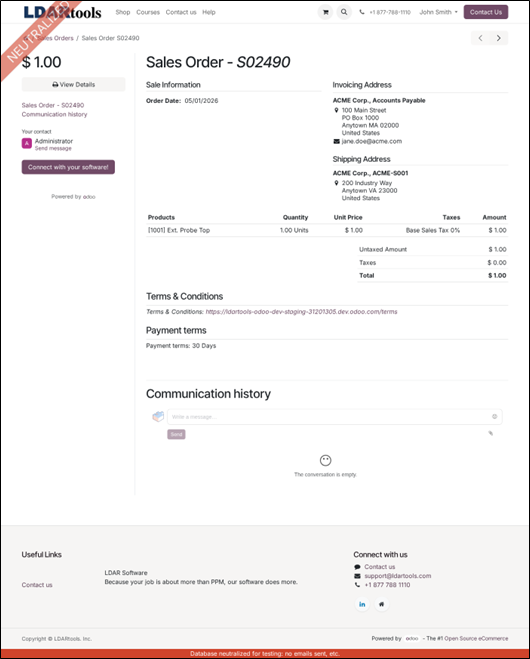
Click any order to open its detail page. From there you can see the line items, the billing and shipping addresses, payment terms, and a Communication history thread for messages with your account contact.
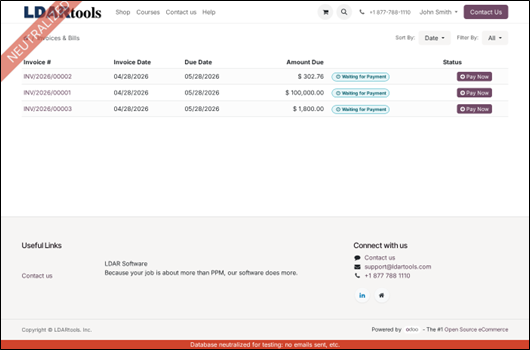
Your Invoices
Open invoices on your account appear here with a Pay Now button if payment is outstanding. Click an invoice number to view the full invoice or download a PDF copy.
Products
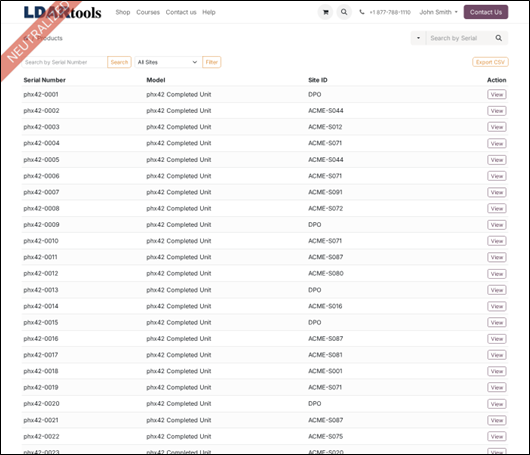
Every piece of hardware on your account is listed here by serial number. The Site ID column tells you which of your locations the unit is currently assigned to. Use the search box or the All Sites filter to narrow the list. The Export CSV button at the right will download a copy of the full list. Click View on any row to open that unit.
Repair Orders
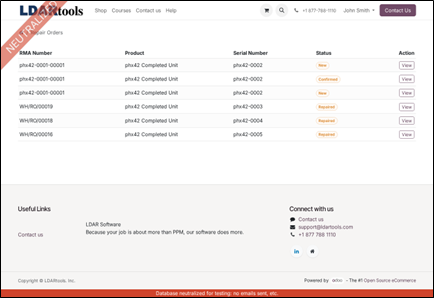
When you send a unit in for repair, an RMA (Return Material Authorization) is opened and tracked here. The list shows the RMA Number, the product, the affected serial number, and the current status — typically New → Confirmed → Repaired.
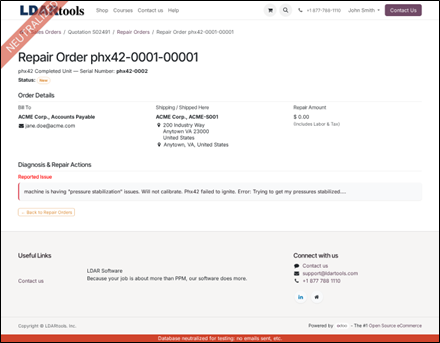
Clicking View on any repair opens the full record: bill-to and ship-to addresses, the repair amount, the issue you reported, and a back-link to the originating quotation.
Hardware Tickets
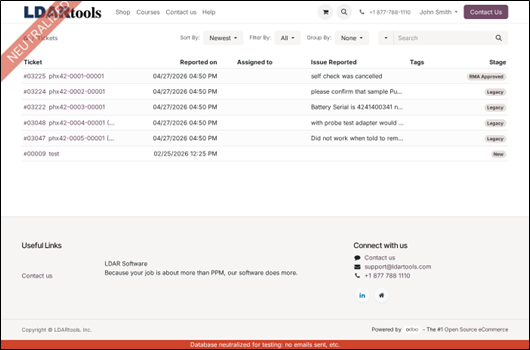
Help-desk hardware tickets you've opened (or that support has opened on your behalf) live here. Each ticket is identified by a number plus the serial number it relates to. The Stage column tracks the ticket's position in the workflow — e.g., New, Legacy, RMA Approved.
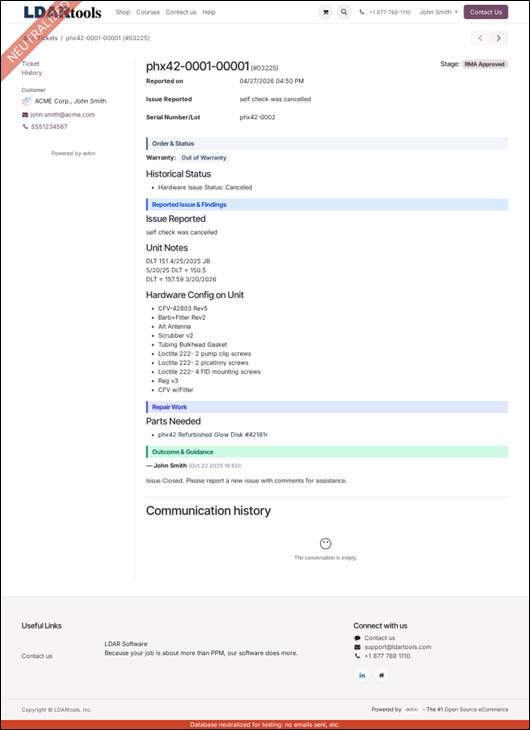
Open a ticket to see the full record: the issue description, historical status, the hardware configuration of the unit, parts needed for the fix, and the comment thread with support.
Addresses and Site IDs
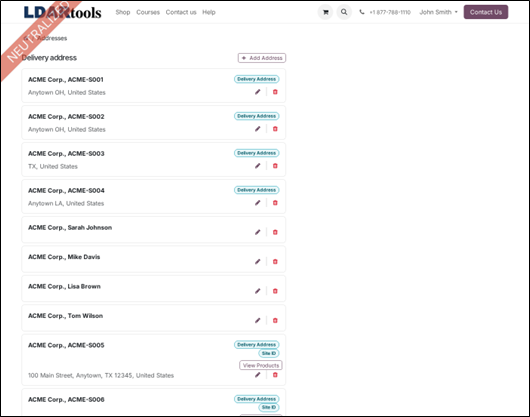
Every shipping and billing address attached to your account lives here, along with every Site ID assigned to you. Use Add Address to create a new one, the pencil icon to edit, or the trash icon to remove. Addresses linked to a Site ID also show a View Products button that jumps you straight to the hardware at that location.
Connection and Security
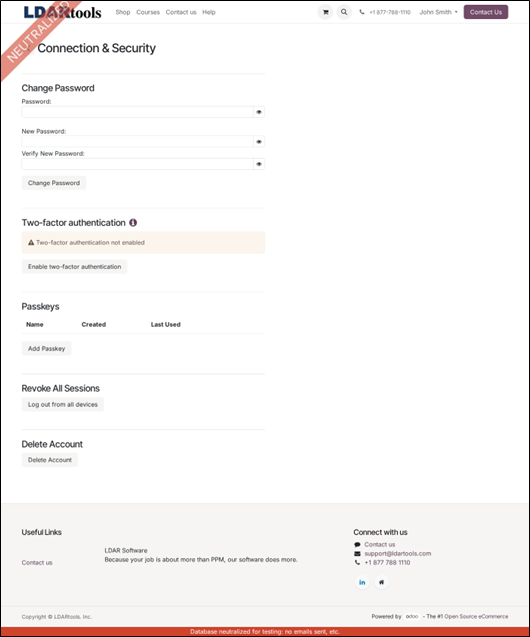
Self-service controls for your sign-in: change your password, enable two-factor authentication, register a passkey for password-less login, log out of every device, or delete your account. Anything that affects how you authenticate is on this page.
Editing Your Information
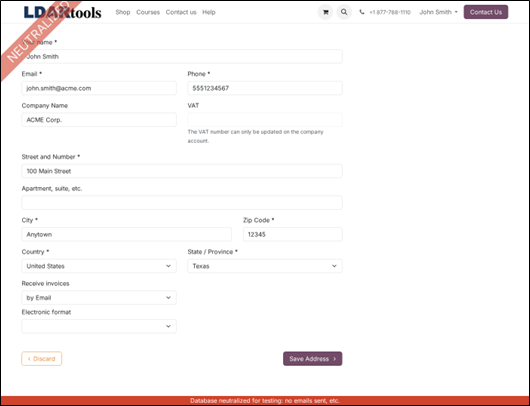
From the dashboard, the Edit information link opens this form. Update your name, email, phone, company, and address here. The VAT field is read-only — it can only be changed on the company account.