Don't see what you expect?
Published: 2022-06-28 Revised: 2025-11-11
When you don't see what you are expecting to see…
Web Browser Version
Always ensure you are using the latest version of your web browser before using Chateau.
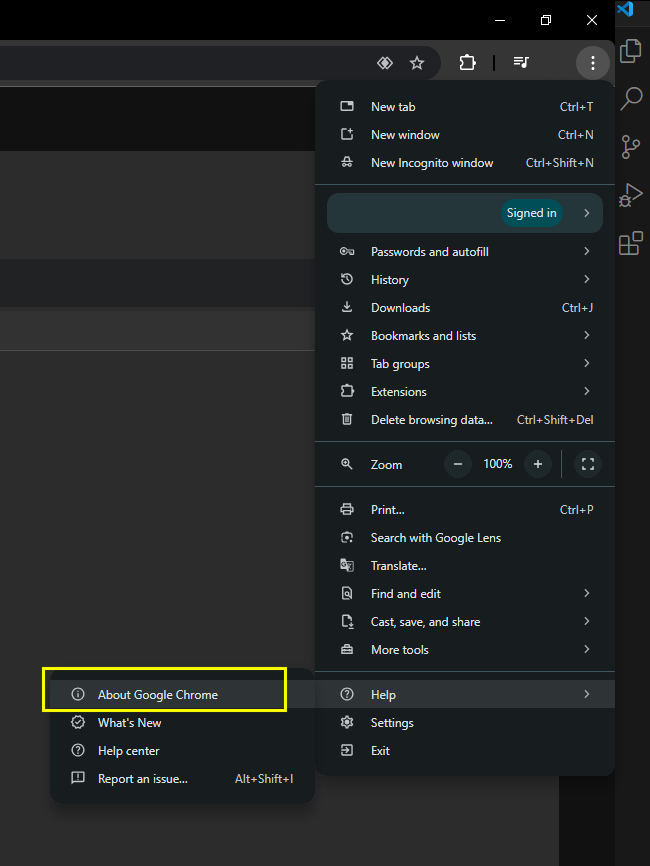
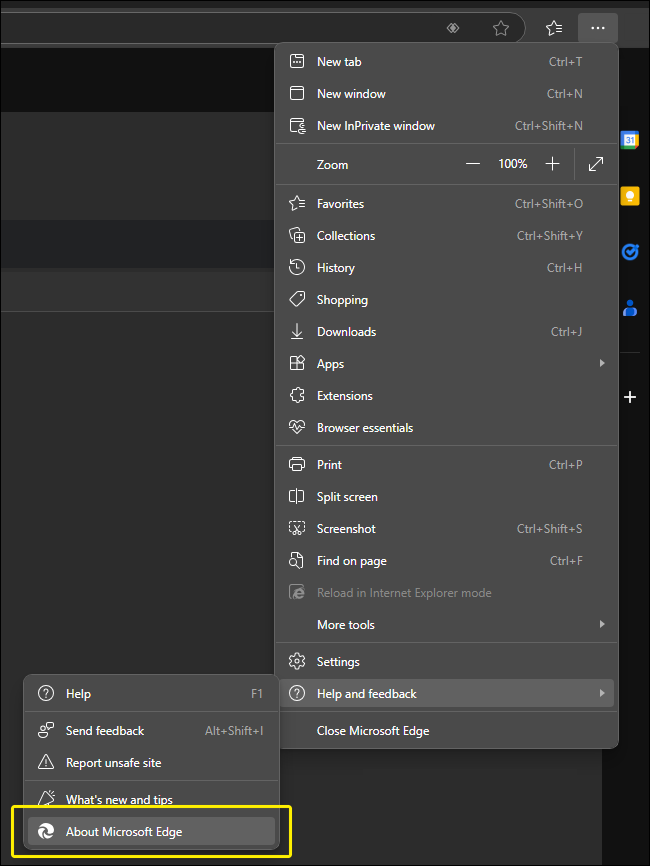
To verify or update your browser, navigate to your browser settings by clicking the three-dot menu in the top-right corner, hover over the Help tab and then click the About subtab.
- Note: This subtab will generally appear as About [web browser name] (see screenshots below).
Session Timeout
When Chateau is left open and unattended, your web session can go idle or expire. To reconnect:
- Overview → Reopen your database (top-right). Fastest way to refresh without a full reload.
- Browser refresh (Ctrl/Cmd+R). You may be asked to sign in again and select your database.
- Tip: Save or copy any unsaved text before refreshing, as a full page reload can clear in-progress form data.
In a Grid
- Review the column filters that might be set on the grid. You could accidentally have a filter on a column without realizing it.
- Review the query that is displayed. Ensure the data you are expecting fits the criteria outlined in the query.
- Refresh the grid. If you have been editing records in other tabs, the data in the grid may be stale.
- You can either select the Refresh button, or find the Refresh option in the menu list.
- If you can only get a partial view of the grid, picklists, or menu, go to your browser's three dot menu and ensure your zoom level is not greater than 100%.
- The button to refresh Chateau is either above the grid, or in the menu list. Do not use your web browser's refresh button as this will kick you out of Chateau, reopen it (from scratch) and you will be starting over. Instead, use the refresh button that is within Chateau.
In a Tab
- Reload the tab.
- If a tab is open when you make a change in ANOTHER tab, that change should be reflected in the other tab. Either click the Refresh button on the tab, if available, or you will have to close the current tab and re-open it to get the new value loaded into this tab.
- If some text or fields are hidden or inaccessible, changing the zoom level of your browser might resolve the issue.
Times
If the times in Chateau do not match up with when the records were created…
- In Resources / LUnits, confirm the Facility you are working in is set to the proper time zone.
- If the records were created in a handheld, confirm the Android device is set to the same time zone as the Facility.
- If the time is shown in UTC, please convert it to your local time zone before you get too concerned.
Current Tours Tab
If you don't see a Tour you think should…
Tours will be automatically deleted if one or more of the following conditions are met:
- All inspections within the Tour are completed.
- The Tour is manually emptied or deleted by a user.
- The Tour's final due date elapses. See Expiration of Tours After Due Date article for more information.
- A regulation change has occurred.
- A rule change has occurred recently. This can affect the tours associated with the changed rule.
Chateau Mobile
If you do not see "Add Attempt" in the dropdown action menu, you will need to turn on the Simple Maintenance feature in Settings > Misc.
If in some grids the text is not visible, or barely visible, turn off the dark mode display on your device.
- Note: If you are on an Android device, search "dark theme" in Settings.
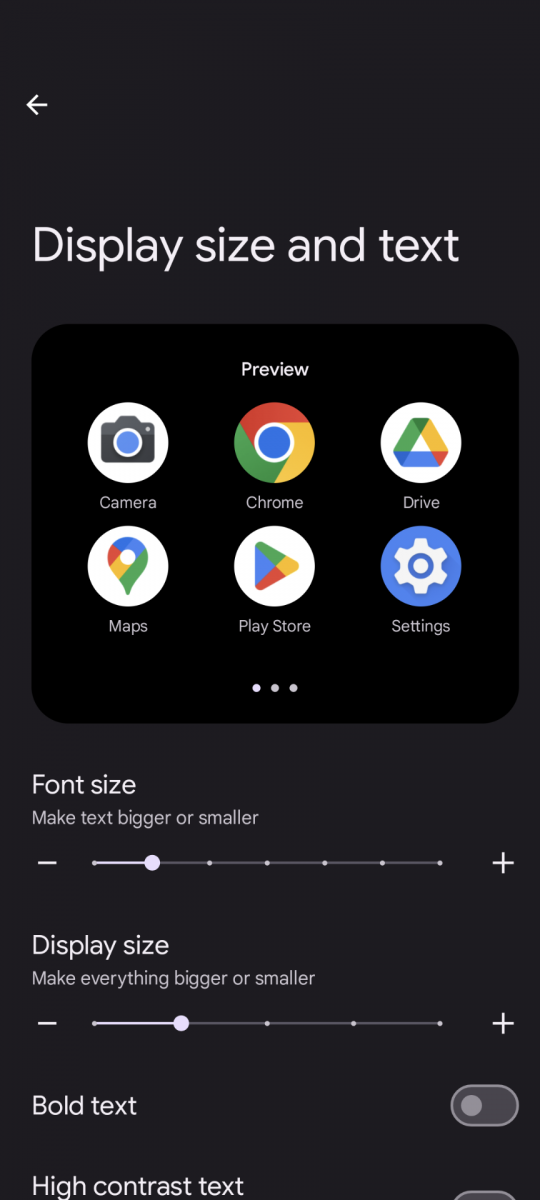
If the Location Description is cut off on the Tag View screen, try making the font smaller on your device.
For Android devices, go to the Settings app and search "Font." This should bring you to a section that will allow you to reduce the overall font size on your device.