Current Tours
Published: 2022-05-24 Revised: 2026-09-02
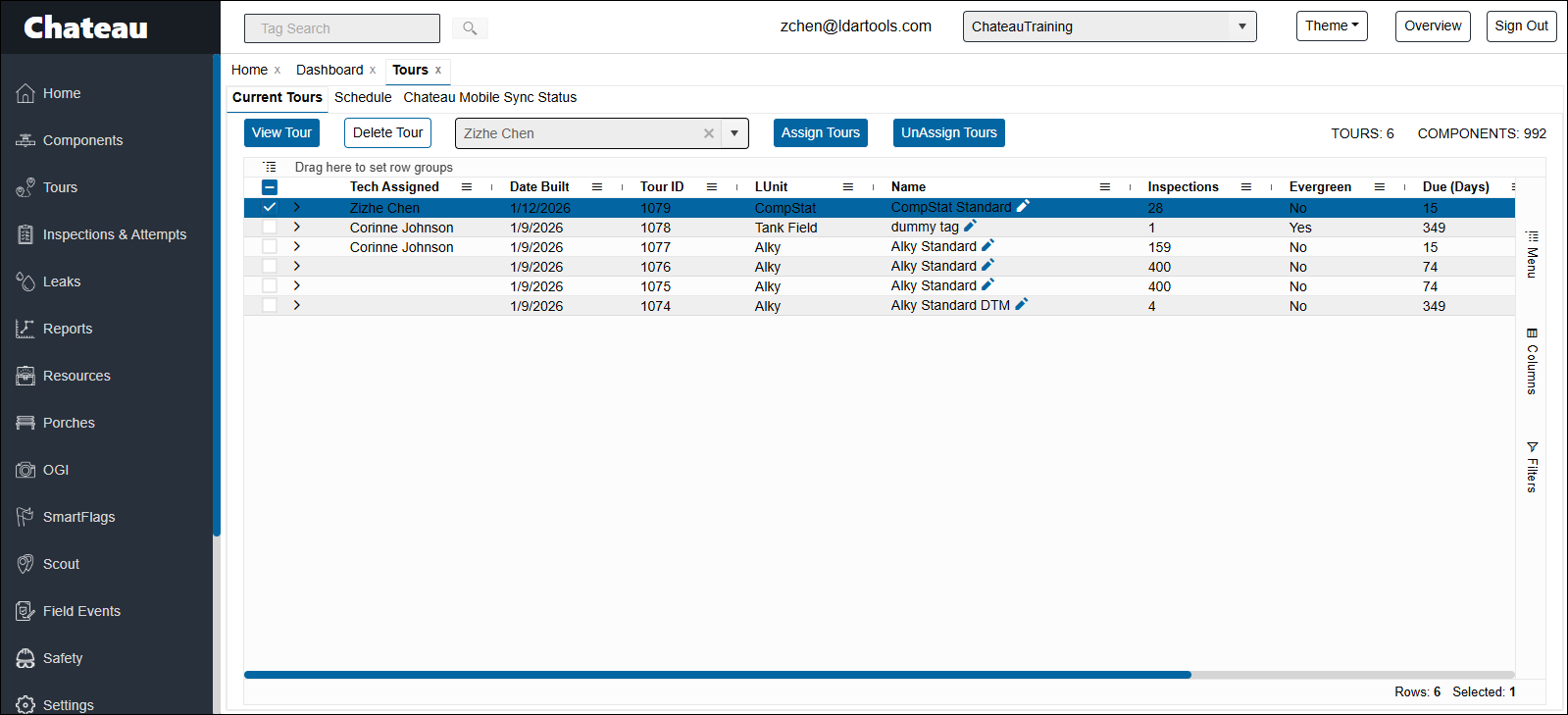
Tour Grid Terms
| Item | Description |
|---|---|
| Assign Tours | In the grid, select the tours you wish to assign a technician to. Select the technician you wish to assign in the dropdowns to the left of Assign Tours. Click Assign Tours to assign the technician to the selected tours. |
| Built By | Shows who built each tour. A tour built by a person shows the name of the user who created it, from whichever screen they built it (Schedule, Components grid, Leaks, OGI Picture Audit, a Porch, the TUx Log, and so on). Tours built automatically by Auto Tours show "Auto Tours." A tour with no identifiable builder shows a blank. Built By also appears in the Tour Details header, just after Due Date. |
| Delete Tour | This will delete the Tour and put the inspections back into the Schedule if they were scheduled by rules. If they were manually scheduled, they will simply be removed. |
| DTM How | How the DTM can be safely accessed. This is here to enable you to sort and assign Comp by DTM How- when you want to. |
| Due | The earliest Due Date for any Comp in this Tour. Some Comps may be due later, but this reflects the earliest Due Date. |
| First Route Sequence | This is the Route Sequence Number for the first Comp in each Tour. Over time, you will learn how to use this to maximize your assignments to Technicians. |
| REN Count | The number of RENs in this Tour; this may indicate the size of the area represented. |
| Tours Components | Top right-hand corner. Provides a summary of this grid. |
| Unassign Tours | Select the tours you wish to unassign. Click UnAssign Tours to have the technician removed from the assignment of the selected tours. |
| "View Tour" | You can only open one Tour at a time. |
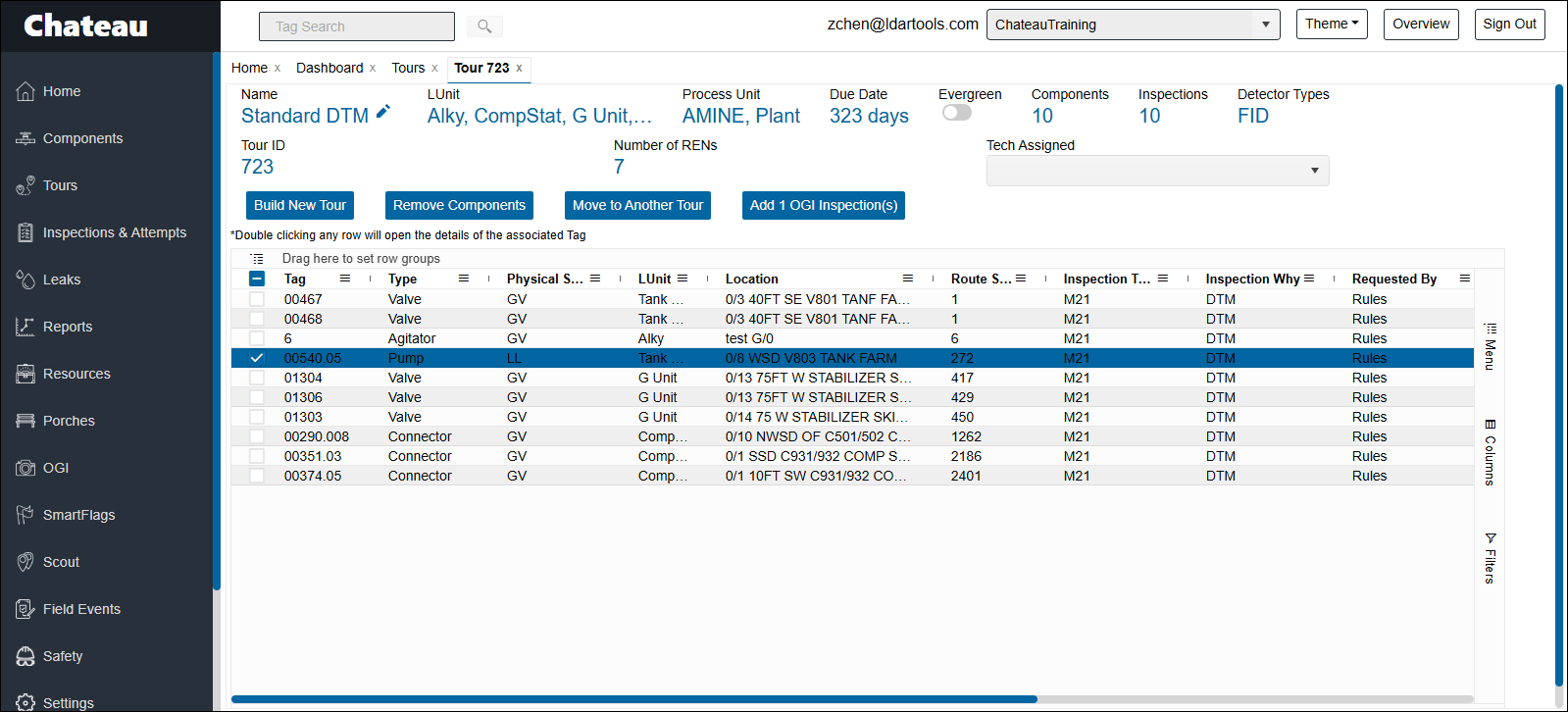
Select a Tour and click View Tour (you can also double-click on the Tour in the grid).
| Item | Description |
|---|---|
| Add OGI Inspection(s) | Select one or more Tags from the grid. You will then have the option to add OGI inspection records for them. |
| Build New Tour | YOU MUST SELECT A COMP FROM AN EXISTING TOUR TO USE THIS BUTTON. |
| Cannot Edit a Component that is in a Tour | Editing a component may remove component from a tour IF a component was scheduled by the rules for a monthly inspection and the tour built from the schedule. In this instance, the component's type, or any other properties, are edited such that it should now be scheduled for a Quarterly component, at which point Chateau will remove it from the tour so it can reschedule it for a Quarterly inspection and return it to the Schedule. |
| Edit Name | If you want to. |
| Find a Component in a Tour | Open the Tag View for that Component. The Tour will be displayed in the top line next to the Tag and Profile data. |
| Move to Another Tour | Select Comps. Hit this Button. These Comps will be moved to the Tour that you specify. |
| Remove Comps | Select a tour and tap View Tour. In the grid, select the inspections you wish to remove and click Remove Components. If an inspection was manually scheduled, it will remove it from the schedule. If it was scheduled by the rules, it will return it to the Schedule. |
| Requested By | If the inspection was scheduled by a regulation, the field will show Rules. If someone has manually scheduled the inspection, it will show their name. |
| Respond to a Sync Problem | Open Tours Open Sync Status Go to final Column: Reprocess Select Reprocess |
| Tech Assigned | You can assign or reassign a Tech either here or on the Tour grid. |
| Tour by Tag Numbers | You can change the way a Tour is sorted in Chateau Mobile from "by Route Sequence" to "by Tag Number" by going to Settings/ Misc. and selecting this option. This will change the sort method for ALL Tours until you change it back. |
| When a Tour expires… | The inspections are removed from the tour if their specific due date has passed. The entire tour will expire when the last due date has passed. |