View a Scout Map
Published: 2022-10-25 Revised: 2025-02-10
Note: Inspection GPS info is only available in the Scout map when tracking in Chateau Mobile was enabled.
For any day inspections are performed, you can view a map of the GPS information associated with the path the technician took and the actual inspections performed.
To view a Scout map:
- Open the Scout tab.
- Select a start date.
- Select an end date.
- If you want to select a specific date, make the start and end dates the same.
- Click Search.
- When the grid appears, scroll right to view the number of inspections for each technician.
- Select a technician and the map will appear.
- The map is interactive, allowing you to use your cursor for selecting any of the inspection icons to reveal all of the data associated with that inspection.
- You may specify the start time and the end time in the Time Range Filter to show the inspections happened in that time range only.
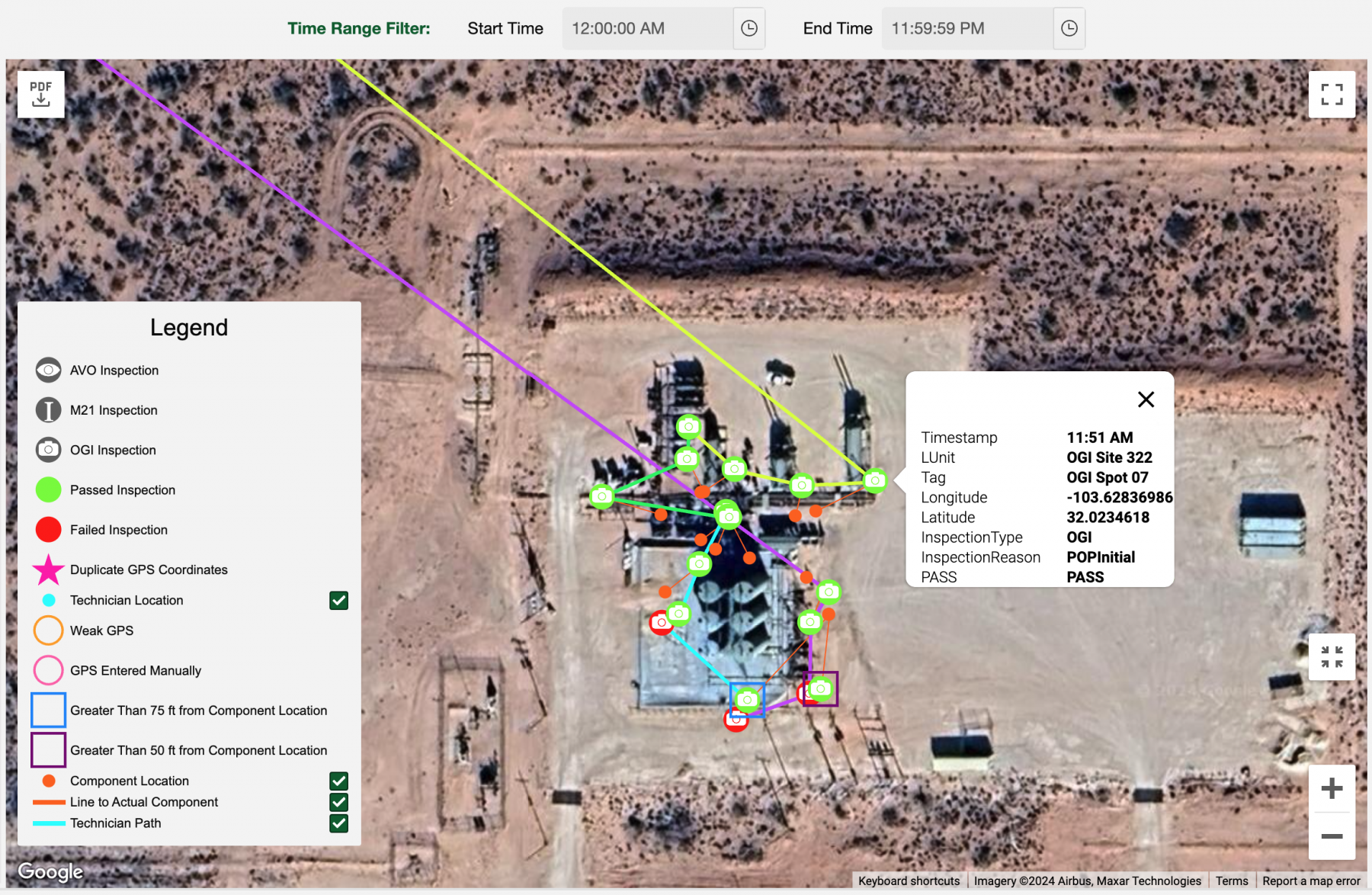
Map icon legend
| Icon | Item | Description |
|---|---|---|
 | AVO Inspection | |
 | M21 Inspection | |
 | OGI Inspection | Inspection performed by an infrared camera. |
 | Passed Inspection | No leak. |
 | Failed Inspection | Indicates a leak. |
 | Duplicate GPS Coordinates | Same GPS on multiple inspections. |
 | Technician Location | Shows a dot for each two minute interval where no inspections were performed. |
 | Weak GPS | |
 | GPS Entered Manually | |
 | Greater Than 75 ft. from Component Location | The GPS coordinate for the inspection is calculated to be more than 75 ft. from the known GPS coordinate for the component. |
 | Greater Than 50 ft. from Component Location | The GPS coordinate for the inspection is calculated to be more than 75 ft. from the known GPS coordinate for the component. |
 | Component Location | GPS coordinate for the component the recorded inspection was performed on. |
 | Line to Actual Component | Line from the inspection to the GPS for the component. |
 | Technician Path | Path the Technician Traveled between Inspections. |
You will notice you can use the check boxes to hide or reveal the following four data sets:
- Tracking Data
- Technician Actual Track
- Component Location
- Line to Actual Component
Map controls
| Icon | Function |
|---|---|
 | Expand the image to full screen. |
 | Center the image on the screen. |
 | Rotate map to the right (clockwise). |
 | Rotate map to the left (counterclockwise). |
 | Change the angle of your view. |
 | Make the map larger or smaller. |
 | Export the Scout Map to a PDF with a signature box. |
Sometimes the icons will appear alone, as shown in the legend, while other times you will see hybrid versions of more than one icon combined, as shown below.
| Icon | Meaning |
|---|---|
 | Failed OGI Inspection, Weak GPS |
 | Failed M21 Inspection |
 | Passed AVO Inspection, Greater than 50 Feet from the Component |
 | Passed M21 Inspection, Greater than 75 Feet from the Component |