Reactivated Components
Published: 2026-06-26 Revised: 2026-06-26
What this report does
Lists components that were previously deactivated and then reactivated during the selected date range. A component appears here only when it followed the sequence Active → Deactivated → Active — meaning it was first active, was deactivated at some point, and was then reactivated again within the window.
For each component, the report shows the reactivation date, the reason the component was returned to active status, and the people who suggested and approved the change.
Use this report to audit reactivation activity and verify that returning components have the correct reason and approval chain recorded. For newly added components that were never previously deactivated, use Activated Components instead. This report is available directly on the Reports tab.
When to use it
- Reviewing components that were brought back into service after a period of deactivation.
- Confirming reactivation reasons and approvals for a regulatory period.
- Distinguishing true reactivations from first-time activations.
Parameters
| Parameter | Description | Required | How it filters |
|---|---|---|---|
| Regulation | The regulation to report on | Yes | Only components mapped to this regulation appear |
| Unit Type | Whether to filter by Process Unit or Location Unit | Yes | Determines how units are identified in the output |
| Start Date | Beginning of the date window | Yes | Only reactivations with a date on or after this date are included |
| End Date | End of the date window | Yes | Only reactivations with a date on or before this date are included; expanded to end of day |
All units are always shown. There is no Units selection parameter — the report covers every unit of the selected type. Filter by reviewing the Unit column in the output.
Columns
| Column | What it shows | Format / Notes |
|---|---|---|
| Unit | The unit the component belongs to | Text; rows are grouped by unit |
| Tag | Component tag number | Text |
| Date Added | Date the component was reactivated | Date; displayed in the component's local time zone; this is the date of the most recent reactivation, not the component's original creation date |
| Type | Component type (level 1) | Text; e.g., "Valve", "Connector", "Pump" |
| M21 Freq | M21 inspection frequency code as of the end of the report period | Text; shown as "EX" when no frequency is assigned |
| AVO Freq | AVO inspection frequency code as of the end of the report period | Text; blank when no AVO frequency is assigned |
| Active Why | The reason the component was returned to active status | Text; the reactivation reason description (e.g., "Field Find", "Return To Service", "New Construction") |
| Suggestor | Person who suggested the reactivation | Text; full name |
| Approver | Person who approved the reactivation | Text; full name |
What's included and excluded
Included:
- Only components that followed an Active → Deactivated → Active sequence, with the second activation falling within the selected date window.
- Only components mapped to the selected regulation.
- All units of the selected unit type.
Excluded:
- Components being activated for the first time (no prior deactivation) — see Activated Components for those.
- Components that were deactivated and not yet reactivated.
- Components not mapped to the selected regulation.
How key values are calculated
What counts as a reactivation
A component is counted as reactivated when its profile history shows: a first Active period, followed by a Deactivated period, followed by a second Active period — and that second Active period begins within the selected date window. A simple activation with no prior deactivation is not a reactivation and will not appear.
Date Added
The date the component entered its second (or subsequent) Active profile — i.e., the date of the reactivation event. This is displayed in the component's local time zone. It is not the component's original creation date.
Active Why
The reason recorded when the reactivation profile change was made. Common values include:
| Value | Meaning |
|---|---|
| Field Find | Component was found in the field and determined to be in active service |
| Return To Service | Component was deliberately brought back into service after maintenance or repair |
| New Construction | Component was brought back as part of new or modified construction |
Suggestor and Approver
For components reactivated via a MOC process, these are the people recorded on the MOC record. For components reactivated directly, they are the people recorded on the component profile change.
Tips and common questions
- "Why doesn't the report let me filter to a specific unit?" The report always shows all units of the selected type. Export to Excel and filter by the Unit column to focus on a specific unit.
- "What is the difference between this report and Activated Components?" Activated Components shows all components added to the system during a period — including first-time activations. Reactivated Components shows only components that went through a deactivation and were then brought back — the subset that had a prior active history.
- "A component I reactivated is not showing." Verify that the component was genuinely deactivated (DeA profile) between two Active periods. If the component was only in a Temporarily Unavailable (TUx) status and was never formally deactivated, it will not appear here.
- "Date Added shows a date different from when I activated the component." Date Added reflects the profile change timestamp, which is in the component's local time zone. Time zone conversion may shift it relative to what was entered in UTC.
- "A reactivated component appears under a different unit than expected." Unit assignment for this report is based on the component's current unit at the time the report is run, not its unit at the date of reactivation. If a component was reactivated into one unit but later moved to another unit, it will appear under its current unit. This only affects components that changed unit assignments after being reactivated.
- "A component was reactivated more than once — will it appear multiple times?" Yes. Each reactivation event within the selected date range generates a separate row. If a component was deactivated and reactivated twice within the window, it will appear twice with different Date Added values reflecting each reactivation.
Sample output
Report run for Example Facility, Regulation: HON, Unit Type: Process Unit, StartDate: 12/17/2021, EndDate: 5/20/2026.
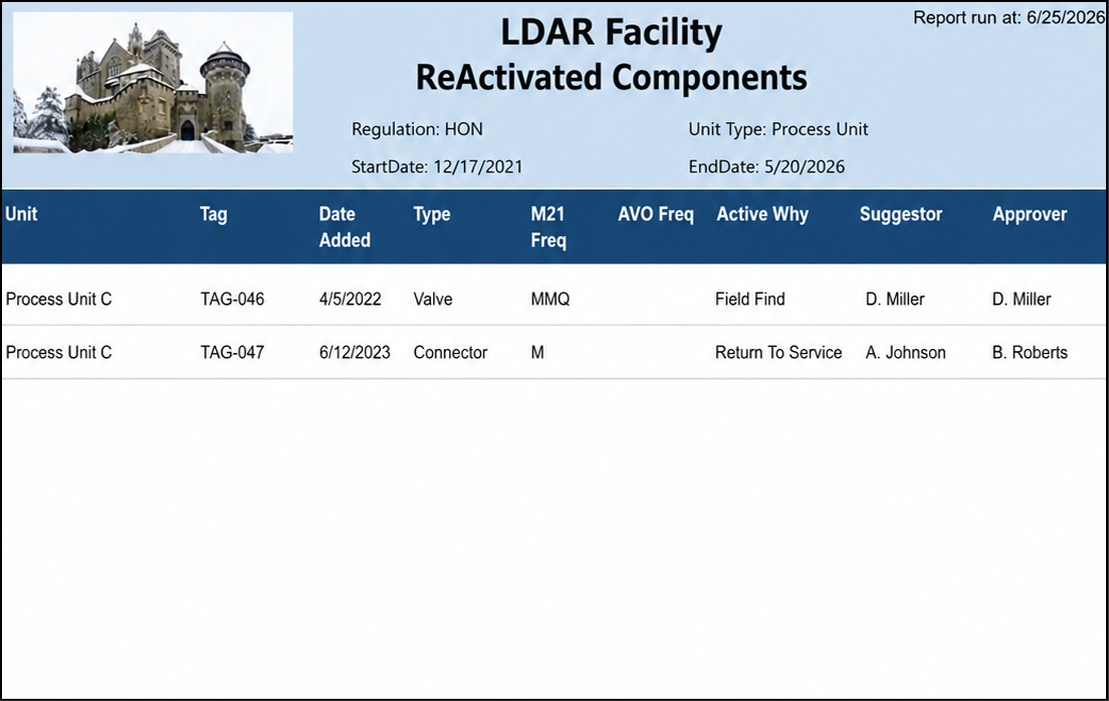
What the rows illustrate:
- TAG-046 — Reactivated with reason "Field Find"; Suggestor and Approver are the same person (direct reactivation without a separate approver).
- TAG-047 — Reactivated with "Return To Service"; Suggestor and Approver differ (MOC process with separate people).
- TAG-048 — Pump with both M21 (Semi-Annual) and AVO (Weekly) frequencies assigned.
Output format
One row per reactivation event, grouped by unit and ordered by reactivation date within each unit. Suitable for on-screen viewing, PDF, and Excel export.
Related reports
- Activated Components — shows all components added during a period, including first-time activations; does not isolate reactivations.
- DeActivated Components — shows components deactivated during a period; the counterpart to this report.