Reviewing AWP Area Surveys in Chateau
Published: 2026-10-28 Revised: 2026-10-28
After a technician checks in, each completed AWP area survey appears in Chateau as a survey record. This article covers finding a survey, what it shows, adding survey video recorded on a camera that wasn't connected, and where surveys show up elsewhere in Chateau. For how area surveys work, see AWP Area Surveys: Overview.
Finding surveys: OGI › Surveys
On an AWP facility, the OGI tab opens on Surveys. Each row is one survey, named by its start date and time.
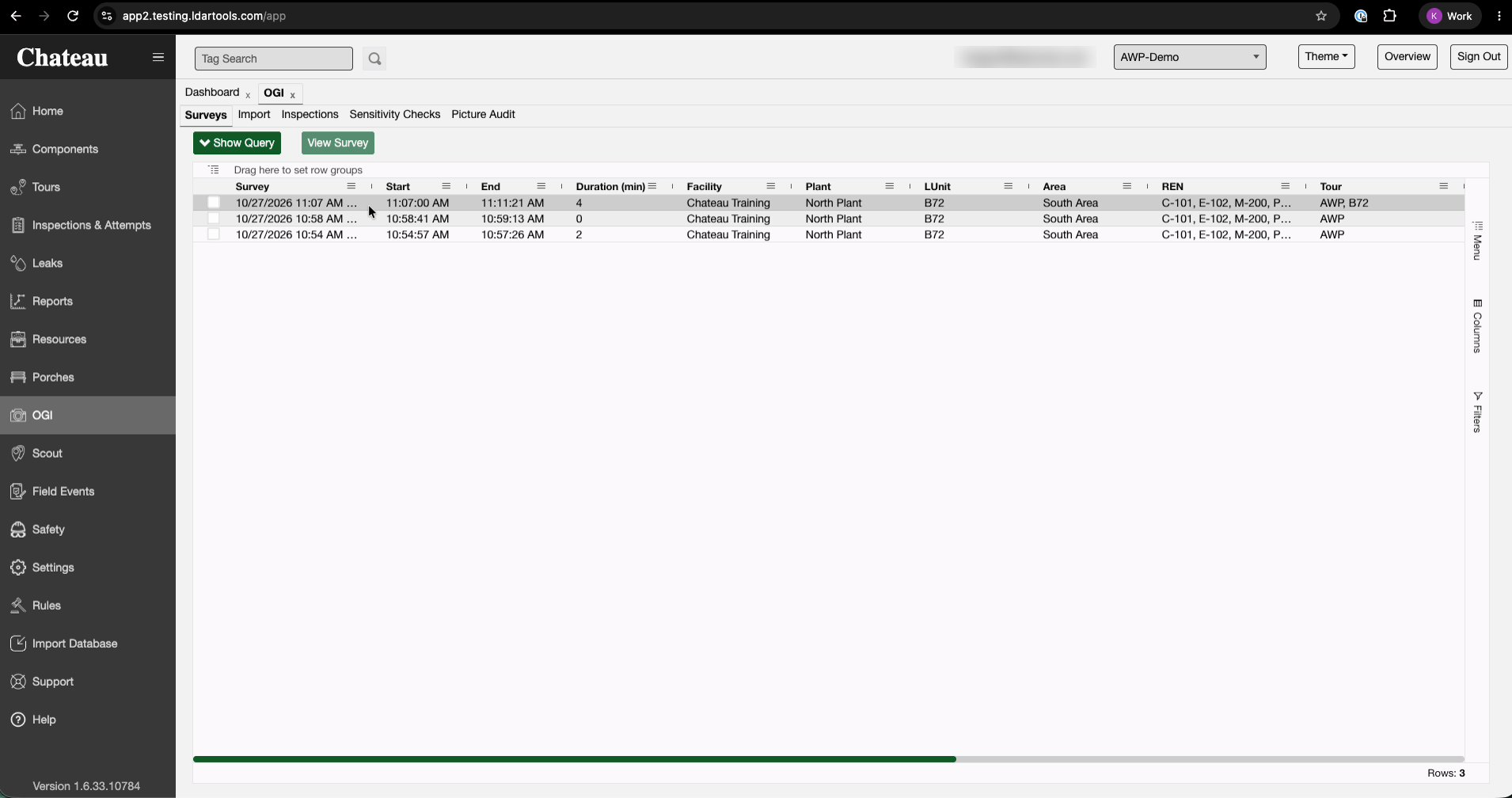
The grid shows, for each survey:
- Start, End and Duration
- Facility, Plant, LUnit, Area, REN and Tour
- Technician, Camera and Camera Serial
- Sensitivity check (its time, or missing)
- Counts of path inspections, leaks, Did Not Monitors and survey videos (the Survey Videos column)
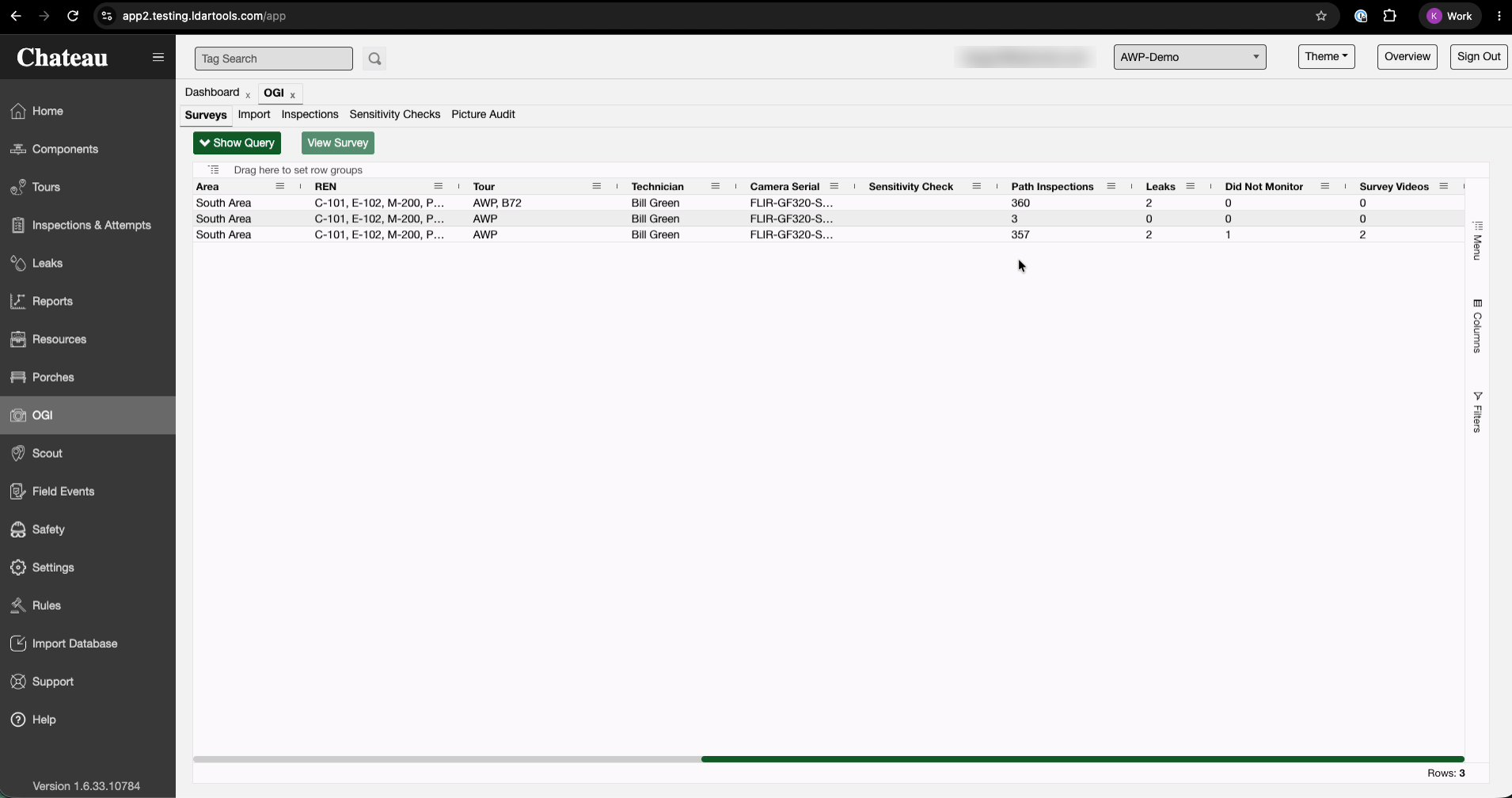
Use Show Query to filter by date, area or technician, the same way as the other OGI grids.
To open a survey, click its name, or select its row and click View Survey. It opens in its own tab.
What a survey shows
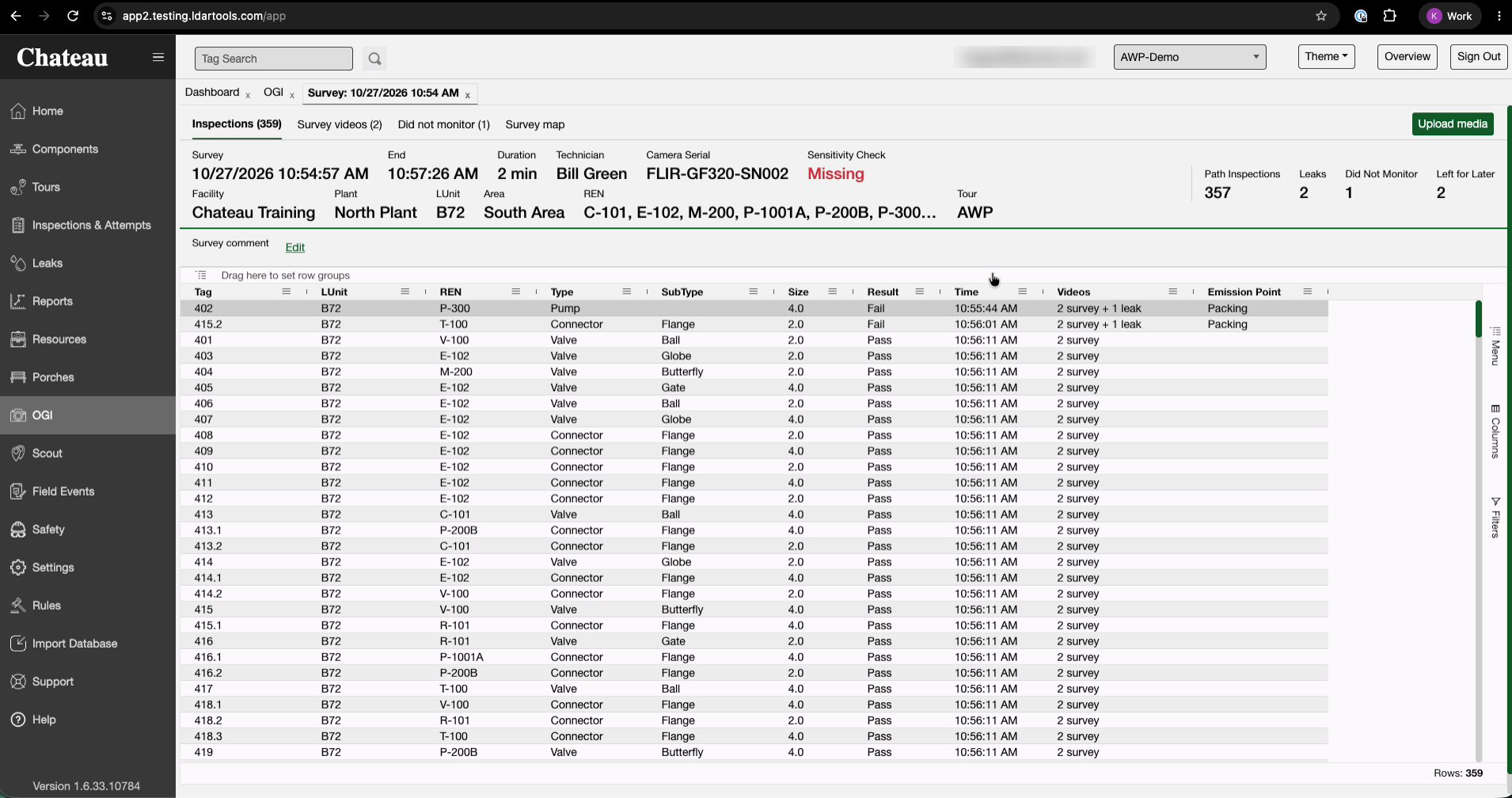
The top of the survey shows:
- Survey (its start), End, Duration, Technician and Camera Serial
- Sensitivity Check: the time of that day's sensitivity check for the camera, as a link to the check, or Missing
- Facility, Plant, LUnit, Area, REN and Tour
- The counts: Path Inspections, Leaks, Did Not Monitor and Left for Later
- The Survey comment from the technician
Below that are four tabs.
Inspections
Every inspection in the survey: the passing path inspections Chateau created when the survey was completed, and the failing inspections for leaks, with their emission point and leak video.
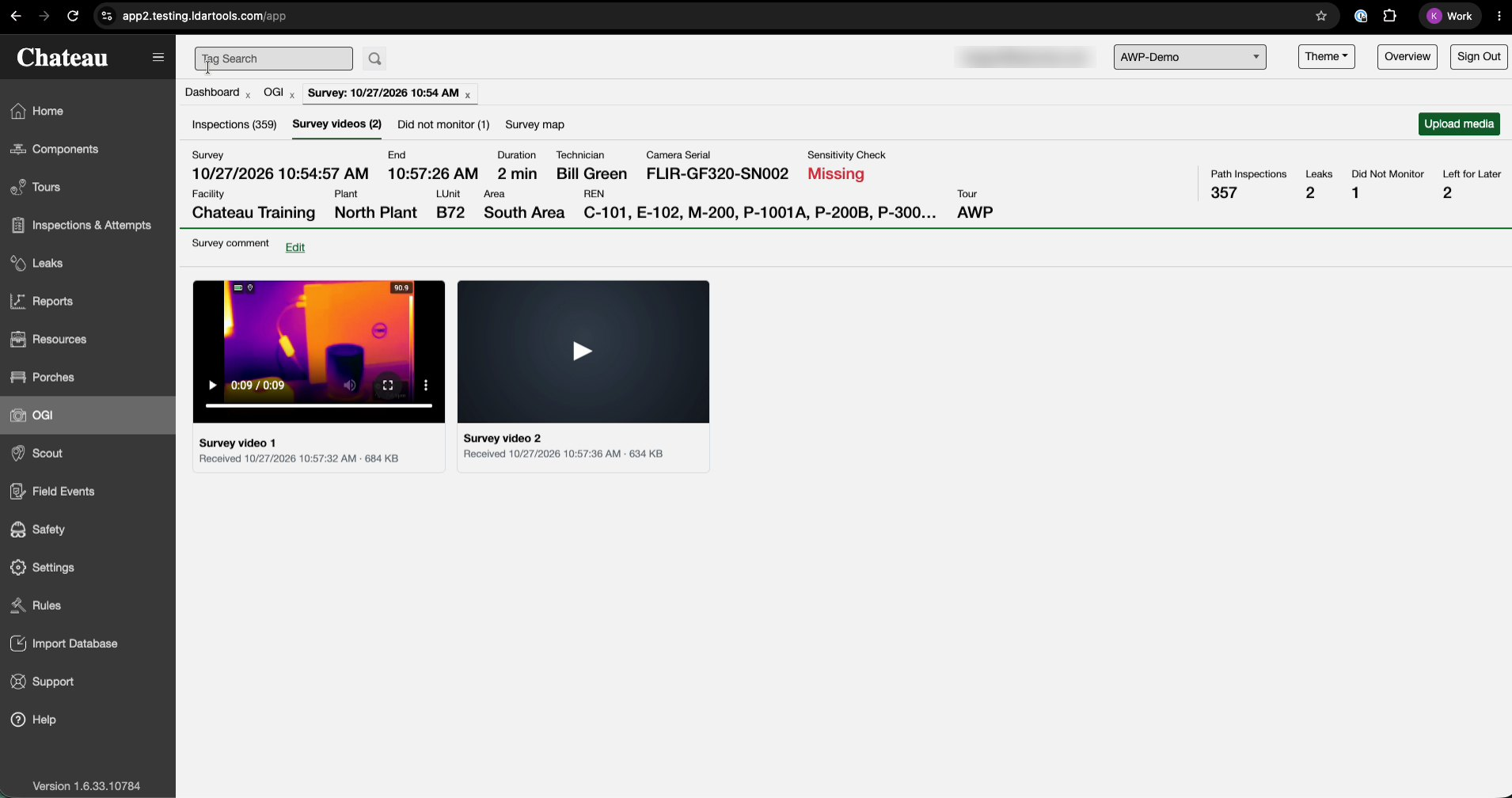
Survey videos
The survey video, in the sections the technician recorded. Each section stops when the technician stops to record a leak. Click a video to play it.
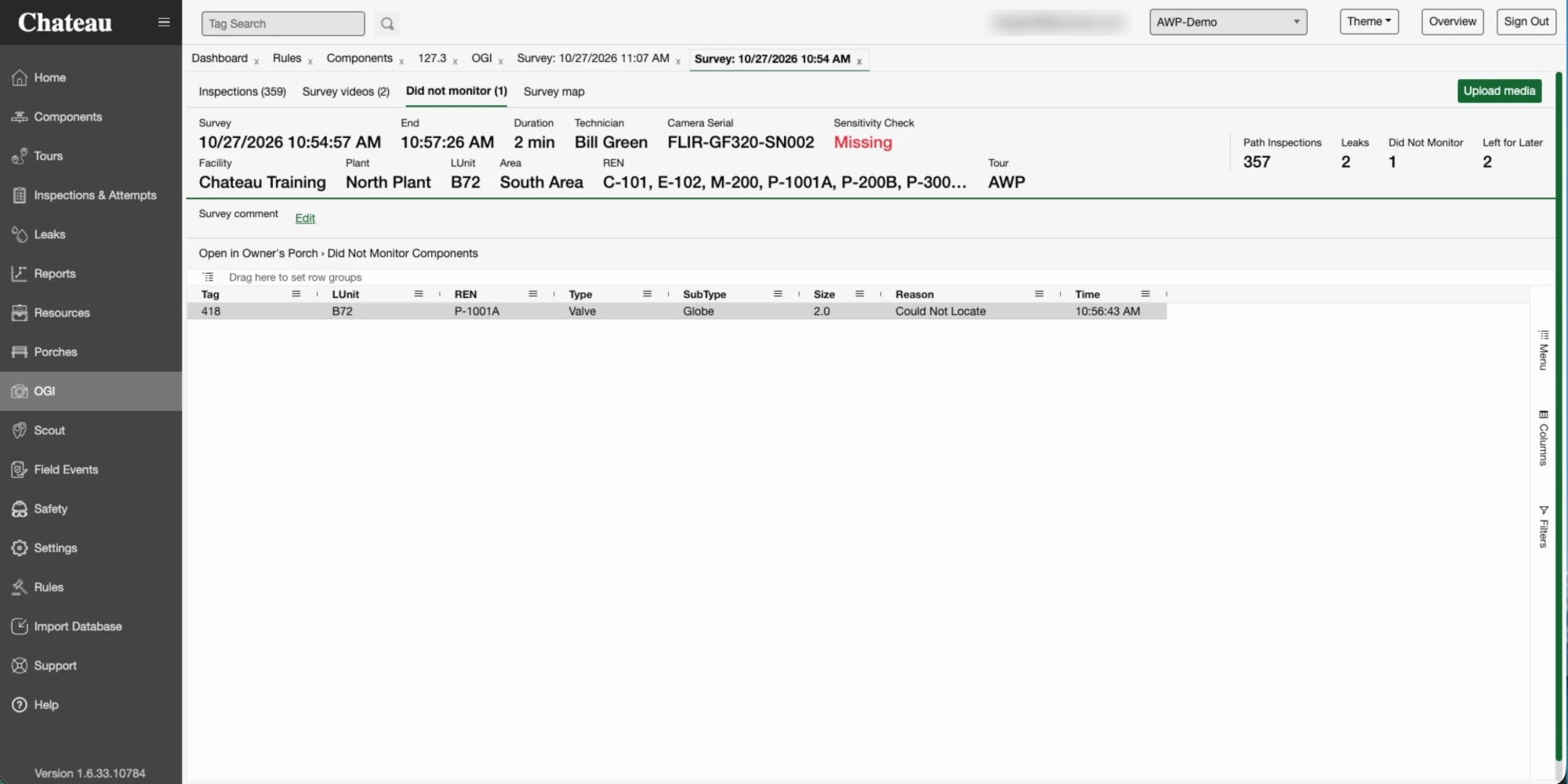
Did not monitor
Each component the technician marked Couldn't Monitor…, with the reason. These are also listed with other Did Not Monitors on the Owner's Porch: click Open in Owner's Porch › Did Not Monitor Components.
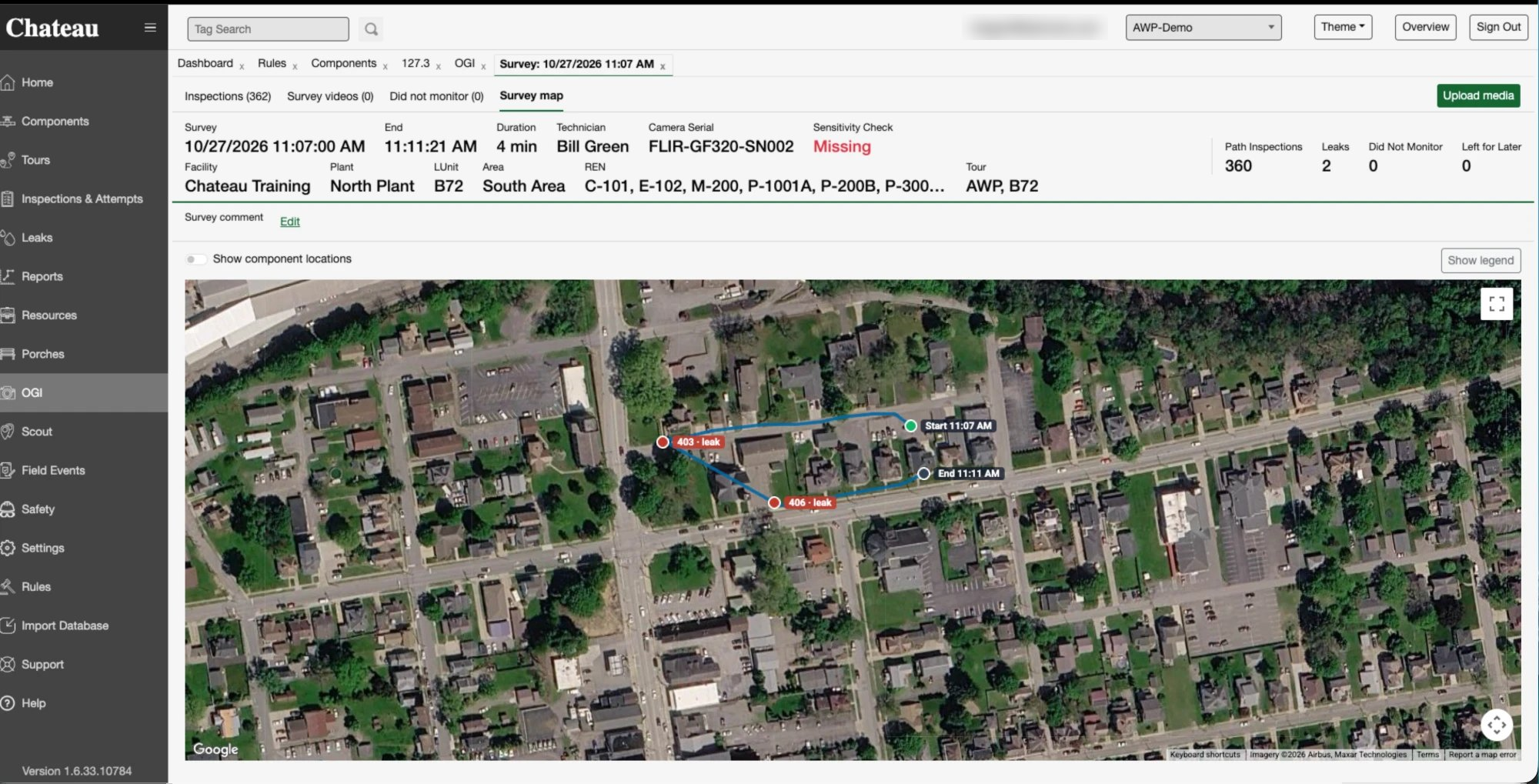
Survey map
The technician's GPS track for the survey, from start to end, with leaks marked by tag. Turn on Show component locations to also show the saved locations of the survey's components. The map needs Scout tracking to be on for the technician.
Adding survey video recorded on a camera
If the technician's camera wasn't connected to Chateau Mobile, the survey has no survey video until the office adds it. The technician writes the camera's file names in the survey comment.
-
Open the survey and read the Survey comment for the file names.
-
Copy those files from the camera to your computer.
-
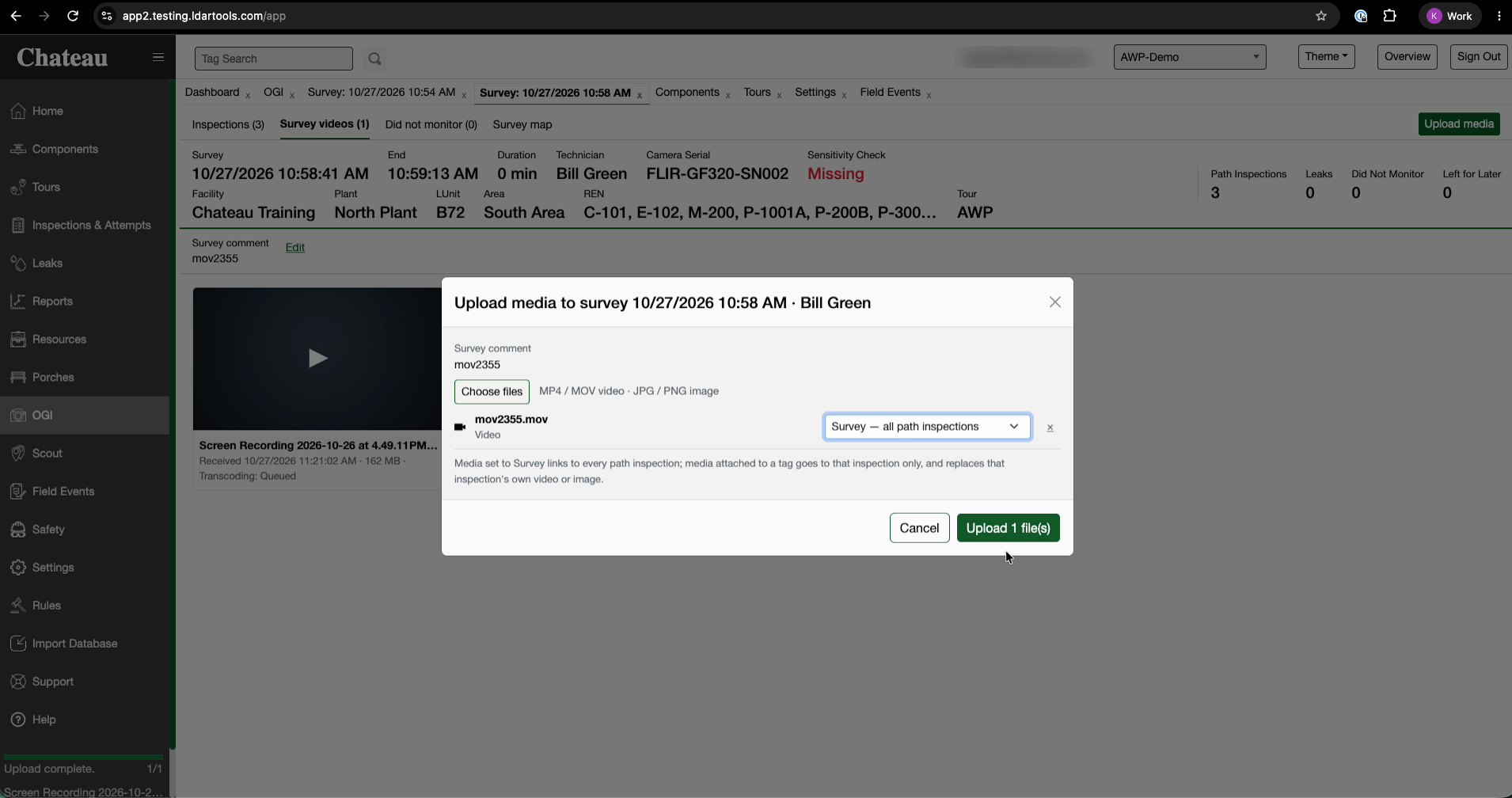
Click Upload media. The comment is shown in the dialog while you choose files.
-
Choose the video files and attach them to Survey — all path inspections.
-
The upload joins the survey's videos on the Survey videos tab and links to every path inspection in the survey.
You can also attach a file to one specific tag in the survey. Each inspection holds one video and one image, so uploading to a tag replaces that inspection's own video or image.
The survey comment can be edited from the survey: click Edit next to it.
Uploading on the survey is the only way to add survey video in Chateau. OGI › Import doesn't match files to surveys.
Leak photos and videos from a camera that wasn't connected
The photos and videos of individual leaks go onto their inspections the same way as outside a survey:
- If the technician tapped Tag Photo / Tag Video on the leak, use OGI › Import to match the files to their inspections. See OGI Picture and Video Import.
- Or upload a file straight to its inspection with Upload Image / Upload Video, either in the OGI Inspections grid or from the survey's Upload media by choosing the tag. See Manually Uploading OGI Pictures and Videos to Individual OGI Inspections.
Surveys elsewhere in Chateau
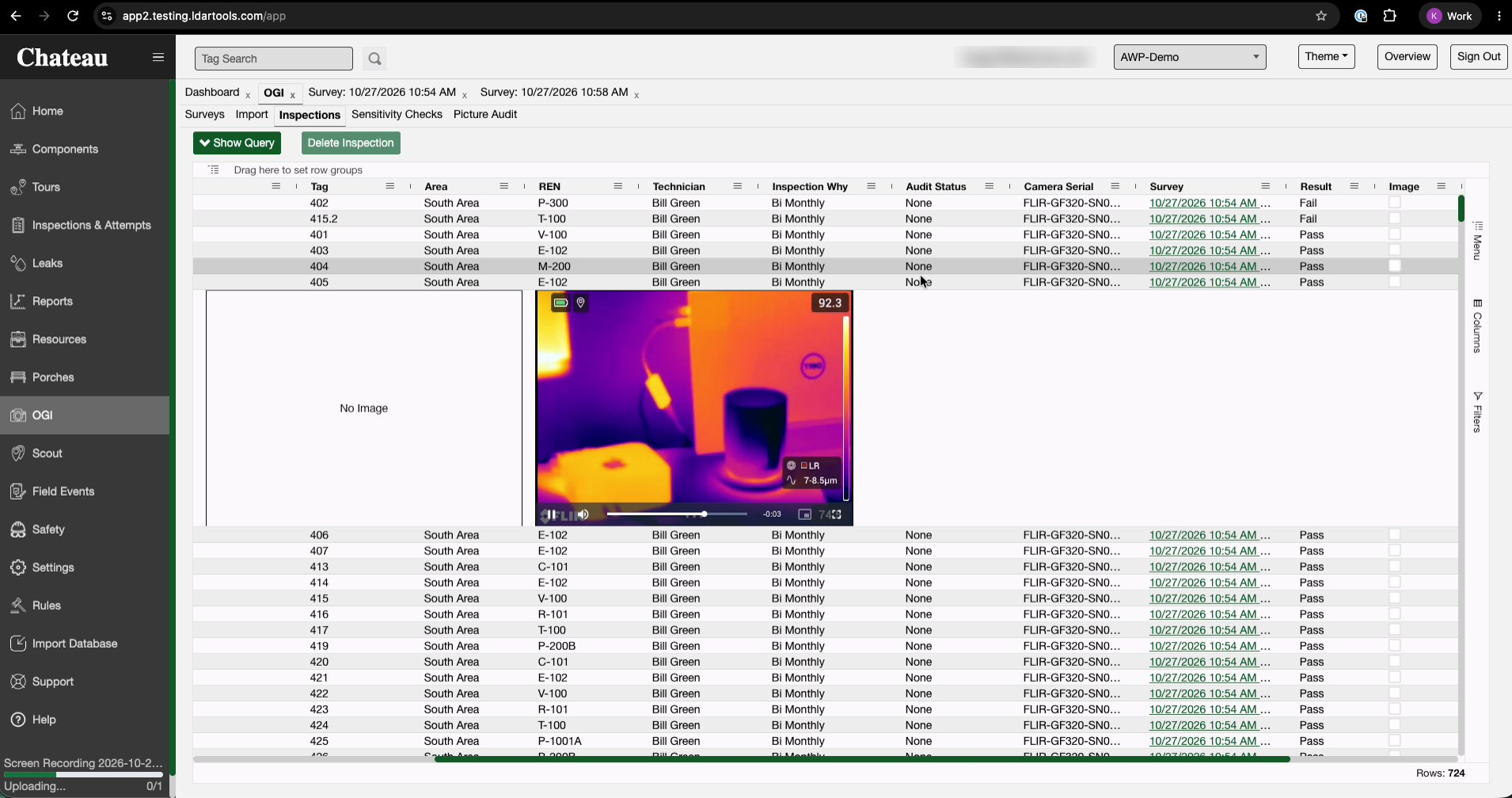
- OGI › Inspections: every path inspection has a Survey link to the survey that created it. Group the grid by Survey to see each survey's inspections together. Expand a path inspection to watch the survey's survey video. For now only the first survey video shows there; a later update will let you watch every survey video from the path inspection.
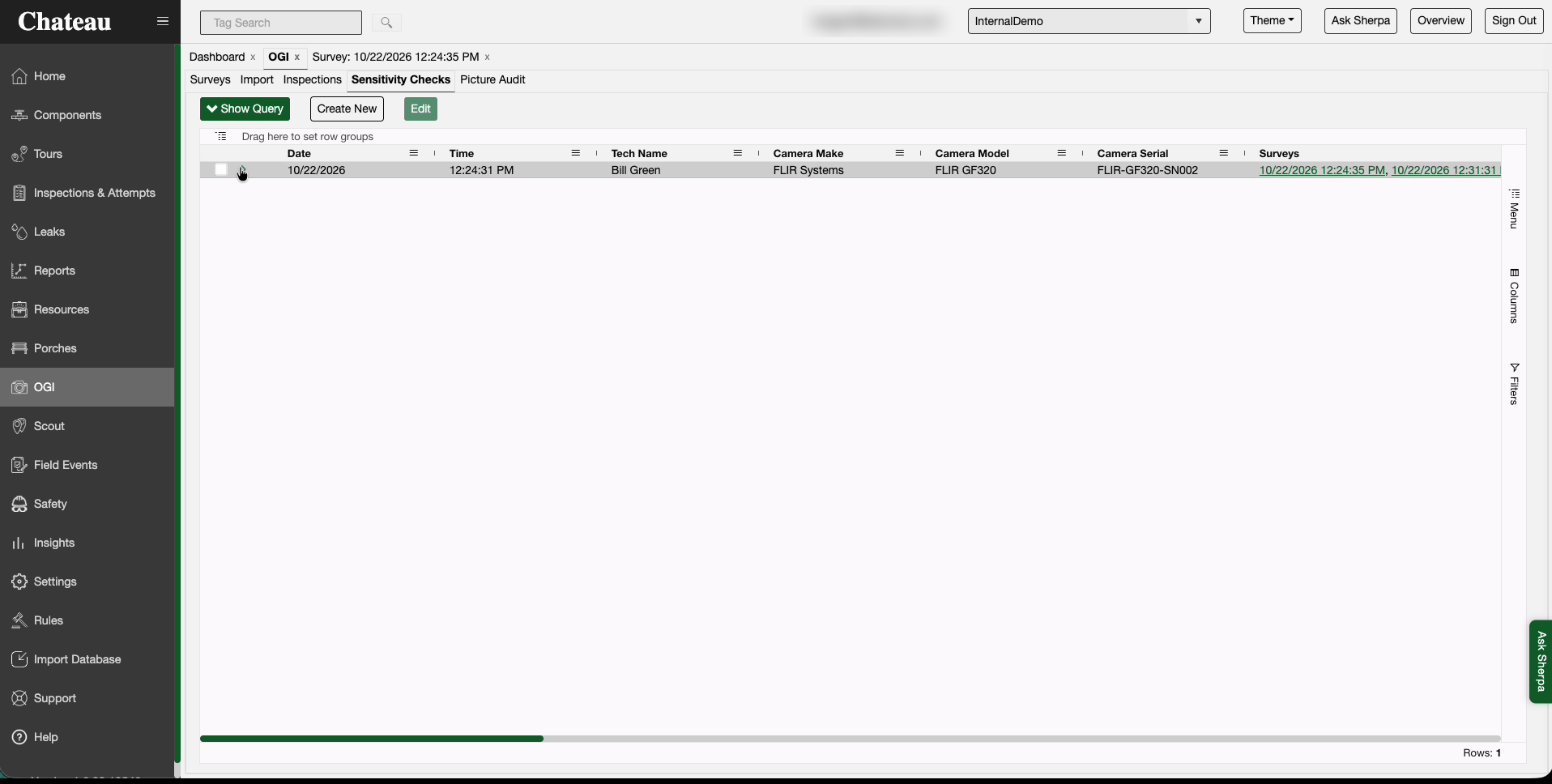
- OGI › Sensitivity Checks has a Surveys column listing the surveys that ran on the camera after each check.
Changing or removing a survey
- A survey can be corrected in Chateau Mobile until the technician checks in. See Recording an AWP Area Survey in Chateau Mobile.
- In Chateau, only the survey comment can be edited.
- A survey can't be deleted. Deleting one of its inspections updates the survey's counts.