Recording an AWP Survey (Chateau Mobile)
Published: 2026-07-21 Revised: 2026-10-28
This article walks a technician through an AWP area survey in Chateau Mobile: starting it, recording leaks and the components you couldn't monitor or didn't get to, completing it, and checking in. For what an area survey is and how the office sets it up, see AWP Area Surveys: Overview.
The screenshots were taken on an Android handheld with a FLIR camera connected. On an iPhone, the buttons and wording inside Chateau Mobile are the same.
Before you start
- Check out the database as usual.
- Connect your OGI camera, if it connects wirelessly. Join the camera's Wi-Fi hotspot, then tap the Camera tile on the Dashboard. See Connecting a Wireless OGI Camera to Chateau Mobile. When it is connected, the tile shows the camera's name.
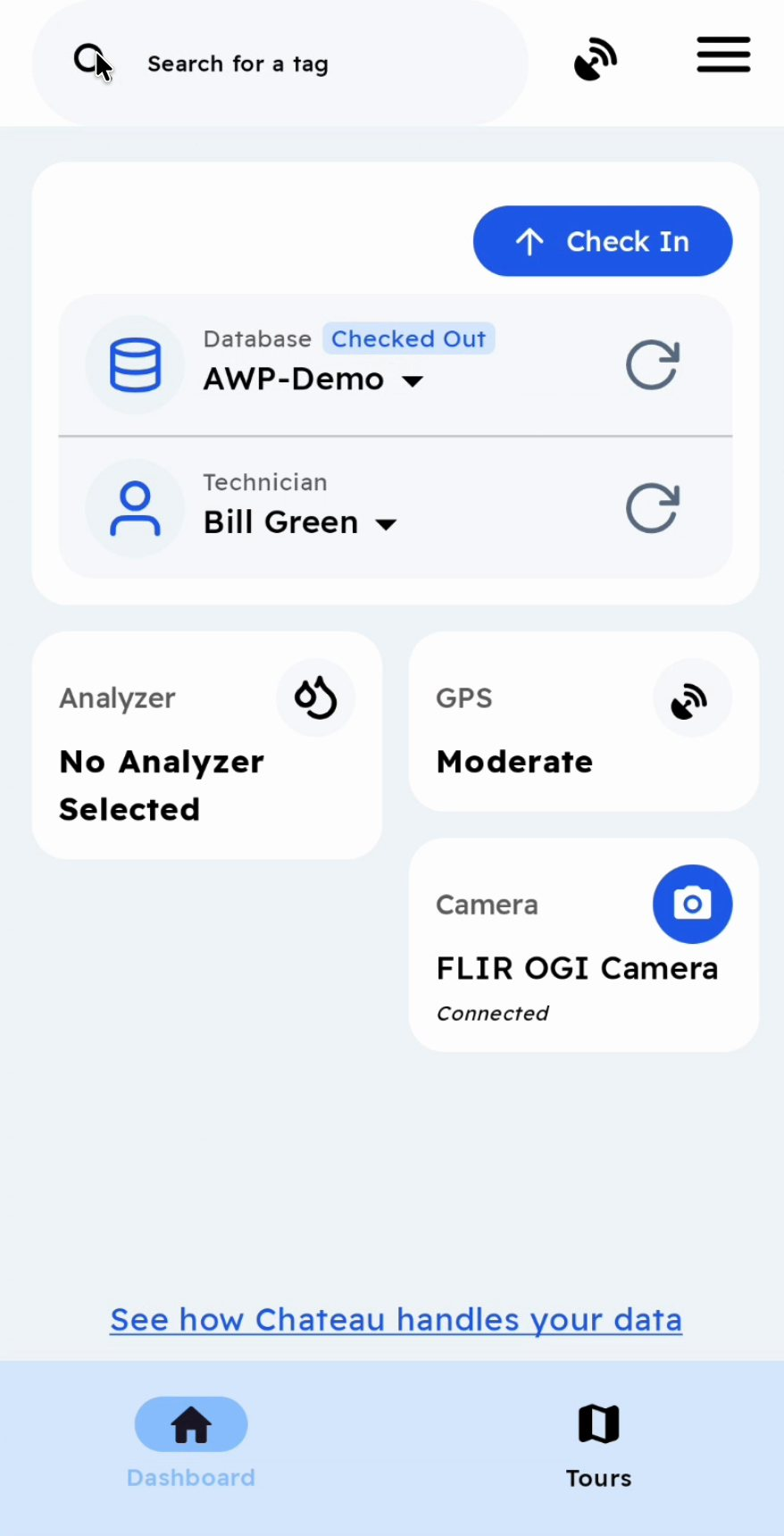
If your camera doesn't connect wirelessly, you can still survey. See Surveying without a connected camera below.
1. Start the survey
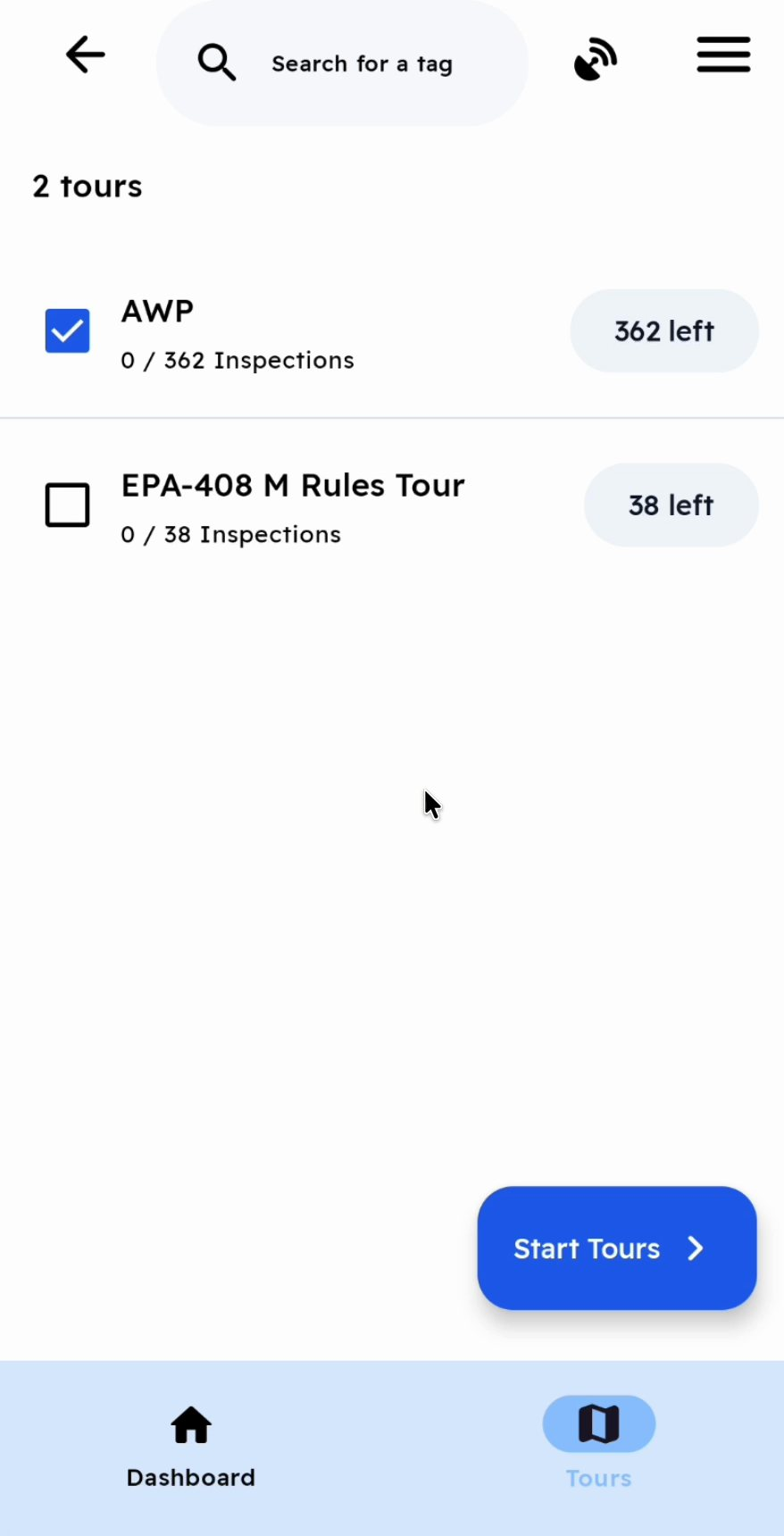
- Tap Tours, tick the tour you are surveying and tap Start Tours. OK the tour's safety notice if it has one.
- Tap Start Survey at the bottom of the component list.
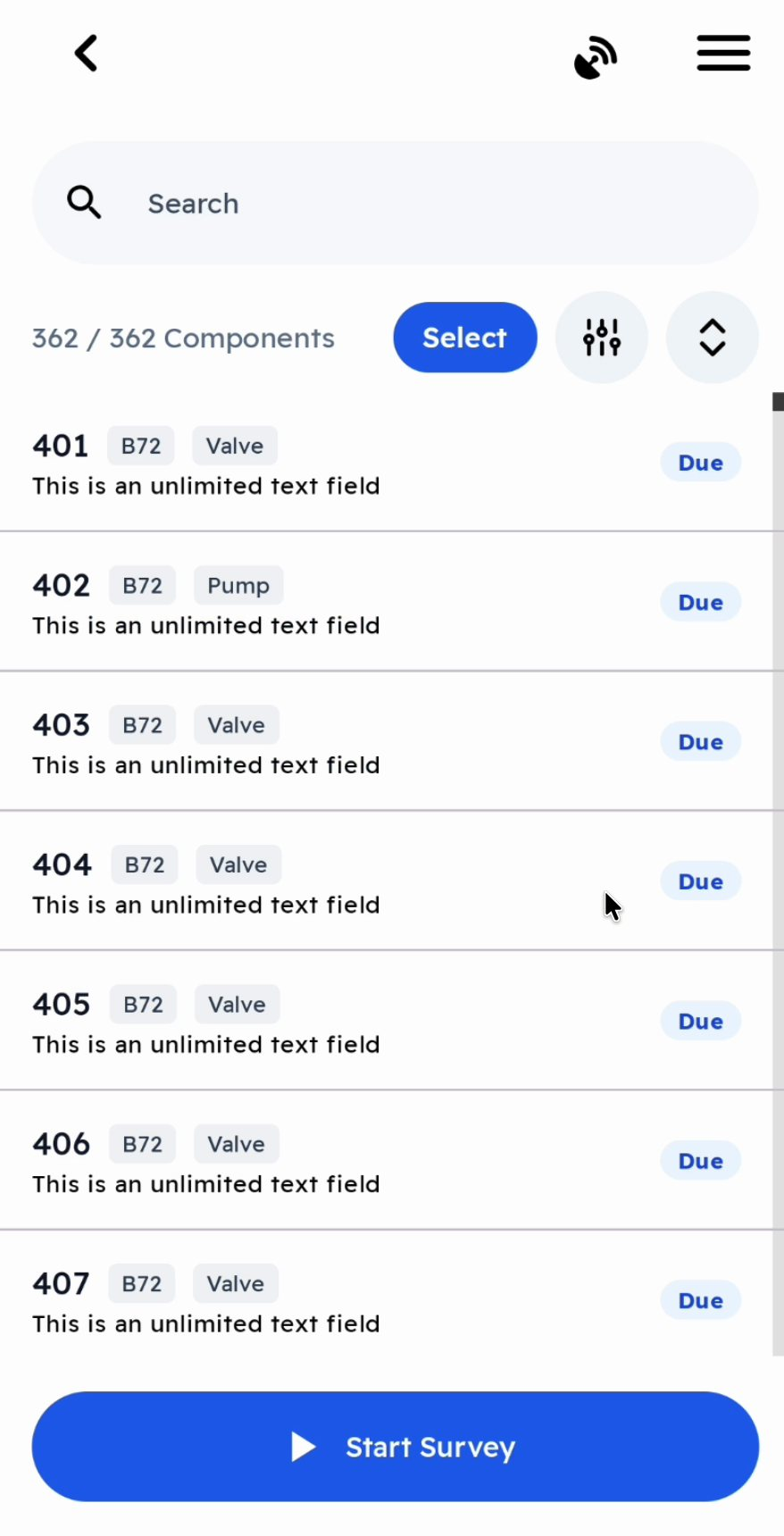
Start Survey only appears on a tour made up entirely of OGI inspections. If you don't see it, check with your coordinator.
2. The sensitivity check
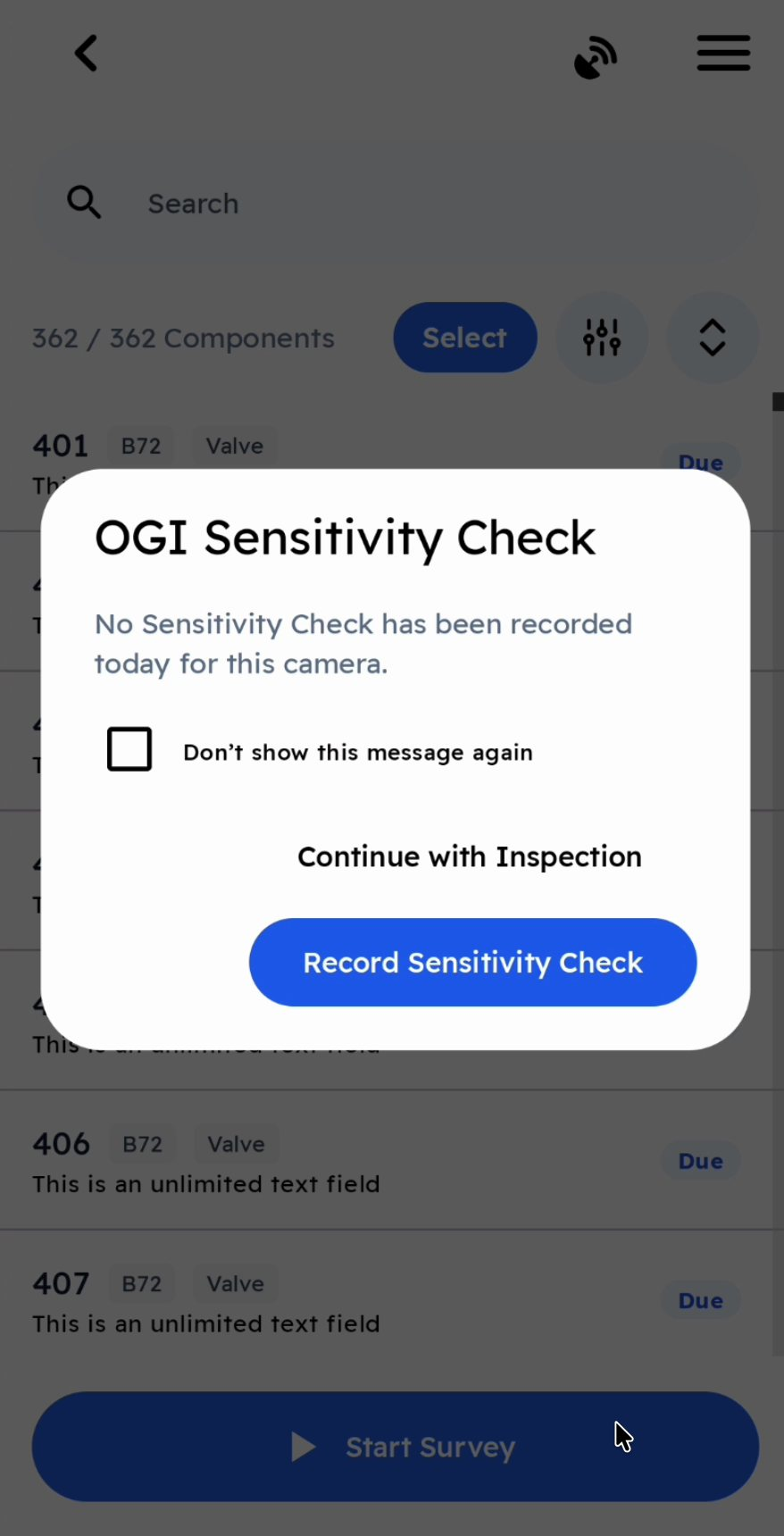
If there is no OGI sensitivity check today for the camera you are using, Chateau Mobile warns you before the survey begins.
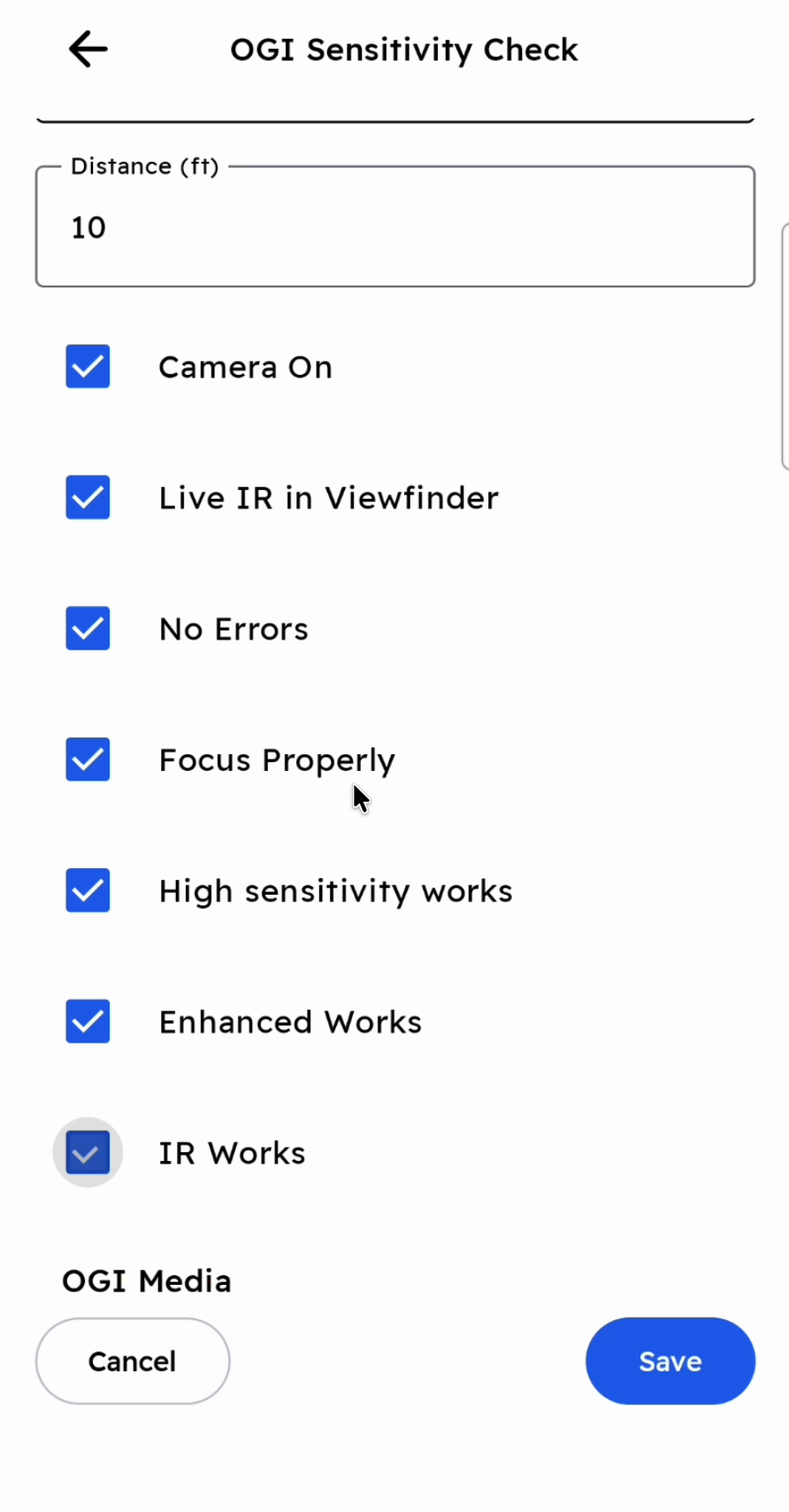
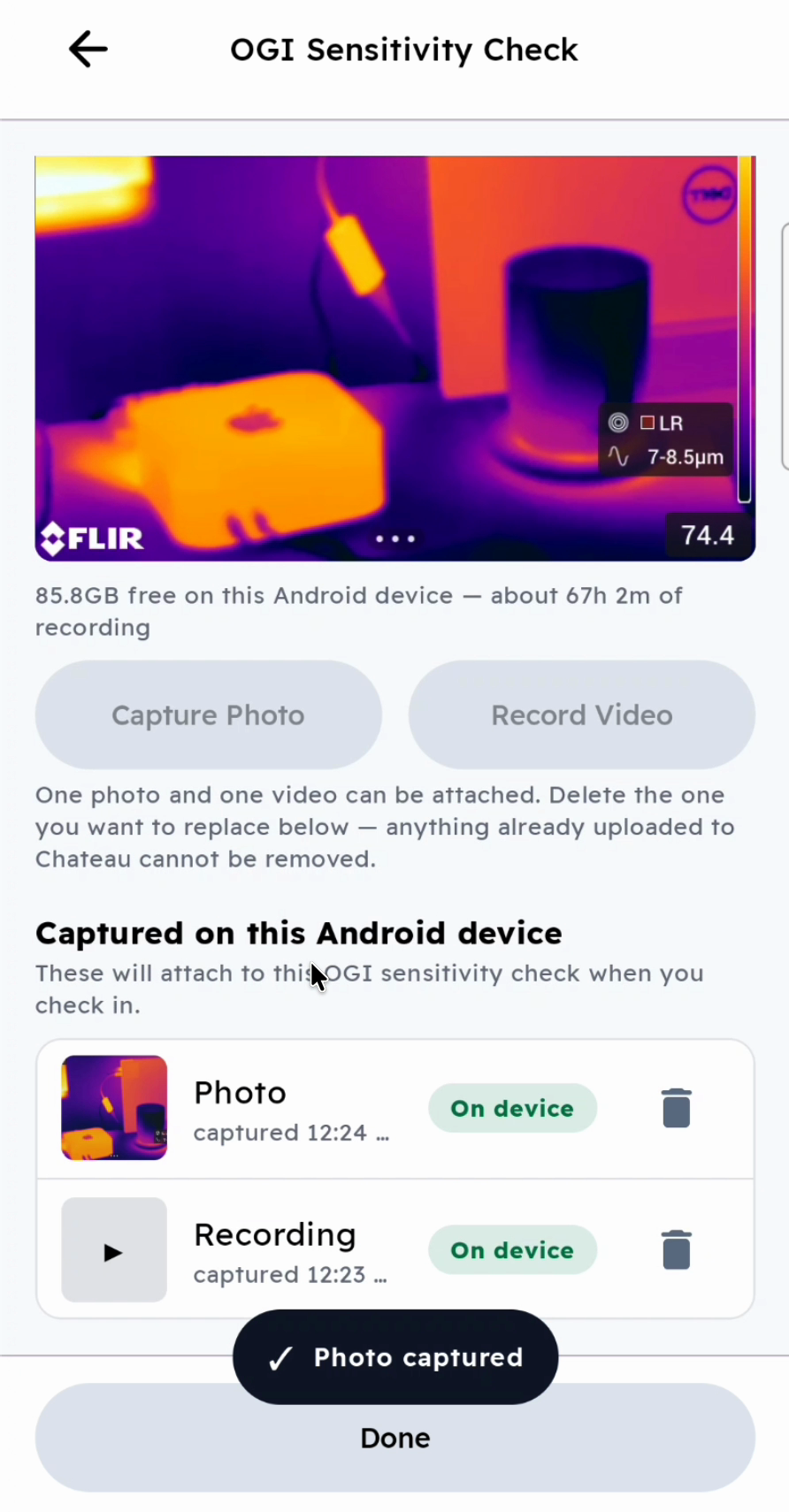
- Tap Record Sensitivity Check to do it now. Fill in the form, tap Capture Media to record the test gas release with the camera, then tap Save. You are taken back to the tour to start the survey.
- Tap Continue with Inspection to start the survey without one. The survey records that no sensitivity check was linked.
3. Record the survey video
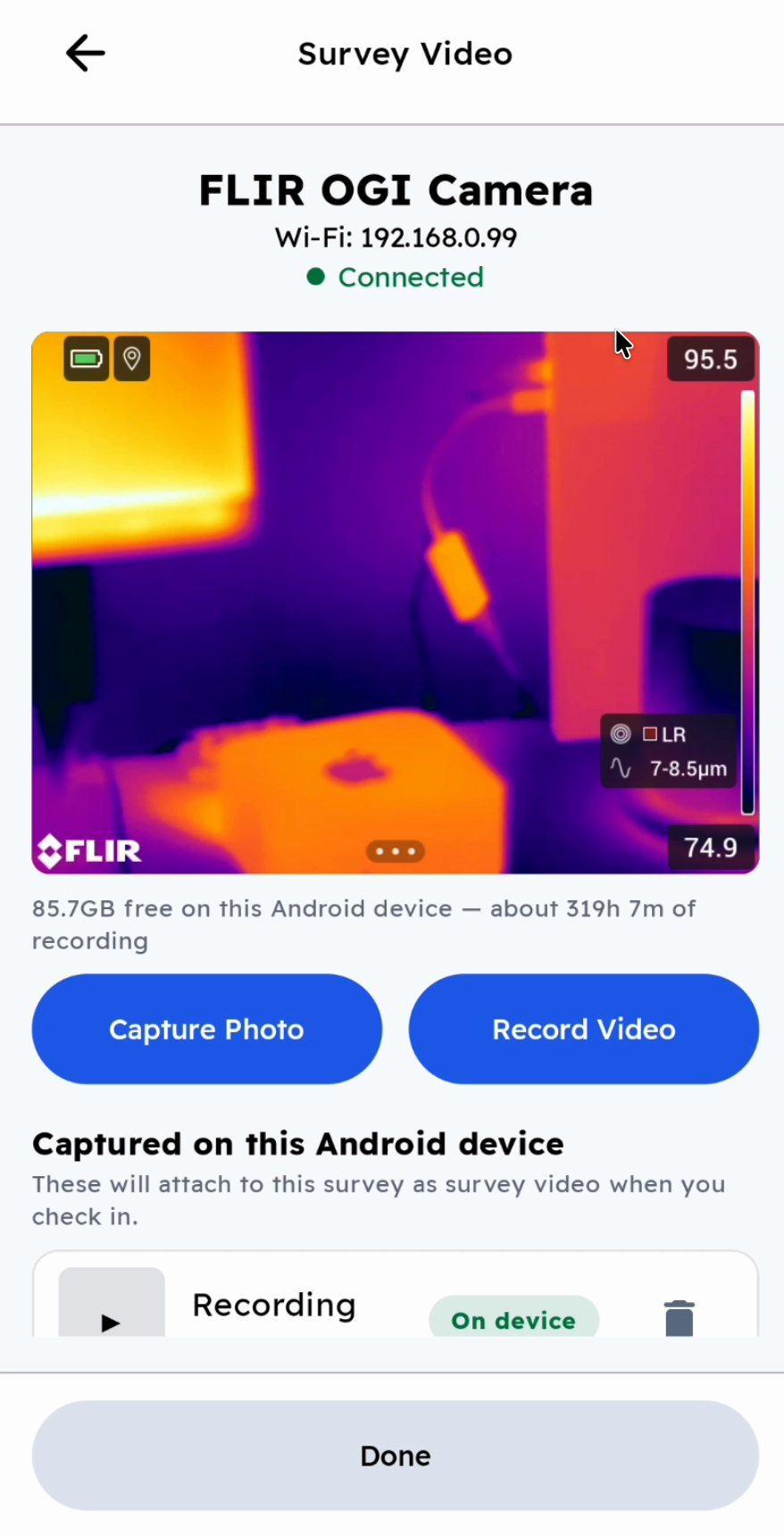
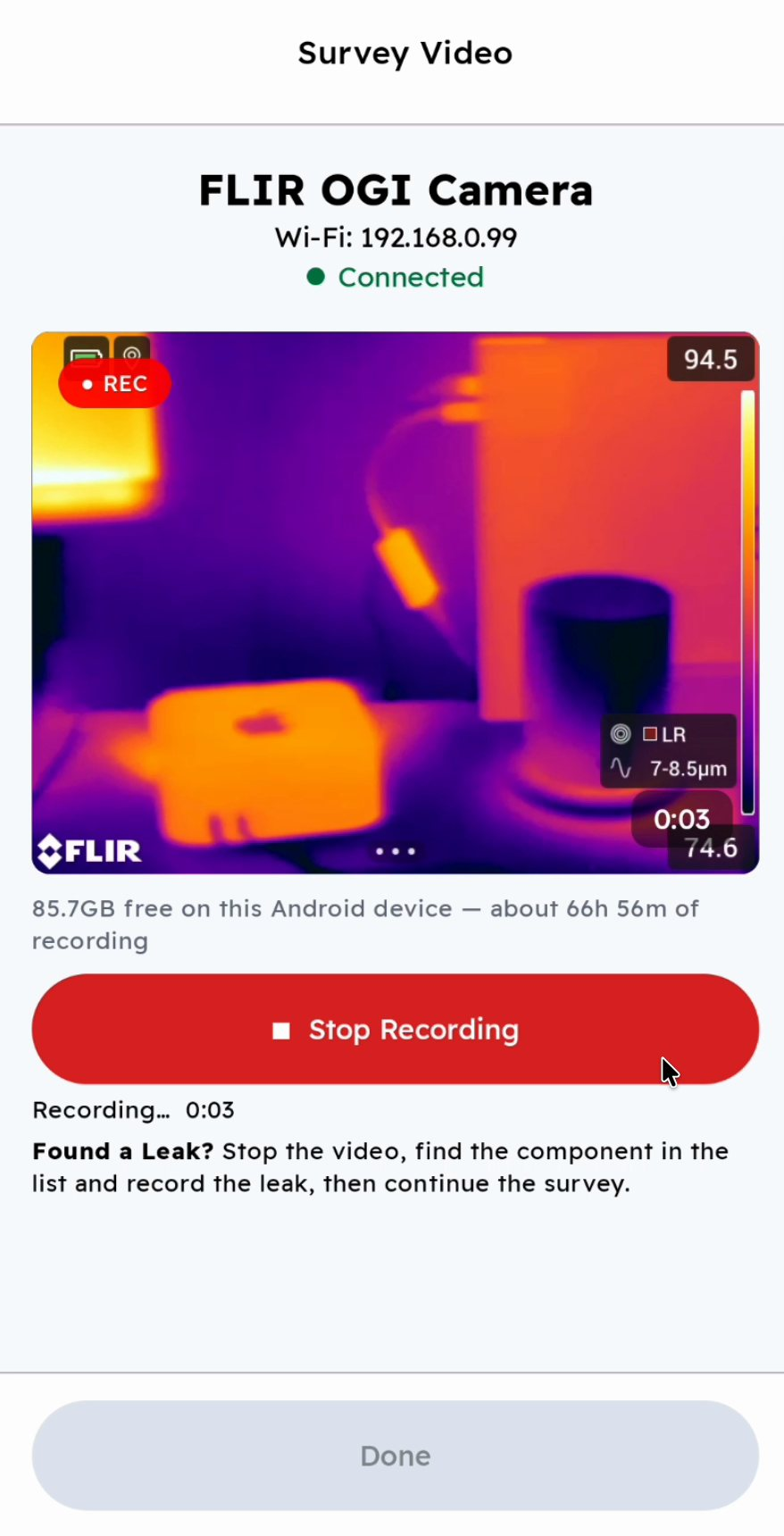
With a camera connected for Stream, Start Survey opens the Survey Video screen with the camera's live view.
- Tap Record Video and walk the tour's components. This recording is the survey video, the record that shows the components were surveyed, including the ones with no leaks.
- Keep the Chateau Mobile screen open while you record. On an iPhone, locking the phone ends the recording.
4. Record a leak
- When you find a leak, tap Stop Recording, then Done. That section of the survey video is saved. The tour now shows Survey paused at the top.
- Find the leaking component in the list. Search by tag if that's quicker.
- Tap the component and choose Record Leak. If no sensitivity check has been recorded today for the camera, you're reminded again. Tap Continue with Inspection, or tick Don't show this message again to stop the reminders.
- The camera's live view opens for the leak itself. Record a clip of the leak, or capture a photo, then tap Done.
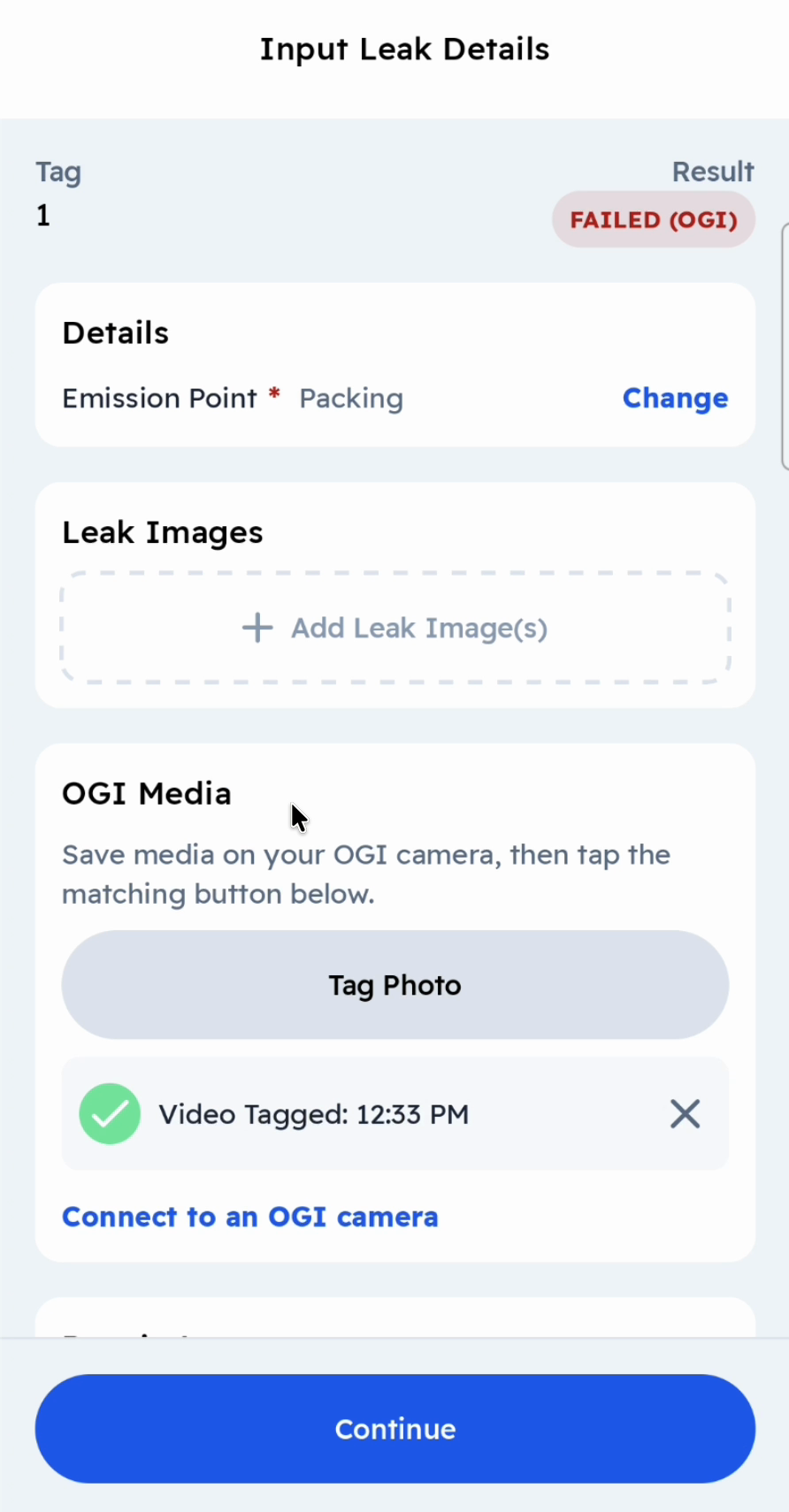
- On Input Leak Details, choose the Emission Point. Add phone photos under Leak Images, and record a repair attempt, if needed.
- Tap Continue to go back to the survey.
- Tap Continue Survey › in the banner and tap Record Video to carry on surveying.
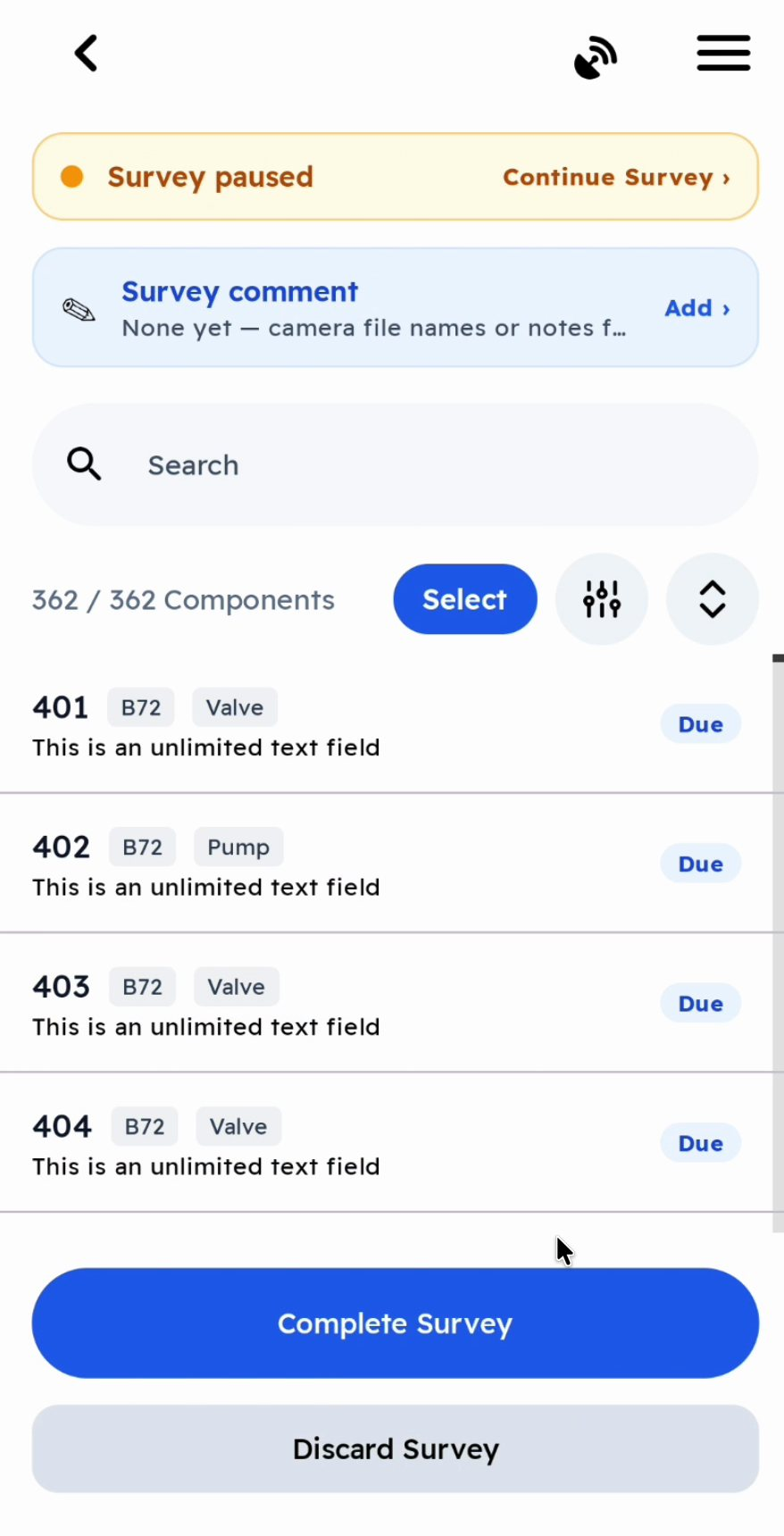
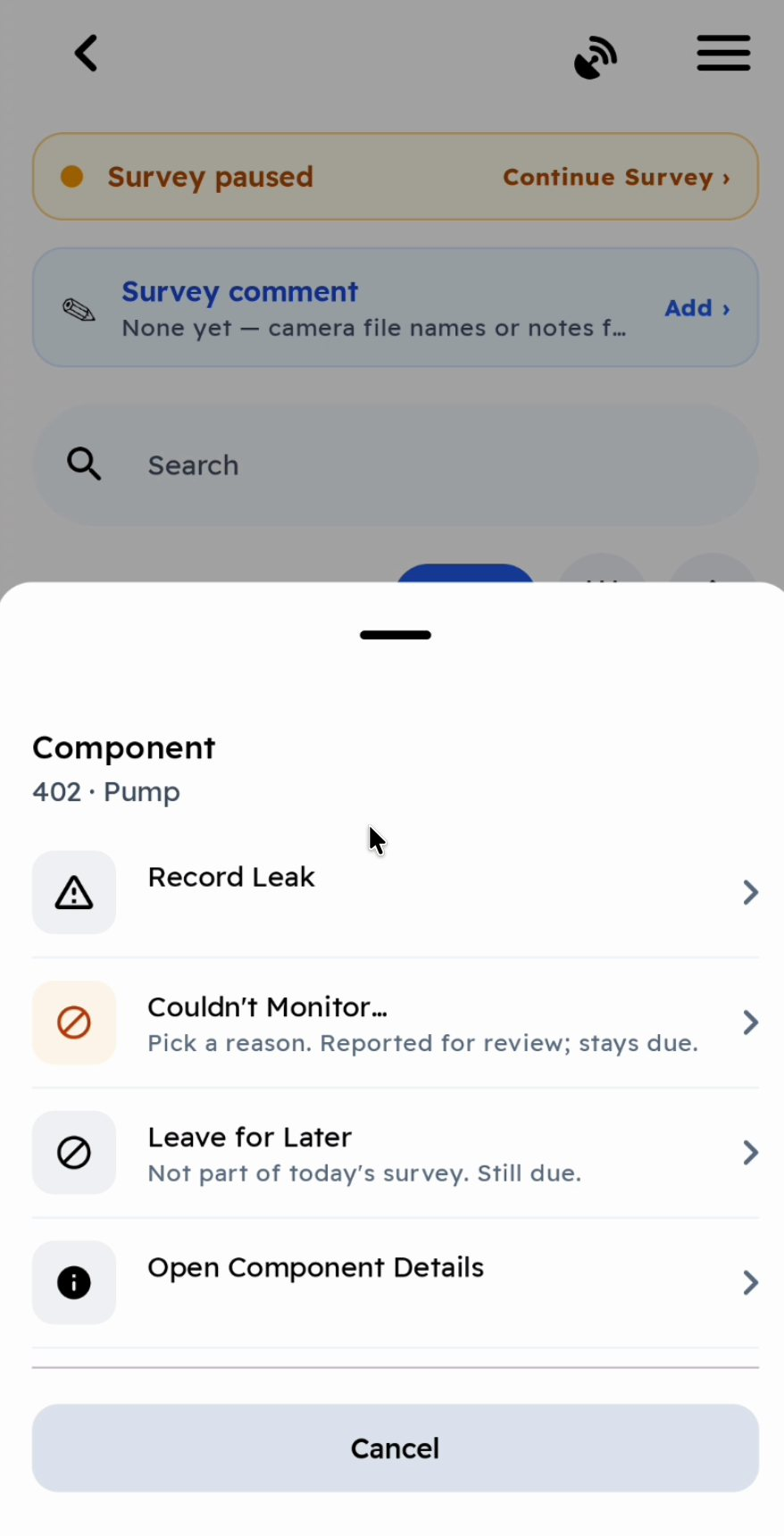
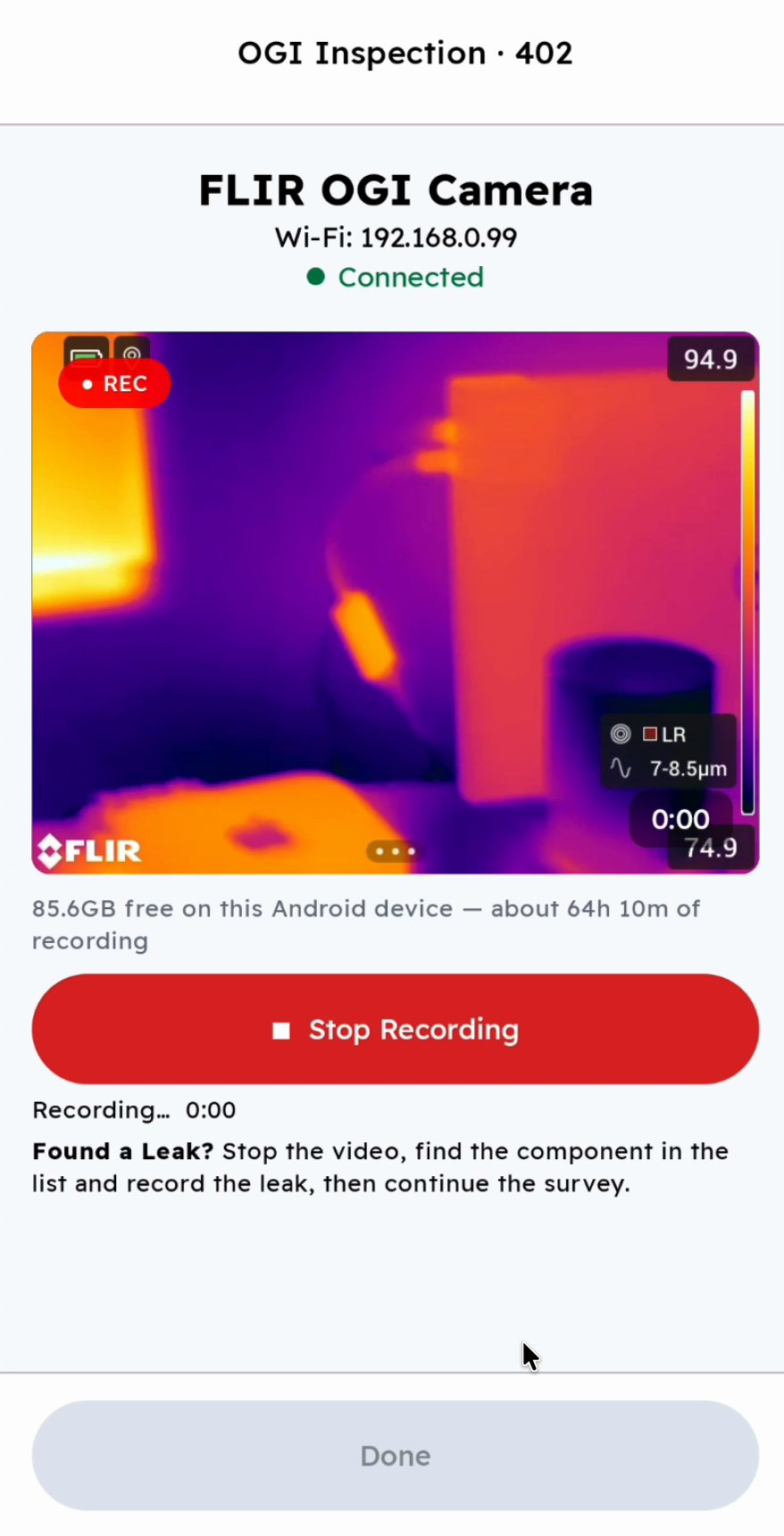
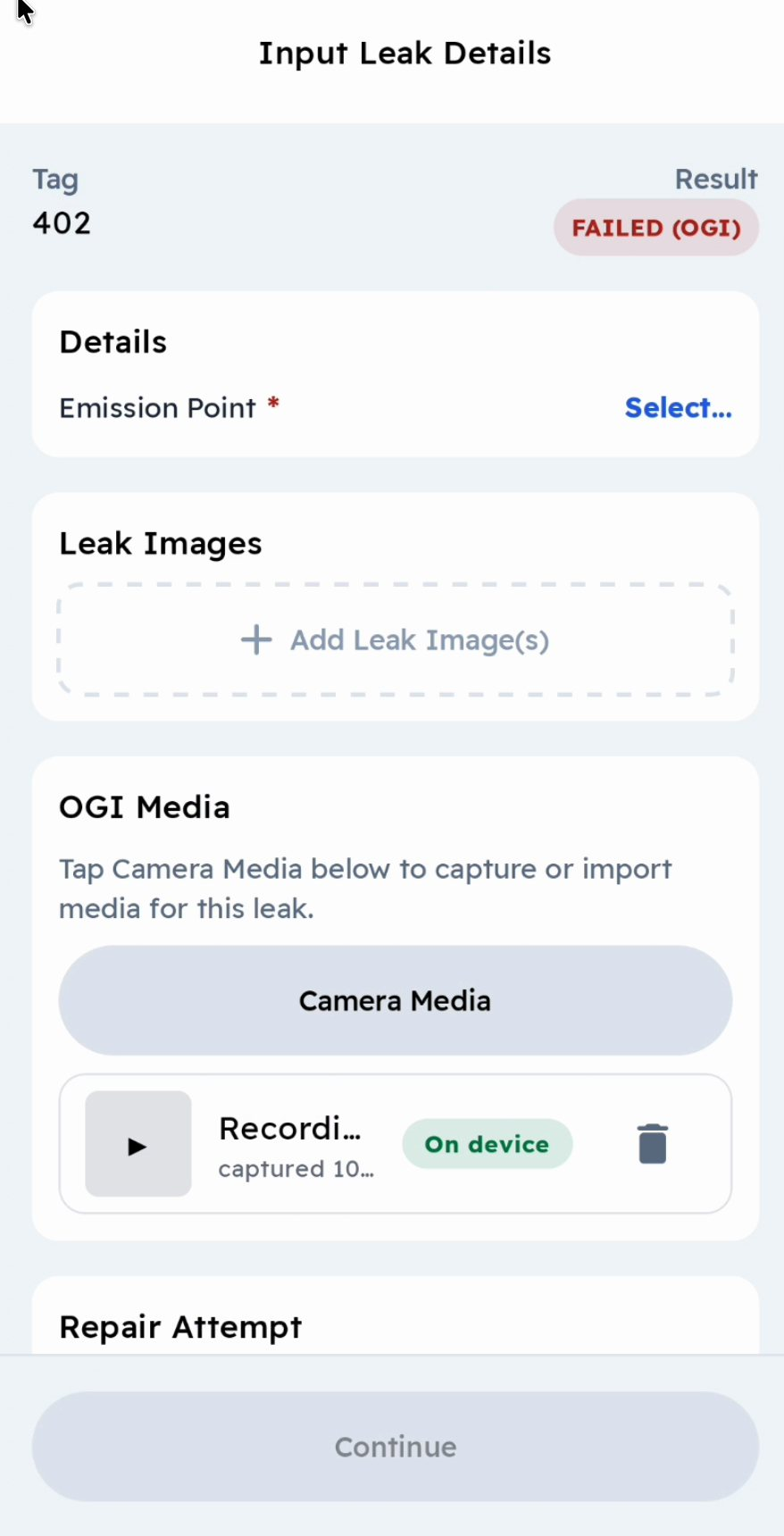
The leak is recorded as a failing OGI inspection, at the time you recorded it, and linked to the survey.
If your facility requires a retest after a repair attempt, Continue & Retest appears once the repair attempt is logged. It works the same way as it does outside a survey.
5. Components you couldn't monitor or didn't get to
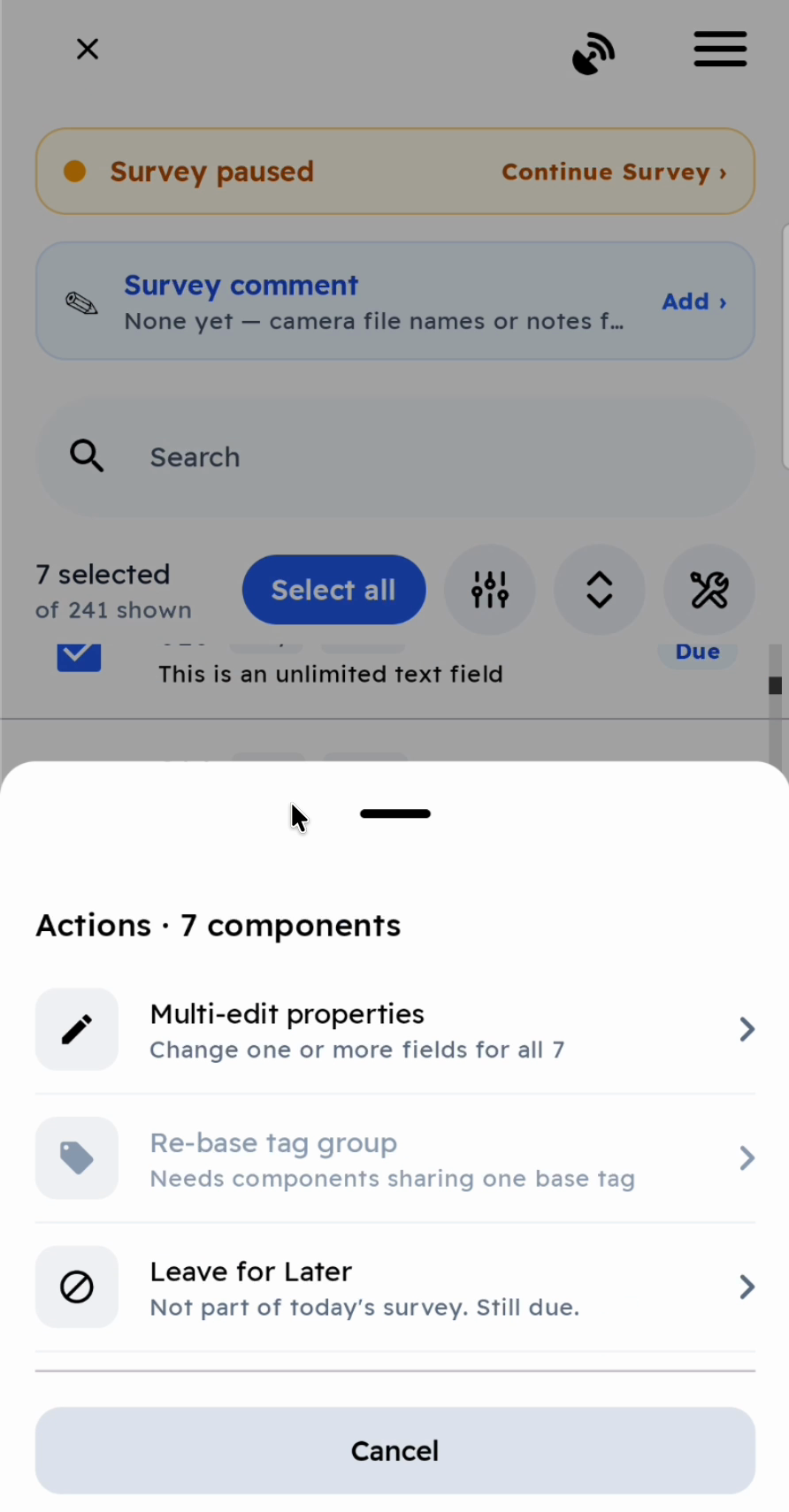
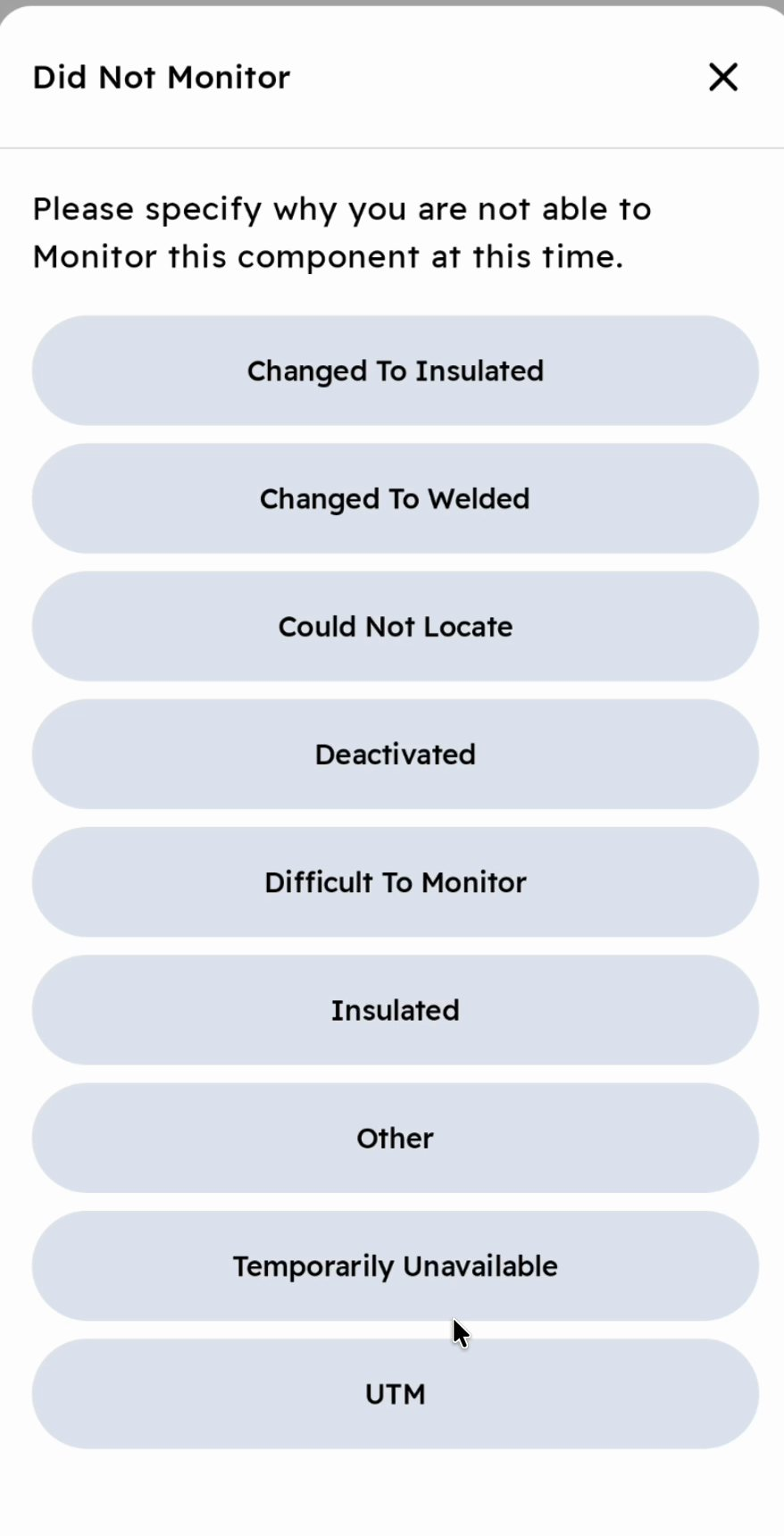
Tap a component to see these choices, or tap Select, tick several components, and tap Actions:
| Choice | Use it when | What happens |
|---|---|---|
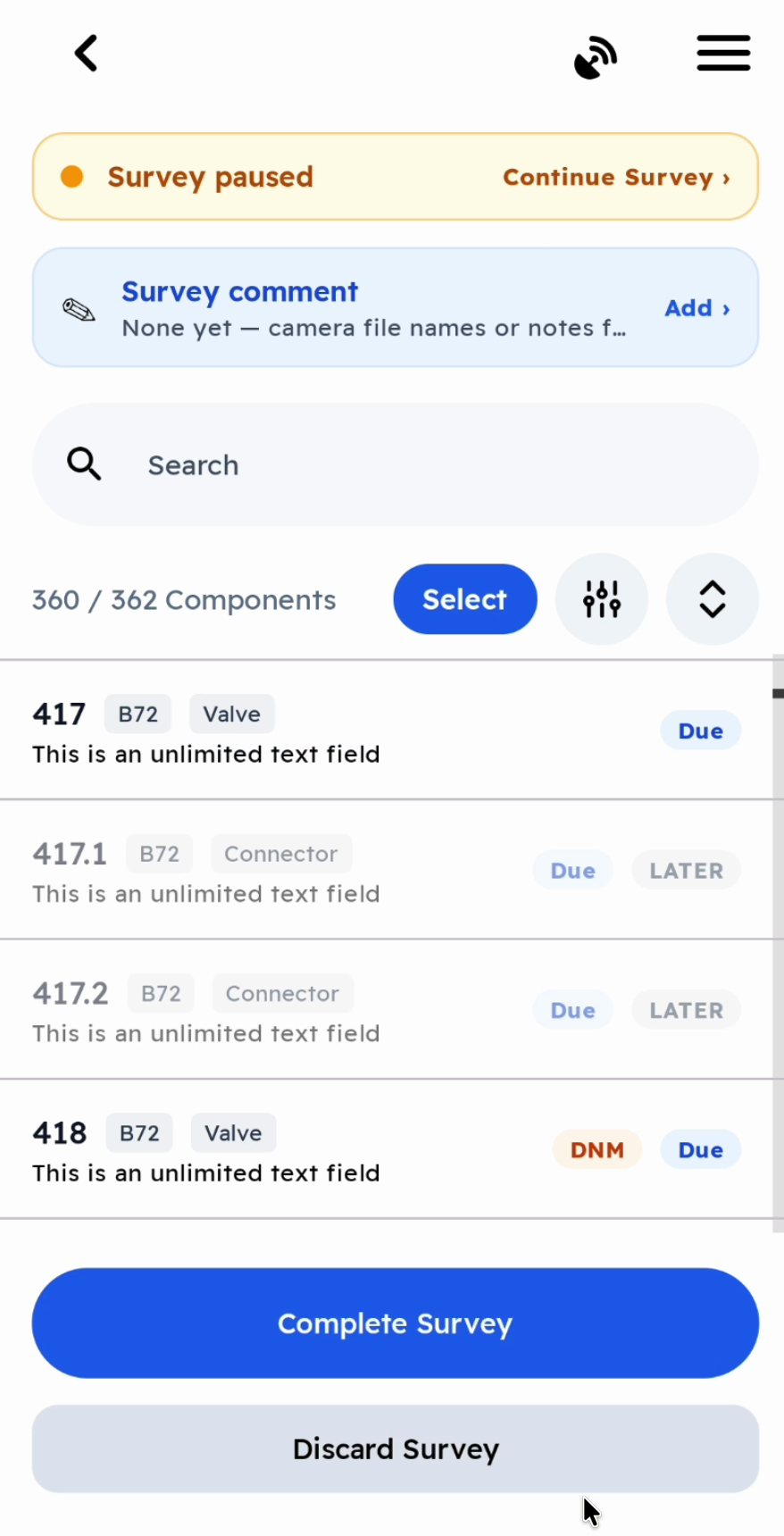
| Couldn't Monitor… | There's a legitimate reason you couldn't monitor the component: it's out of service, purged, barricaded, unsafe to reach, and so on | Pick a reason. Chateau records a Did Not Monitor with that reason, so the office can correct the component in the database or account for it in reports. The component stays due. |
| Leave for Later | There's nothing wrong with the component. You just didn't get to it, for example because you were called out of the unit or ran out of time | Nothing is recorded. The component isn't part of this survey, stays due, and is shown dimmed with a LATER badge. |
| Multi-edit properties (Actions only) | Something about the components themselves has changed, such as their Profile being temporarily unavailable or out of service | Edits the components the same way as editing a component outside a survey, with a Change Why |
Couldn't Monitor… only appears if your facility has the Did Not Monitor field event turned on. An administrator turns it on in Chateau under Settings › Field Events › Did Not Monitor. Setting the OGI Testing Protocol to AWP turns it on automatically, but it can be turned back off. Settings reach Chateau Mobile at check-out, so after a change, check in and check out again.
To put a component back into the survey, tap it and choose Include in Survey.
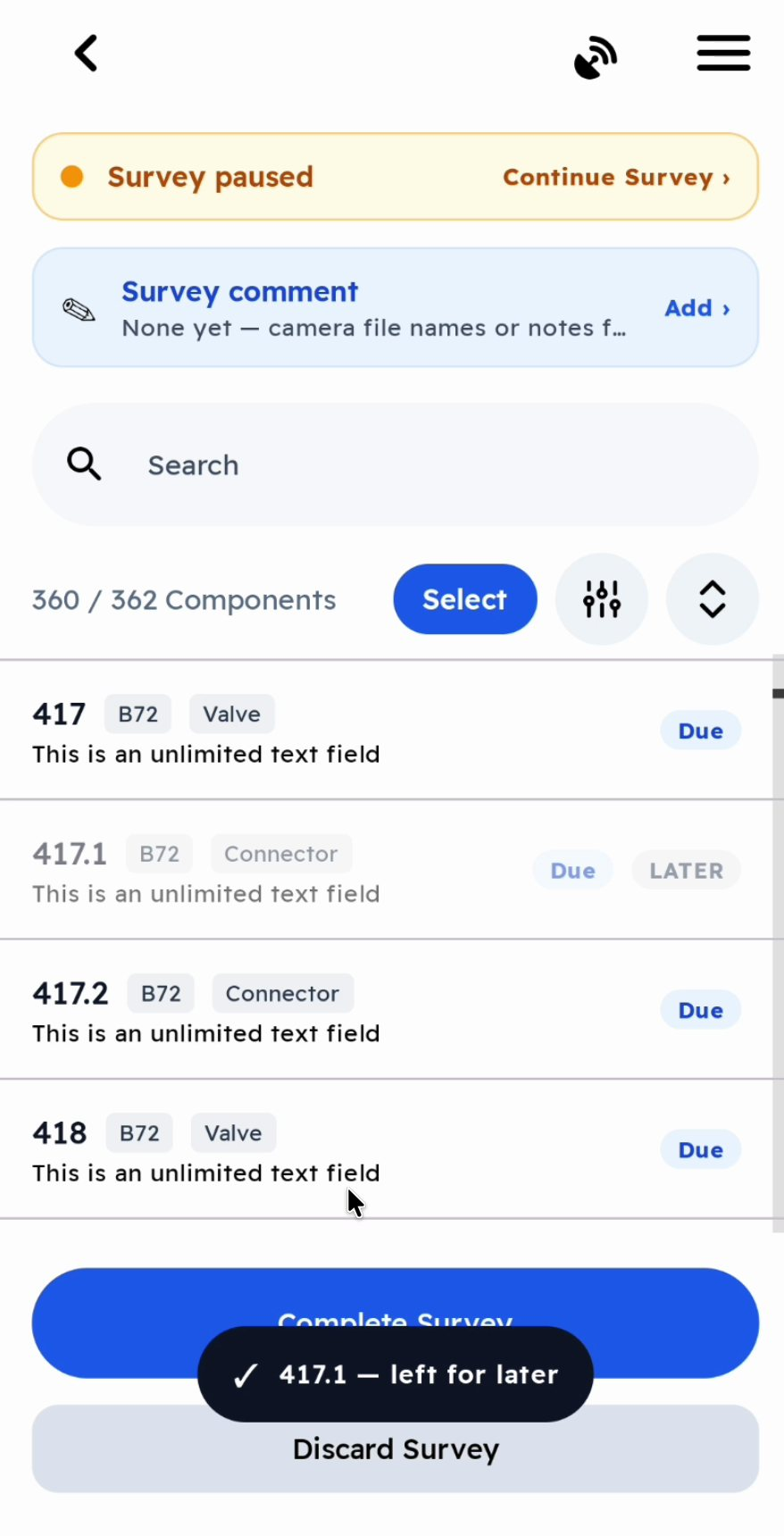
6. Complete the survey
When you have surveyed every component on the tour:
- Stop the survey video and tap Done.
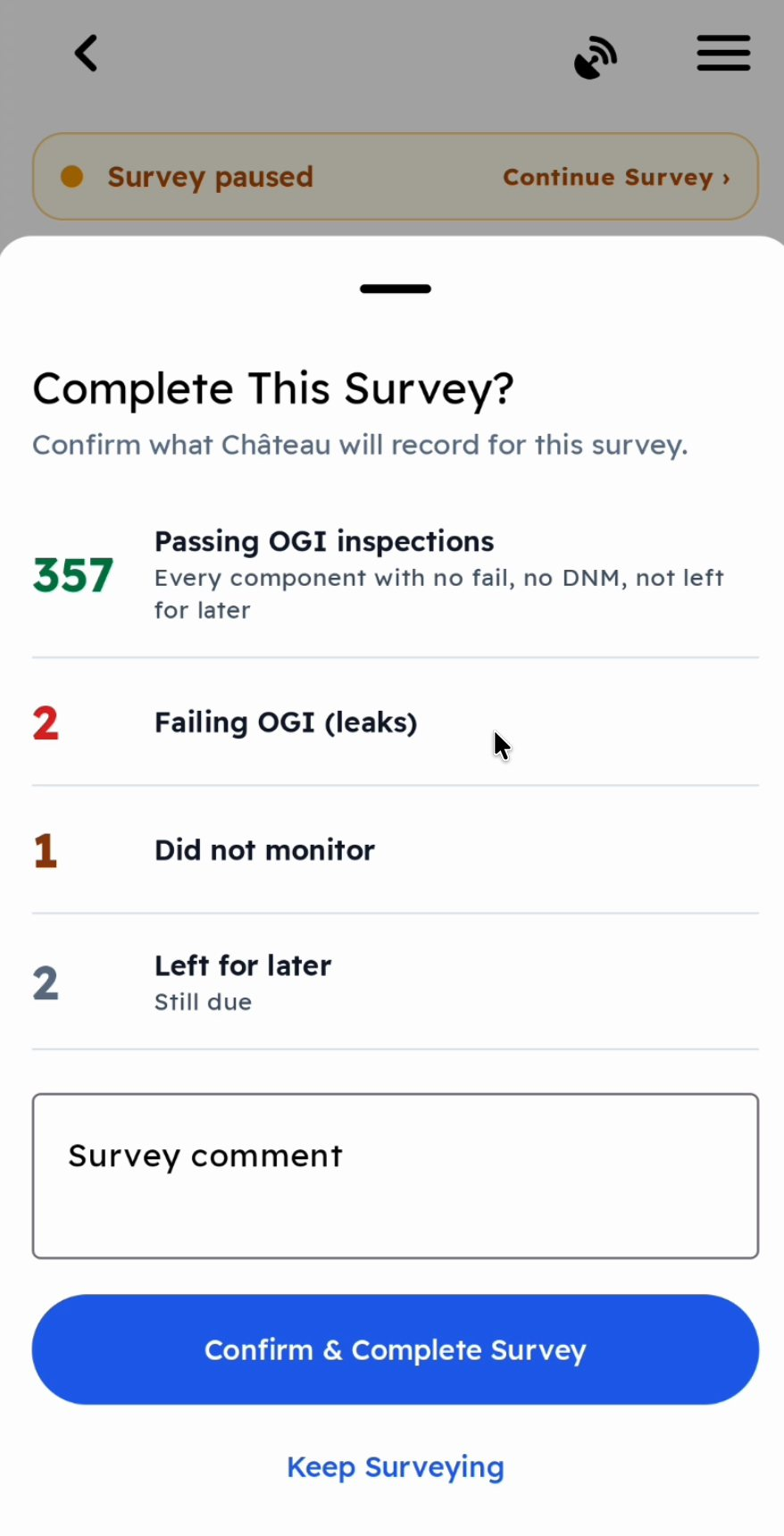
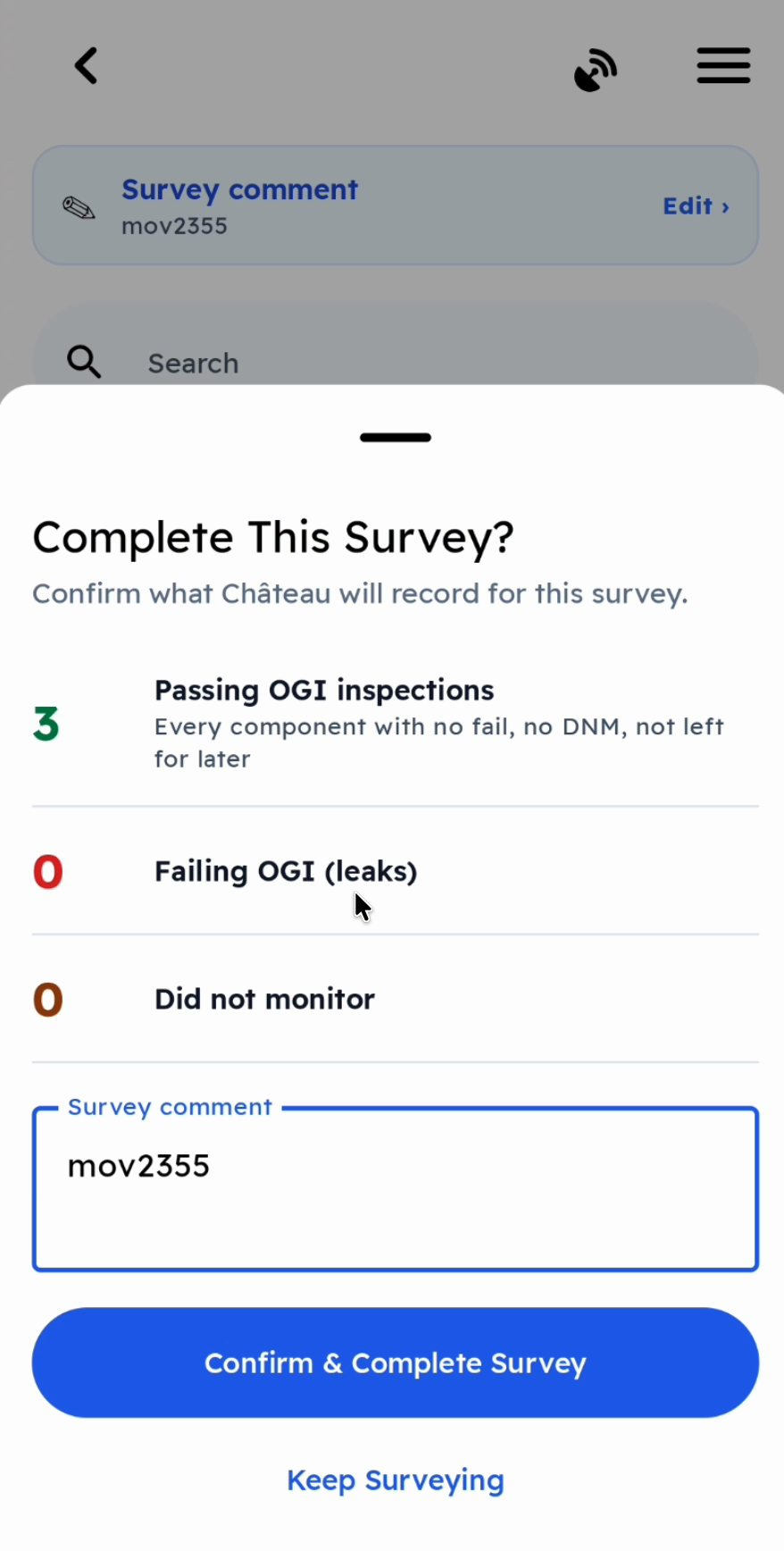
- Tap Complete Survey. The Complete This Survey? screen shows exactly what Chateau will record:
- Passing OGI inspections: every component with no leak, no Did Not Monitor, and not left for later.
- Failing OGI (leaks).
- Did not monitor.
- Left for later: still due.
- Add a Survey comment if there is anything the office should know.
- Tap Confirm & Complete Survey, or Keep Surveying to go back.
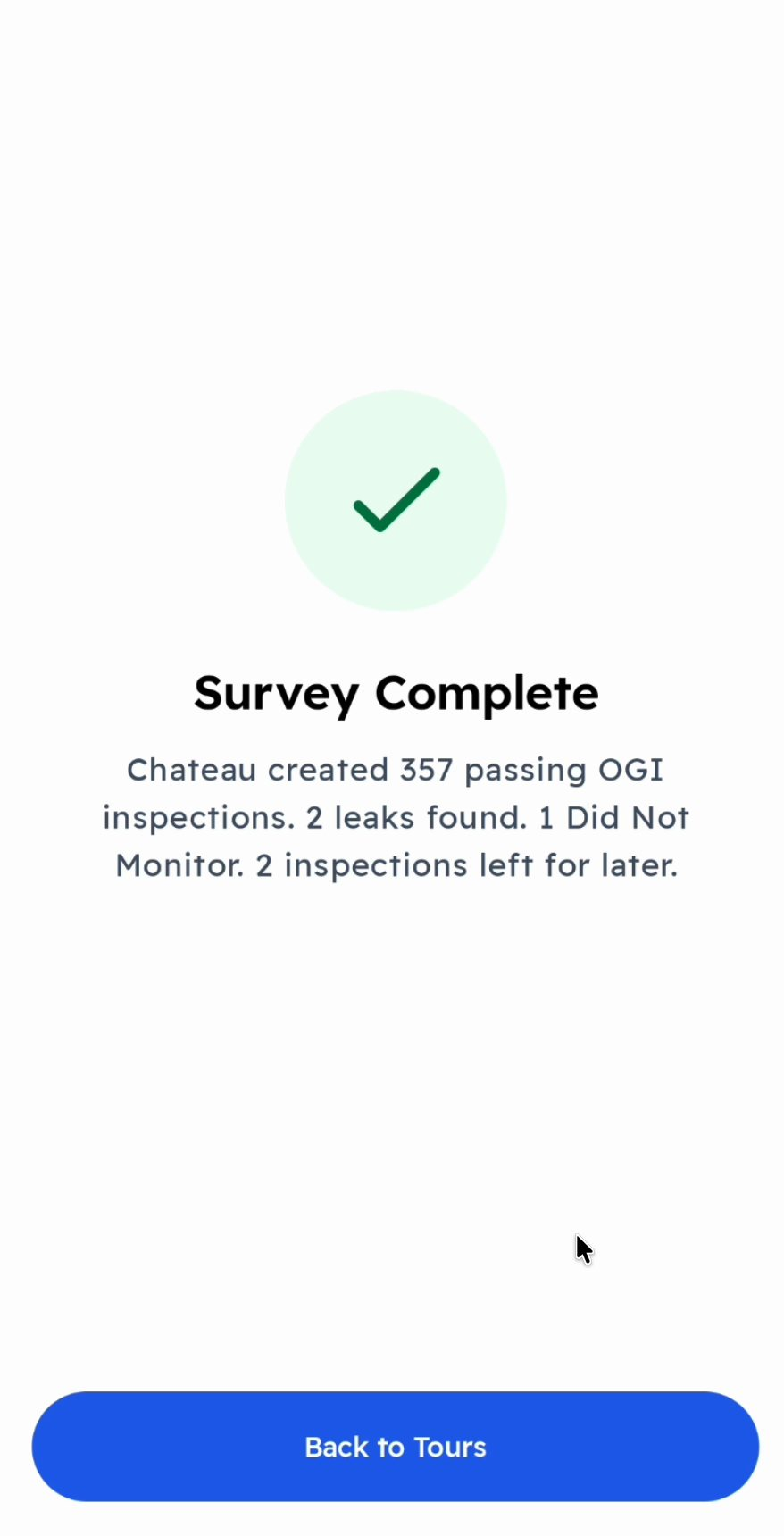
Tap Back to Tours. The completed survey now shows as a card at the top of the tour.
7. After the survey: edit it, or survey what's left
Until you check in, the survey's card has two options.
Edit the survey
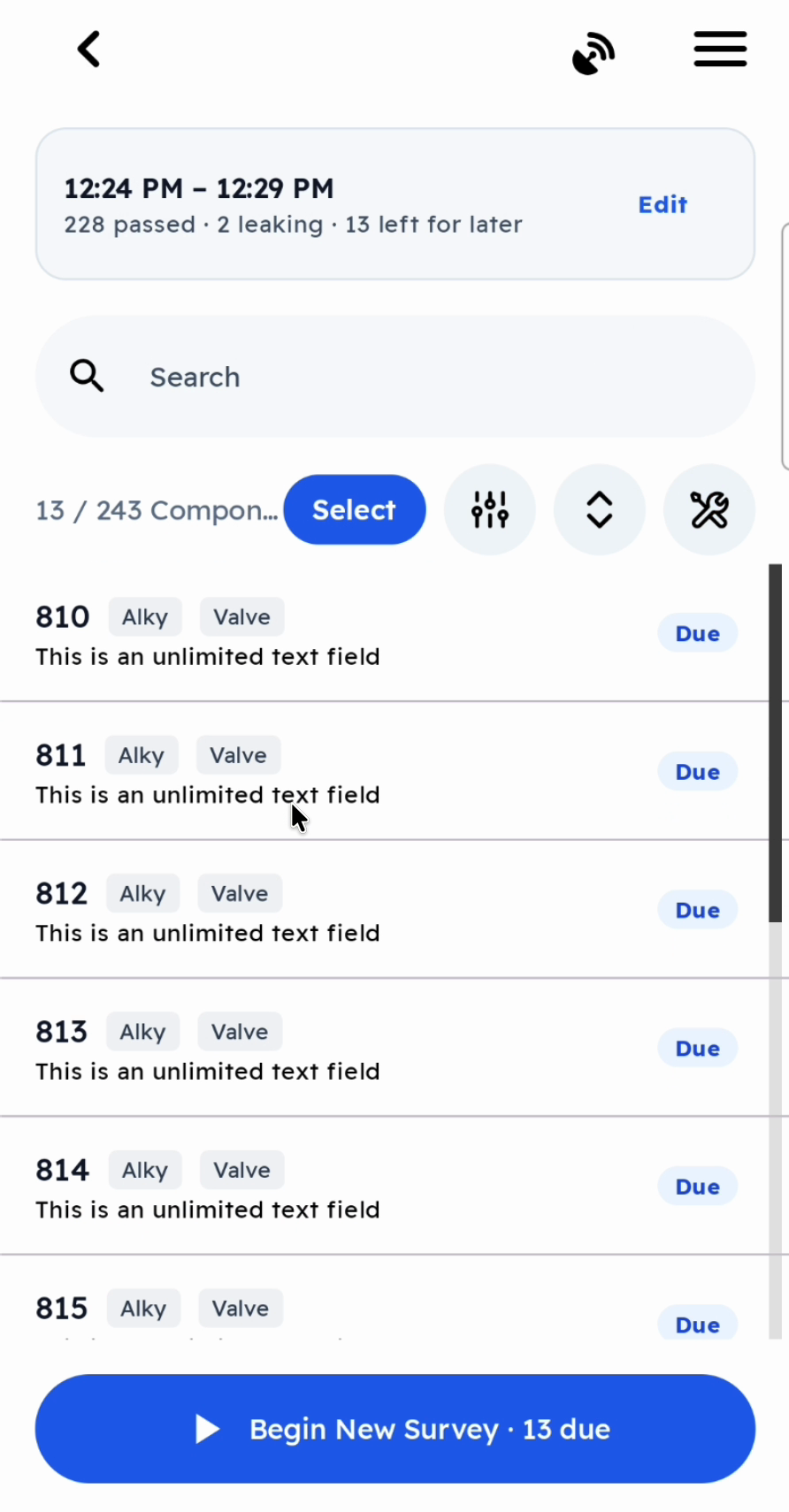
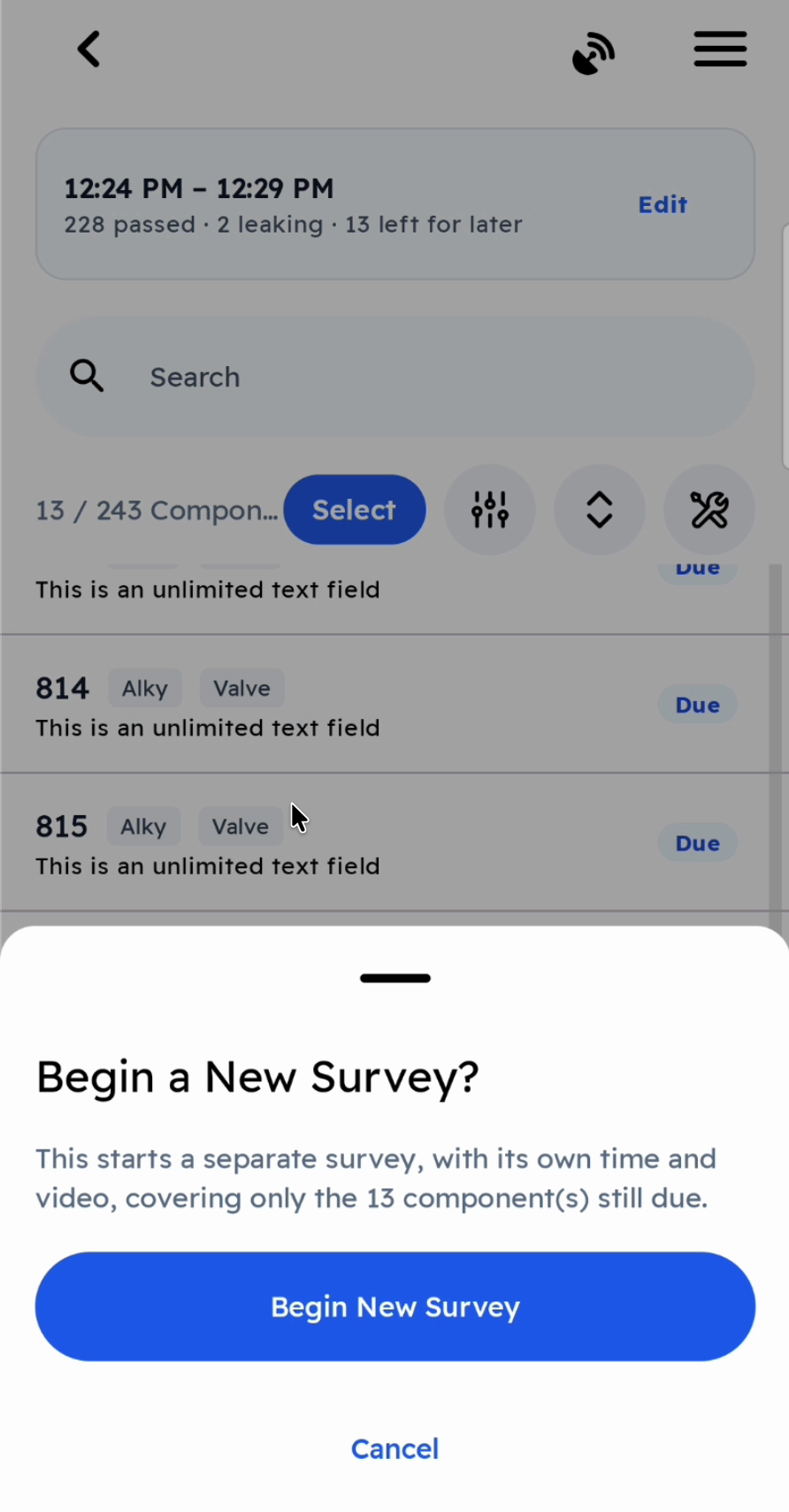
Tap Edit on the card to correct the survey. For example, you can include a component you left for later, or remove a leak recorded on the wrong tag. When you remove a leak, Chateau asks for a reason, which is kept for the audit trail. Tap Save Survey to keep the changes or Cancel to throw them away. The survey's completion time doesn't change.
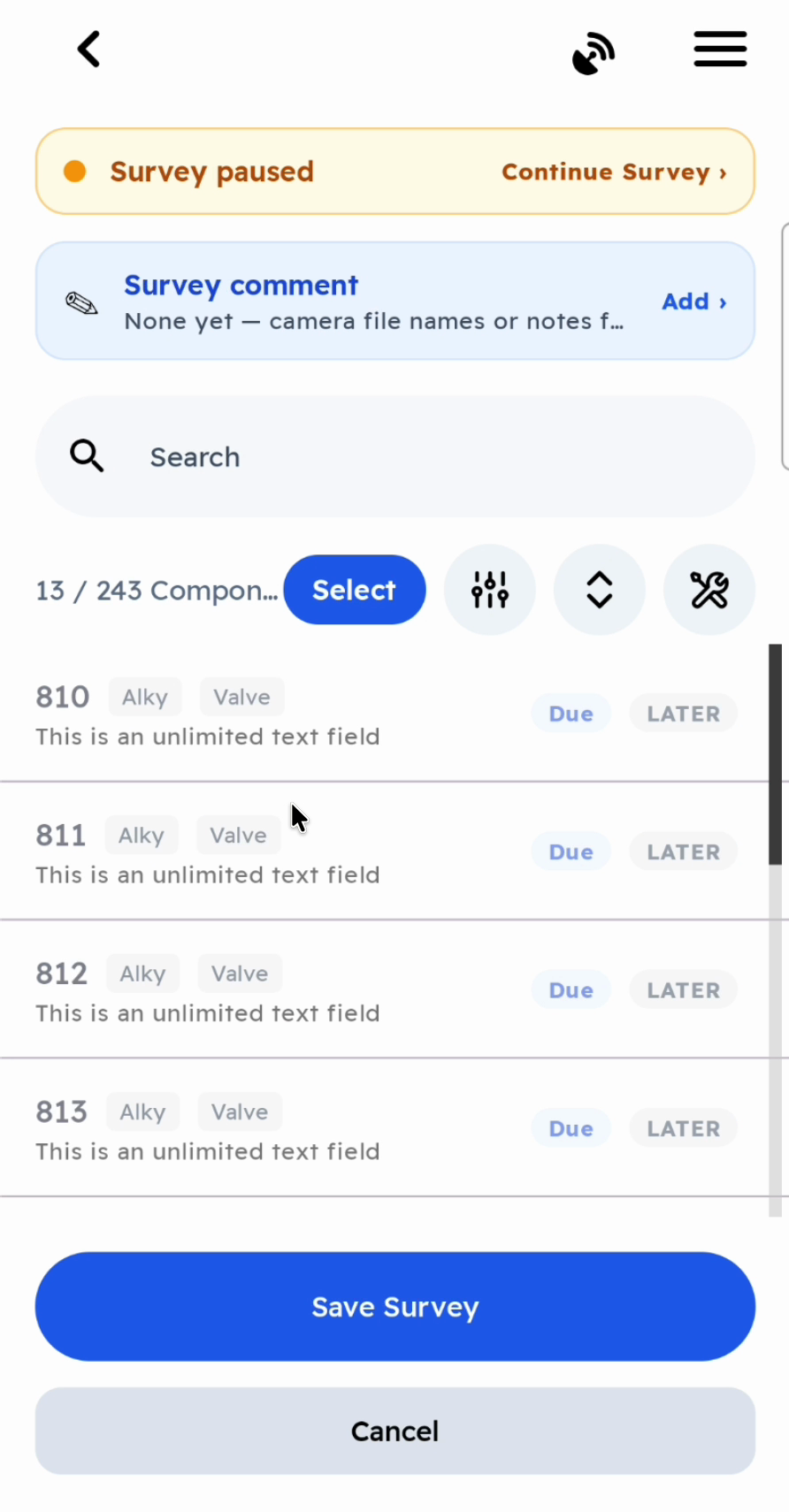
Survey the components still due
If you come back later to the components you left for later, tap Begin New Survey · N due. The new survey covers only those components, with its own start time, video and inspections. Complete it the same way.
Discard a survey
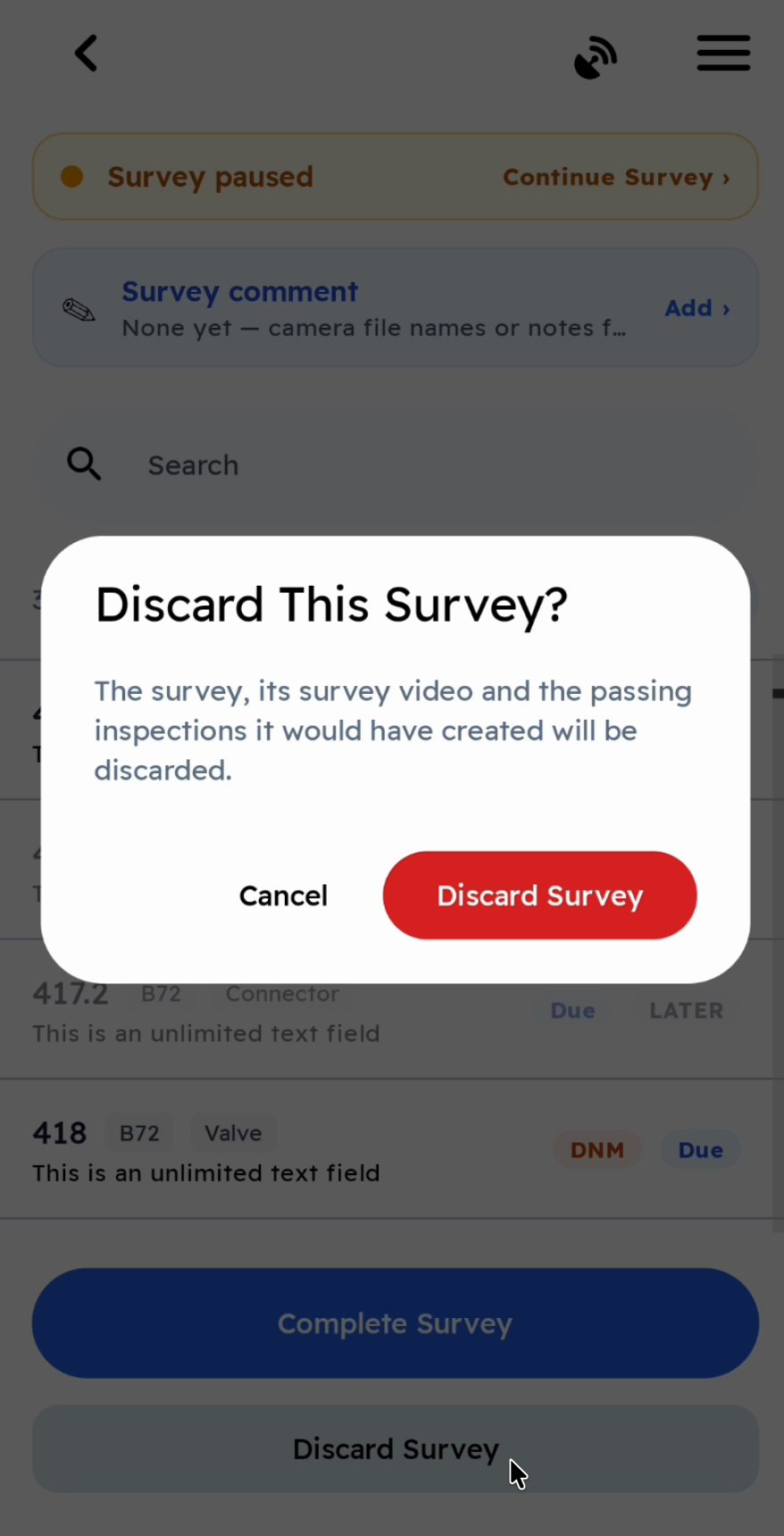
Discard Survey throws away a survey that hasn't been completed: its survey video, and the passing inspections it would have created. If you recorded any leaks or Did Not Monitors, Chateau asks whether to keep them. Kept ones upload as ordinary leaks and Did Not Monitors, without a survey. A completed survey can't be discarded.
Surveying without a connected camera
You can survey with any OGI camera, connected or not.
-
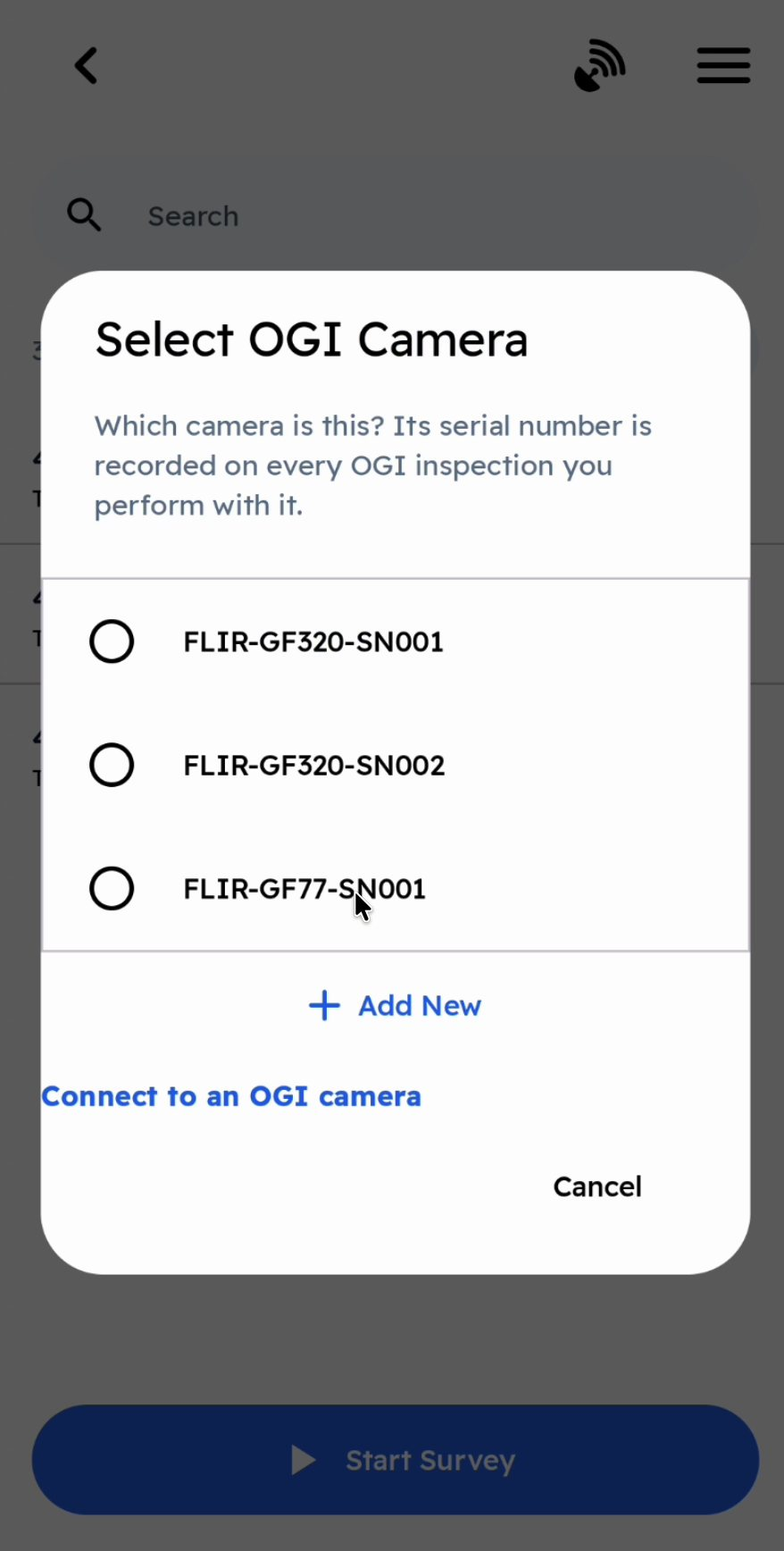
When you tap Start Survey with no camera connected, Chateau Mobile asks which camera you are using (Select OGI Camera). Pick its serial number from the list, or tap Connect to an OGI camera.
-
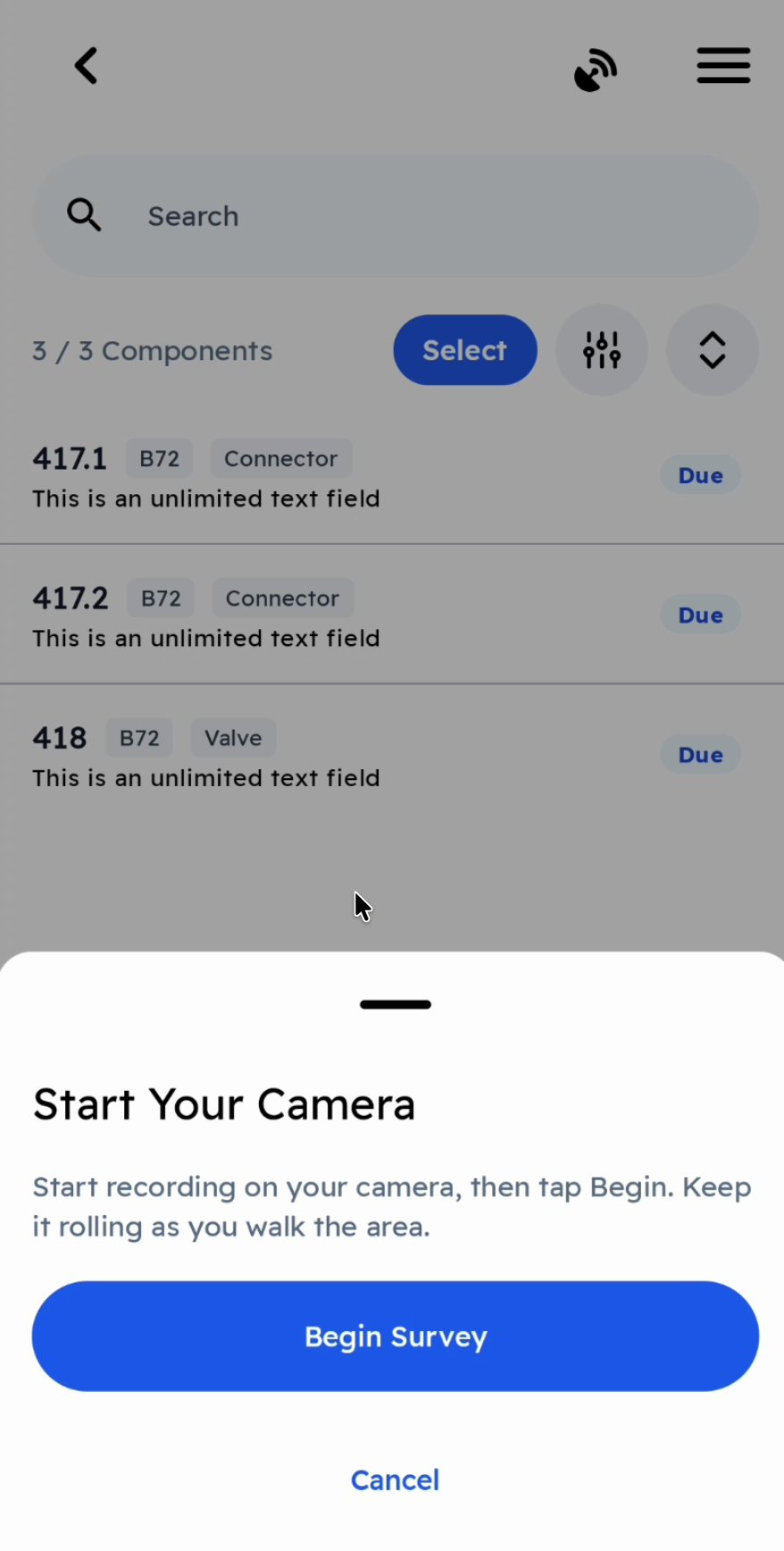
Start recording on the camera, then tap Begin Survey. Keep the camera recording as you survey.
-
Record leaks the same way. For the leak's own photo and video, take them on the camera. Then either tap Tag Photo / Tag Video under OGI Media on Input Leak Details, so OGI › Import can match the files to the inspection, or leave them for the office to upload to the inspection afterwards with Upload Image / Upload Video.
-
When you complete the survey, write the camera's file names for the survey video in the Survey comment. The office uses them to find the video and upload it to the survey in Chateau.
With a camera connected for Media Transfer (Opgal EyeCGas or ChampionX AURA), record the survey video on the camera. Then attach it from the Survey video row at the top of the tour (Attach ›), which lists the files on the camera.
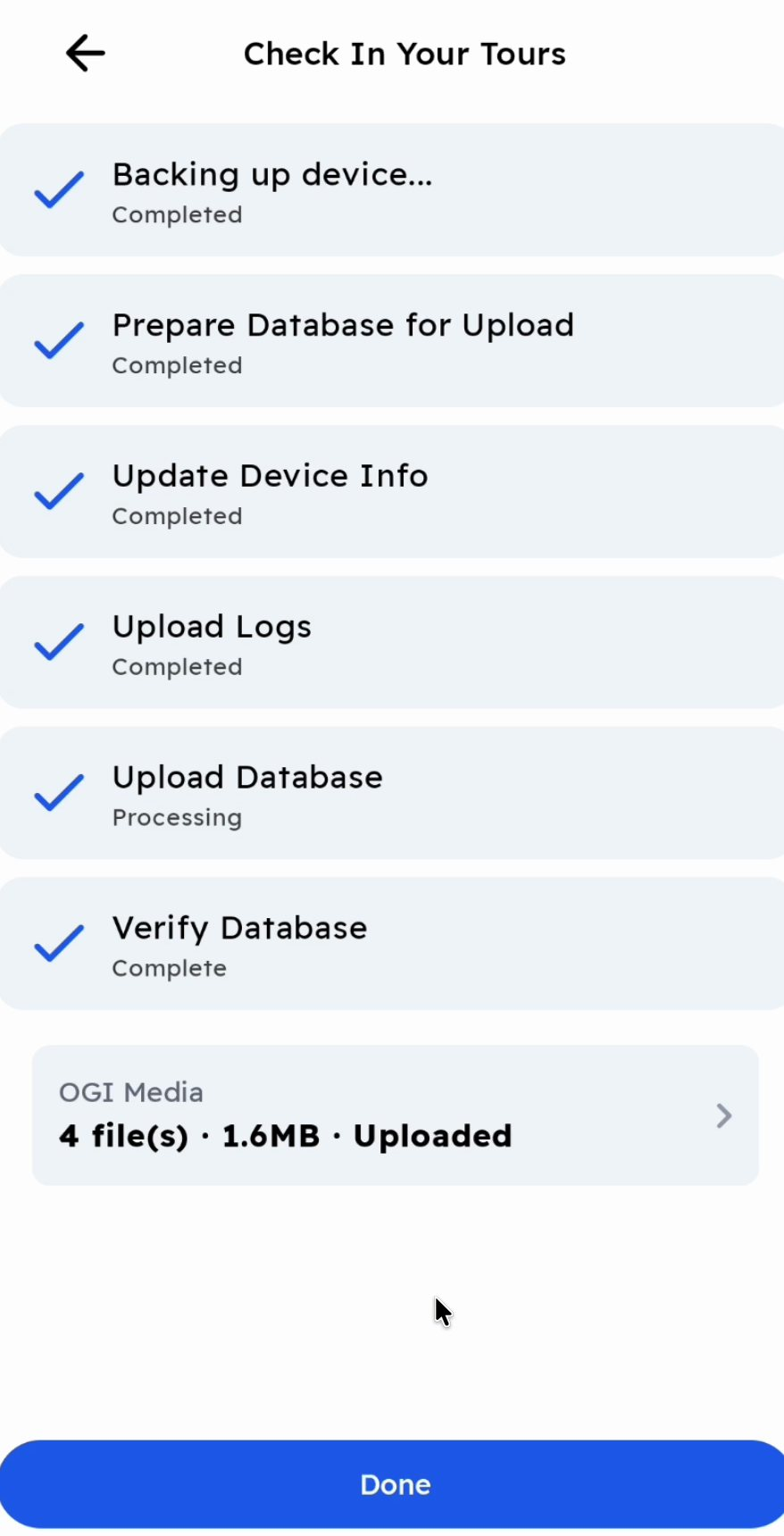
8. Check in
You can't check in with a survey still open. Chateau Mobile asks you to Complete Survey or Discard Survey first.
At check-in, the survey's videos and the leak photos and videos upload to Chateau. The OGI Media block shows each file's progress. Stay connected until it reads Uploaded.