DOR (Delay-of-Repair)
Published: 2022-05-09 Revised: 2026-06-26
How to Put a Leak on DOR
DOR Property Fields
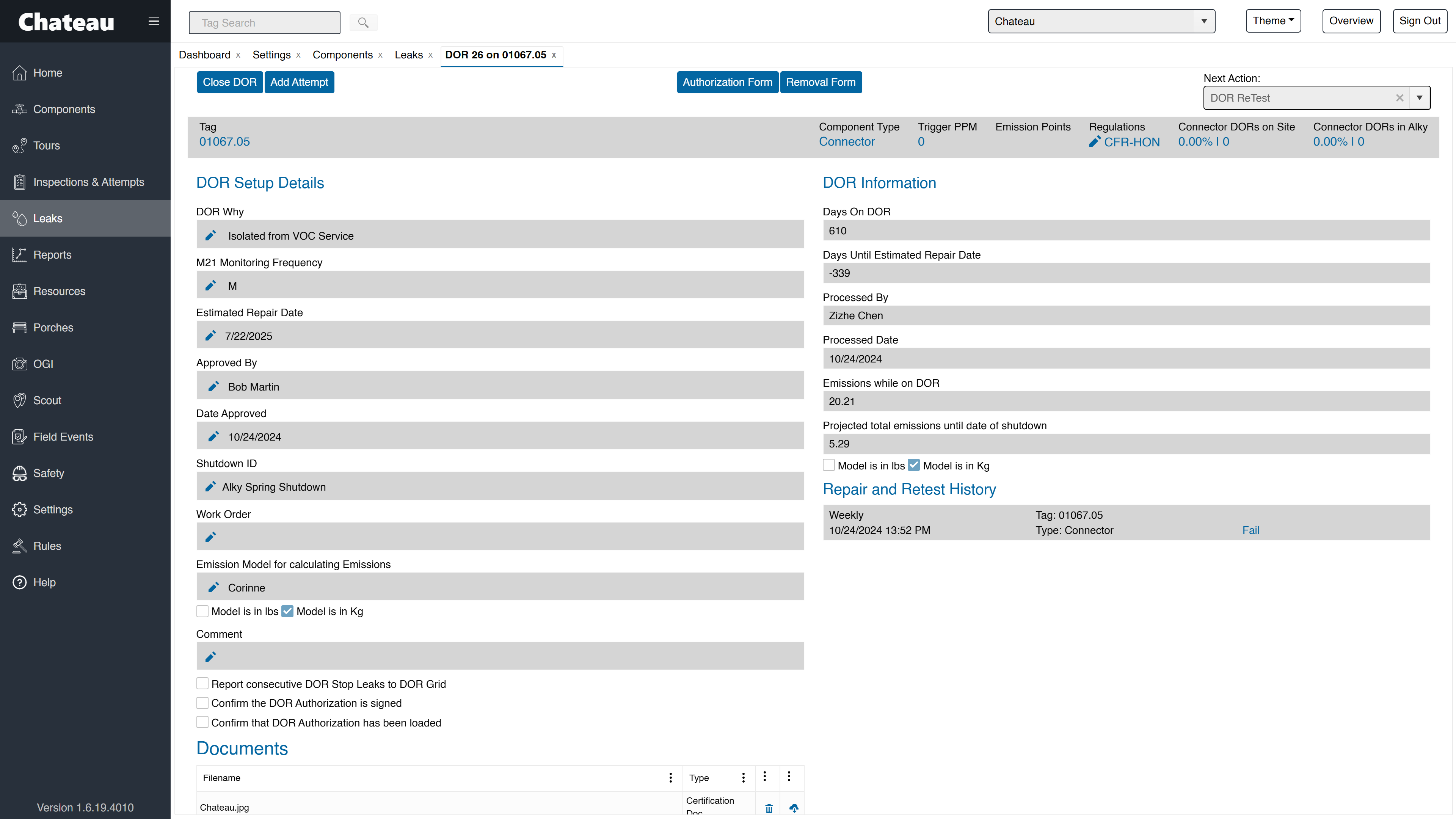
* indicates a required field
| DOR Details | Header row above the DOR Setup Details. detailing the tag number, component type, trigger PPM, emission points, regulations, connector DORs on site, and connector DORs in the unit. |
|---|---|
| DORWhy* | The reason a leak is being placed on DOR. Customizable in Settings > Picklists > DORs. |
| M21 Monitoring Frequency* | The M21 frequency at which a DOR item will be monitored, so long as it is on DOR status. This overrides the M21 frequency dictated by the Rules but does not affect the OGI or AVO frequency. Customizable in Settings > Picklists > DORs. Notes: Closing a DOR removes the DOR inspection from the Schedule. Updating the DOR Monitoring Frequency removes the existing DOR inspection from Schedule and schedules a new one after the nightly rules run. Updating the M21 Monitoring Frequency removes the existing DOR inspection from Schedule and schedules a new one after the nightly rules run. |
| Estimated Repair Date* | Date component is estimated to be repaired. This date must be in the future. |
| Approved By* | Customizable in Settings > Picklists > DORs. |
| Date Approved* | Date the leak was approved to be placed on DOR. The date cannot be the same as the initial leak date or after the Leak Close Date. If any other date is selected, the DOR will NOT show the associated inspection records or trigger ppm, and will not appear on DOR Summary Report. |
| Shutdown ID | Name of the Shutdown record that has been associated with the DOR. Shutdowns can be added in Leaks > Shutdowns. |
| Work Order | Free text field where you can enter a maintenance work order number. |
| Emission Model for calculating Emissions | Emissions model you want to use for calculation emissions while the component is on DOR. |
| Comment | Free text field where comments can be entered. |
| Days on DOR | How many days the component has been on DOR. |
| Days Until Estimated Repair Date | How many days are left until the date entered in the Estimated Repair Date field. |
| Processed By | The user who entered the DOR. |
| Processed Date | The date the DOR was entered in the database. |
| Emissions while on DOR | Emissions while on DOR based on the emissions model chosen and all inspections performed since the leak was first opened. |
| Projected total emissions until date of shutdown | Projected Emissions are determined based on the Estimated Repair Date of the DOR, factoring in all inspections conducted on the component while it remains on DOR. This includes the initial inspection that first detected the leak. |
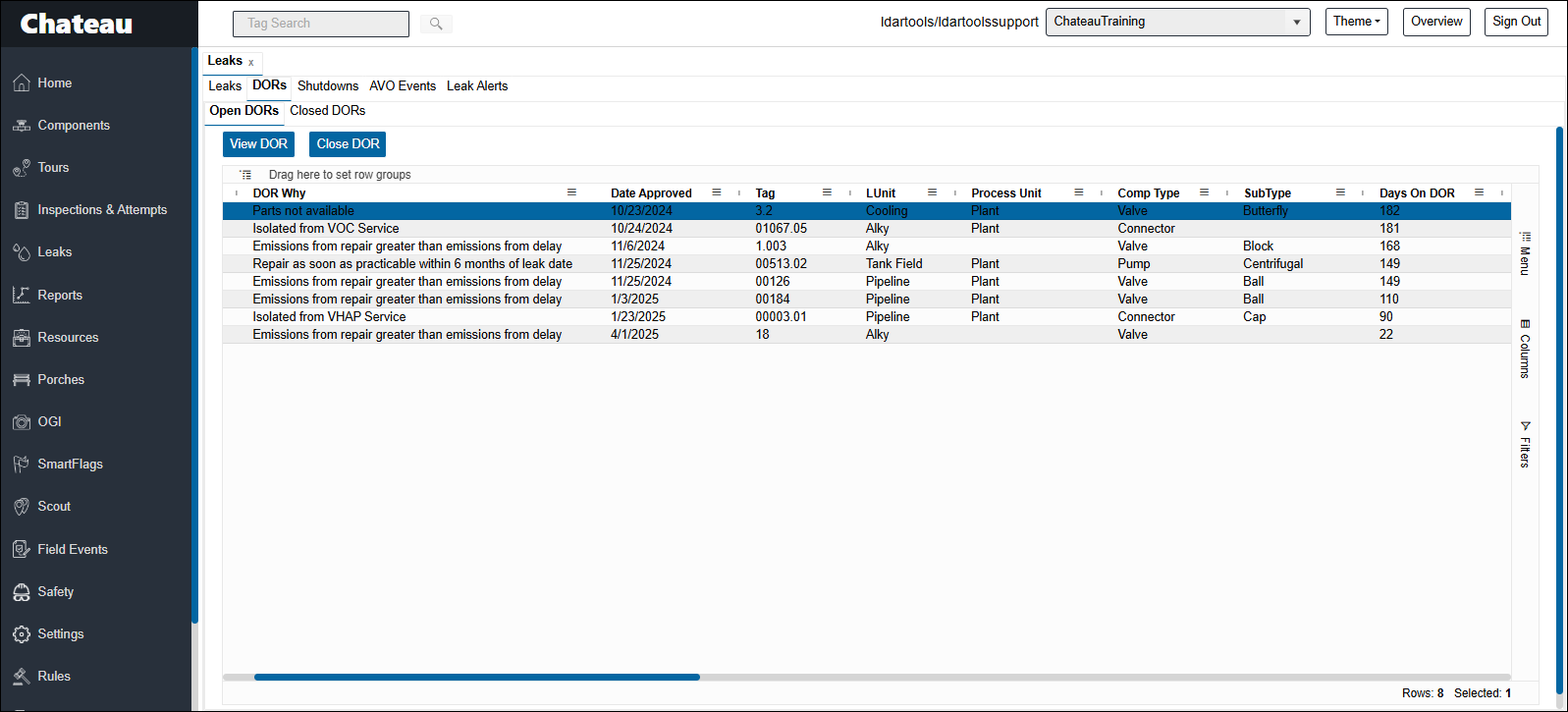
| Report consecutive DOR Stop Leaks to DOR Grid | Checking this box will populate the DOR Stop Leaks column on the Open DORs grid in the Leaks section. See DOR Stop Leaks section below for more information. |
| Confirm the DOR Authorization is signed | Checking this box is confirmation that a DOR Authorization form has been signed. |
| "Confirm that DOR Authorization has been loaded" | Checking this box is confirmation that a DOR Authorization form has been attached as documentation to the DOR form in Chateau. |
| Emission Points | The DOR details page and the Open DORs grid display the emission points recorded on the DOR's inspections, including the inspection that first detected the leak. |
DOR Terms
| Item | Description |
|---|---|
| DORCloseWhy | The reasons for closing a DOR. Customizable in Settings > Picklists > DORs. |
| DORReT | An Inspection Why option for DORs. |
| DORStopLeak | When a DOR tag passes all inspections in the most recent month, Chateau designates it as a DORStopLeak. You can enable the DORStopLeak audit in the Porch section to track these. If a failing inspection occurs, that month is excluded, even if a subsequent passing PPM is recorded. The next month with a passing PPM will then be recognized as the first DORStopLeak month. |
| Database Conversion | You may see these entries in fields like DORCloseWhy, LeakCloseWhy, or other "Why" fields in your database. These values were added during your initial data conversion. The "Why" fields are required in Chateau, but your previous system didn't include them. To complete the conversion, we had to populate these fields with a default reason — hence "Database Conversion." |
| Next Action | Used for tracking the progress of each DOR. To update the Next Action on a DOR, open the DOR and select the desired option from the Next Action dropdown. Choosing a Next Action does not automate any steps. For example, selecting ReTest means you must still manually add the inspection to a ReTest tour. |
| View a DOR | Leaks tab > DOR subtab > select a row > View DOR |
| Edit a DOR | The pen icons indicate which fields are editable while the component is on DOR. |
| DORTrial | This special DOR Inspection Why does not create a leak if the PPM reading is above the leak definition. It is a trail inspection allowed under some regulations |
| Close a DOR | From the DOR grid, open the DOR. Select the Close DOR button. Enter a DOR CloseWhy, Close Authorized By, and Date. Select Close DOR. Closing a DOR immediately removes the DOR inspection from the Schedule. |
| Regulations | This field lists the regulations that apply to the DOR leak. You can edit the list to add or remove regulations based on the specific compliance requirements for the leak. |
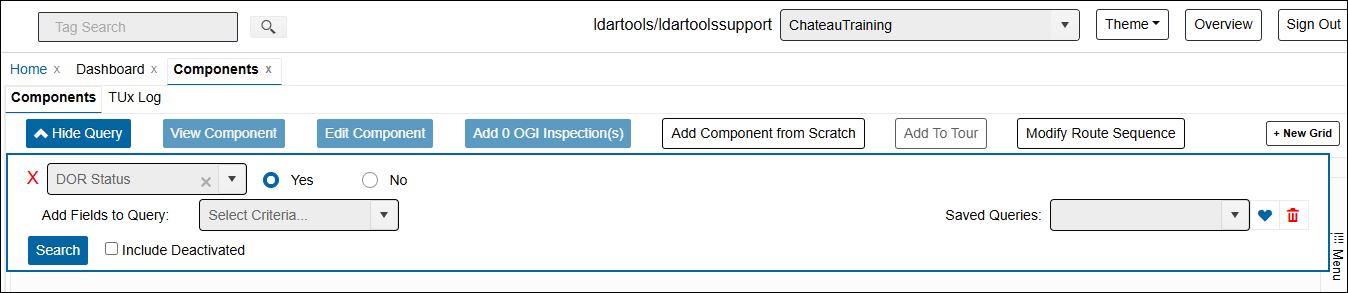
If you are needing additional component properties for your DORs, you can use the Component grid to pull up all of your open DORs with all their component properties.
On the Component grid, build a query in the Component grid of DOR Status = Yes.