How to Search for a Date Range in the Query Builder
Published: 2026-06-10 Revised: 2026-06-10
The Query Builder does not have a single "between dates" option. To filter by a date range, you build two conditions — one for the start date and one for the end date.
Steps
-
Open the grid you want to filter (for example, the Component Grid, Inspections Grid, or Closed Leaks Grid).
-
Click in the Query Builder section at the top of the grid.


-
In the field dropdown, select the date field you want to filter by — for example, Date Performed, Date Opened, or Next M21 Due.
-
In the operator dropdown, select Greater Than or Equal To.
-
Enter your start date in the date field.
-
Click in the field dropdown again to add a second filter row.
-
Select the same date field as in step 4.
-
In the operator dropdown, select Less Than or Equal To.
-
Enter your end date in the date field.
-
Click Search to run the query. Chateau will return only records that fall within your date range.
Example: Inspections Performed in April 2026
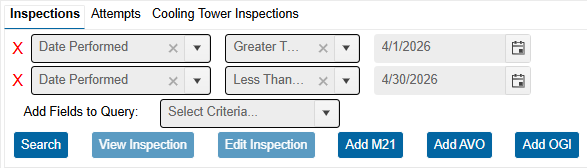
To find all inspections with a Date Performed in April 2026:
- Condition 1: Date Performed — Greater Than or Equal To — 4/1/2026
- Condition 2: Date Performed — Less Than or Equal To — 4/30/2026
Notes
- Queries that filter on computed date fields (like Next M21 Due) can take longer to return results on large databases. If the query times out, try adding a narrowing condition first (such as Location Unit or Process Unit) before adding the date filters.
- You can save a query you use frequently using the Save Query option in the Query Builder. Saved queries can be kept just for yourself or shared with your team.