MOC Roles and Events
Published: 2022-05-19 Revised: 2025-07-22
To determine your MOC roles in Chateau, look for your name in the grid under Resources > People.
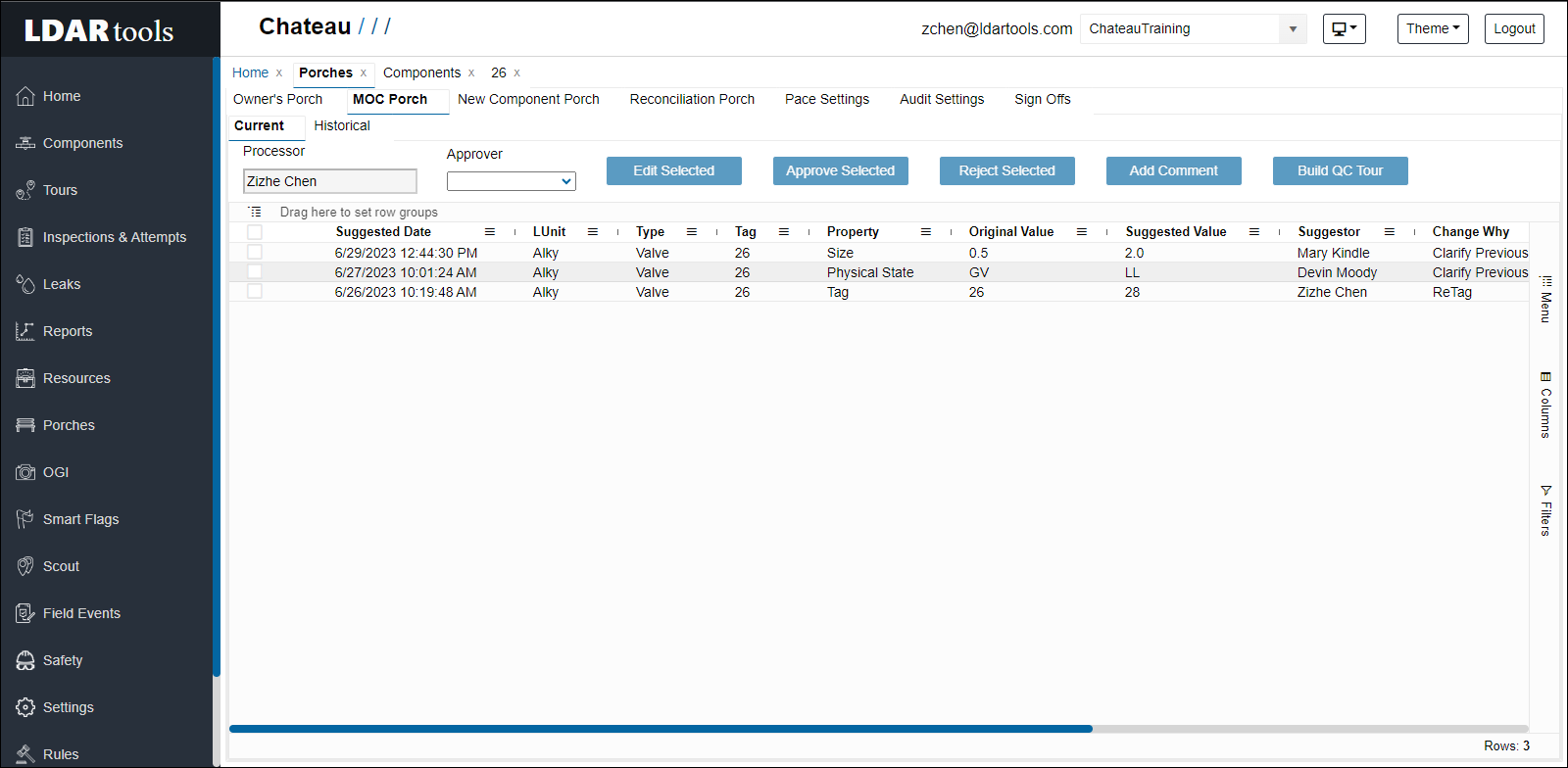
There are three MOC (Management of Change) Roles
| Term | Definition |
|---|---|
| Approver | The person who has the authority to approve this MOC event. |
| Processor | The person who is logged into the Handheld or the Desktop when the MOC event is entered or finally approved. |
| Suggester | The person who had the initial idea that an MOC item should be changed. This can be the Tech in the field or someone in the office. It can, literally, be anyone. |
It is possible for any of the following to occur:
| MOC Event | Suggested by | Processed by | Approved by |
|---|---|---|---|
| 1 | Tech Bob | Tech Bob | Tech Bob |
| 2 | Tech Bob | Site Adm Kim | Tech Bob |
| 3 | Tech Bill | Site Adm Kim | Supv Philip |
The simplest scenario is when Tech Bob is labeled (in Resources/People) as a Suggester, a Processor and an Approver. In this case, the MOC event will be processed directly into Chateau without having to be reviewed and approved by someone else.
When making a Profile change, you are able to set a specific date in the past for the change to be effective, but not in the future.
| Feature | Purpose | Your Options | To keep it simple… |
|---|---|---|---|
| ChangeWhy | Enables you to record with each MOC change or Tag Edit WHY the change was made. | Select the ChangeWhy reasons that you want to have available to the technicians by going to Settings / Picklists and select MOC (Management of Change) in the category dropdown. Edit this Picklist. You can offer as many different items as you think are useful to your program. | Hide all of the given options and add a new blanket option such as "Data Update." This will enable your users to quickly select this choice. |
| Suggestors / Approvers | Enables you to track WHO suggested and WHO approved each MOC edit. | Go to Chateau / Resources / People and identify each person as a Suggester and or Approver. Unless you identify someone as an Approver, ALL of his MOC edits will have to be approved in the MOC Porch by someone who IS labeled as an Approver. | Make all of your users Suggesters and Approvers. This will result in all MOC Edits going straight into the database. |
| MOC Porch | Enable you to process any Edit suggested by a Tech or User who is not an Approver. | Check the MOC Porch each day to process (either Approve or Reject) any MOC events. | Make all users Approvers will mean that nothing is ever reported to the MOC Porch. |
Notes:
- Any MOC Edit made by a Suggestor (who is not an Approver) will appear in the MOC Porch. It will have to be cleared by an Approver before it will be checked into the database.
- If more than one edit was suggested to the same property for a component, when the edits are approved, Chateau will only store the edit suggested at the latest time. The last edit suggested will be the one retained. The approved date will be used as the effective date for the component edit.
- If all of your users are marked as Approvers, nothing will ever be reported to the MOC Porch.
- By using this feature to the fullest you can have a robust MOC program that enables you to do the following: a. Know why any change was made. b. Know who suggested each change. c. Know who approved each change. d. Attach a comment to any MOC Edit. e. Easily produce a report about the items Approved or Rejected for each Technician
When you enter an MOC change, Chateau will prompt you to do the following:
- Select a ChangeWhy from the picklist.
- Apply this MOC to SubTags (.1, .2, .3, etc.) if there are any.
- Provide a Comment.
- Designate an Approver.
- Do this for each change on this screen if there are more than one.
| Term | Definition |
|---|---|
| Regulatory | On the MOC Porch, this column indicates whether the proposed edits potentially involve how the application of a Regulation or Rule may be effected. You can filter by Yes (or True) to get the items which might affect how Rules are applied. |
Component Approval
When an approver creates a new component and clicks Save, a confirmation prompt will appear reading, "Approve Component?"
By default, this checkbox is unchecked, meaning the newly-created component will go to the New Component Porch for approval. If the approver checks the box, the component is immediately approved and will appear in the Historical grid under New Component.
For MOC (Management of Change) edits, the "approve" checkbox defaults to checked.
- Note: This does not apply to Chateau Mobile.