Components Grid Terms
Published: 2022-05-09 Revised: 2026-08-28
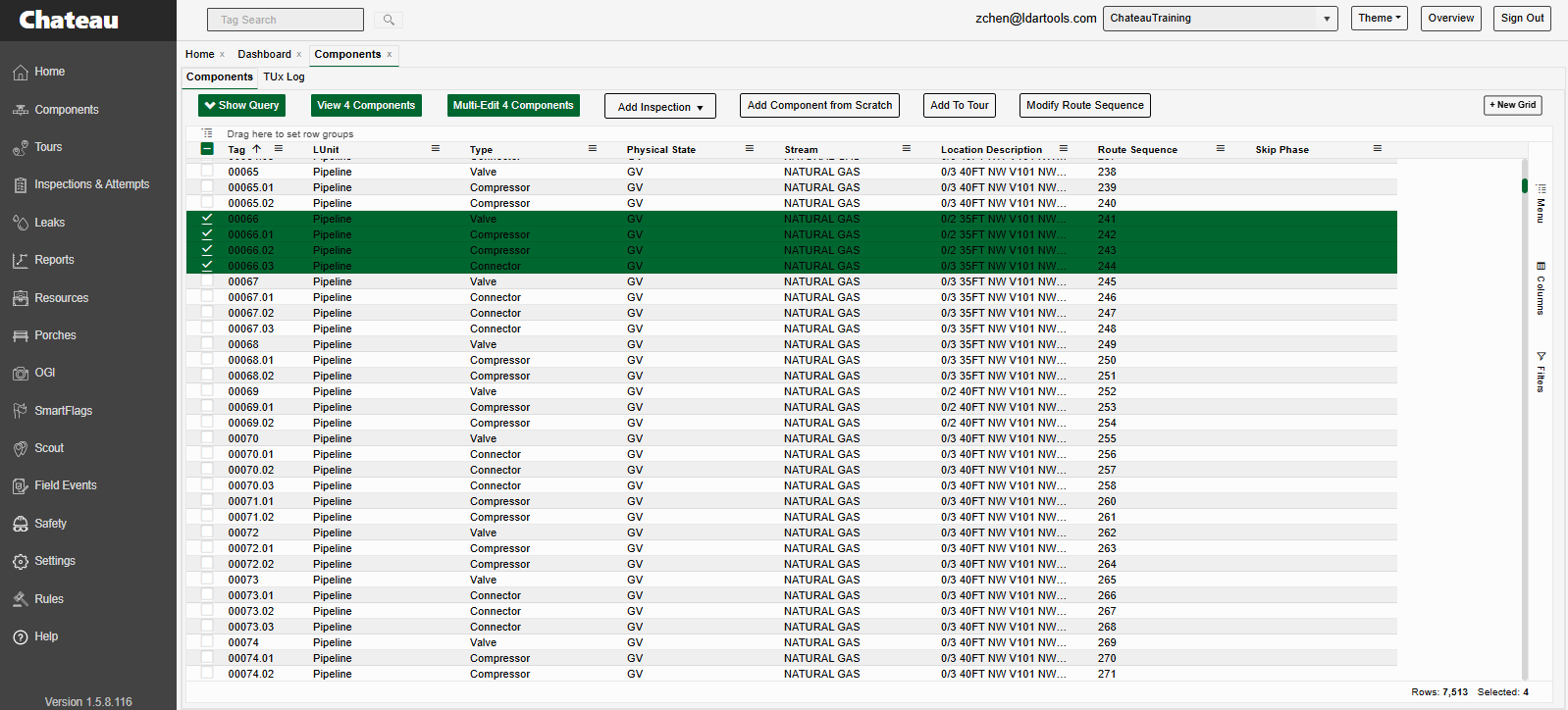
Buttons
| Term | Definition |
|---|---|
| View Component | Opens the component details screen for the selected component. |
| Edit Component | Opens the component details screen in edit mode. |
| Add Inspection | Used for manually adding inspections to multiple components simultaneously. |
| Add Component from Scratch | Opens a blank Component Screen for documenting the details for a new component. |
| Add to Tour | Used for building tours independent of the schedule; best for special case inspections, e.g. quality control, surveys, PRV releases, or maintenance requests. See Building a Tour from the Component Grid. Note: For routine inspections scheduled by the rules, it is recommended to build tours from the Schedule. |
| Modify Route Sequence | Allows mass editing of the Route Sequence field. Accessible only by Approvers. Note: Route sequence modifications made using this feature bypass the MOC Porch and take immediate effect. Clicking the button will display an instruction (as seen below) to guide you through the process.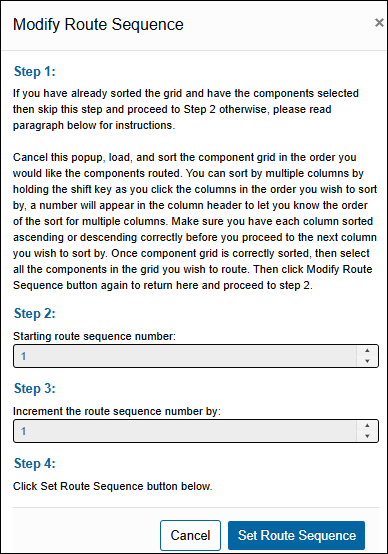 |
| Include DeActivated (Query checkbox) | Select this box to include DeActivated components in the search results. If this is NOT selected, the grid will not display the DeActivated Components. |
| TUx Log (Subtab) | Grid displays current Temporarily Unavailable Components. |
Fields (other than Component Property fields)
| Term | Definition |
|---|---|
| DOR/Leak Close Date | The date of the latest closed leak or DOR on the component. Helps with QC of the schedule and verifying all leaks from the previous month or two have their properly scheduled inspections. |
| DOR Status | Indicates if the component has an Open DOR |
| Equipment LowE Packing | Description of your LowE packing. Develop this list in Settings / Picklists / Category = Equipment. You can edit it in the "LowEPacking" picklist |
| Equipment Model | The most recent Model added in the component's Equipment subtab |
| Equipment Ref Doc | Reflects the MOC Reference field on the installed equipment located on the components Equipment tab. |
| [M21/AVO/OGI/Cooling Tower] Frequency | Most stringent, periodic frequency assigned to each component based on the rule(s) applied: M, Q, S, A, MMQ, etc. |
| Last [M21/AVO/OGI/Cooling Tower] Performed | The date on which the most recent inspection was performed |
| Last [M21/AVO/OGI/Cooling Tower] Reason | The reason why the most recent inspection was scheduled |
| Last PPM | The PPM (parts per million) reading from the most recent inspection |
| Latest Equipment Install Date | The date from the most recent equipment added in the component's Equipment subtab |
| Leaks | The number of open leaks associated with the component. |
| Next [M21/AVO/OGI/Cooling Tower] Due | Displays the closest inspection due date of this component |
| Next [M21/AVO/OGI/Cooling Tower] Why | Describes why the inspection has been scheduled |
| Previous Profile | Displays the profile the component had before the current profile |
| Profile Start | The date the current profile started for a component |
| Regulations | Displays the regulations currently applied to the component |
| Skip Phase | Displays the current phase for components with a frequency of SMM or AMM |
| Status | Displays the current status of Due, Not Due, or InTour |
| [M21/AVO/OGI/Cooling Tower] Status | Describes the component status with respect to the monitoring schedule. |
| Tours | Lists all tours, if any, in which the component currently has scheduled or requested inspections |
| Unmanned Site | Indicates if the component is located at an unmanned site. |