Launching Chateau Mobile
Published: 2023-06-16 Revised: 2026-08-28
Logging In
There are three ways to log in to Chateau Mobile:
- Scan the device-registered QR code.
- Enter the provided credentials (Enter username and password, and tap Connect).
- Tap Sign In with Microsoft, if Single Sign-On was set up for your organization.
Please reach out to your database's designated administrator if you are unable to log in. If sign-in fails, Chateau Mobile shows a message explaining what went wrong, and a failed background sign-in refresh does not block your next manual attempt.
Checking Out a Database
To download assigned tours and component information:
- Select the database ID and technician name. You might have to tap the circular icon to refresh and pull the list of available database IDs and technician names.
- Tap Check Out and wait for the automated process to complete.
- Tap Done when ready.
Checking In Data
To check in the performed inspections and component edits:
- Go to the dashboard and tap Check In.
- Select Work Performed and sign off if prompted. Depending on the database settings, you may not get these prompts.
- Tap Done when ready.
The Dashboard
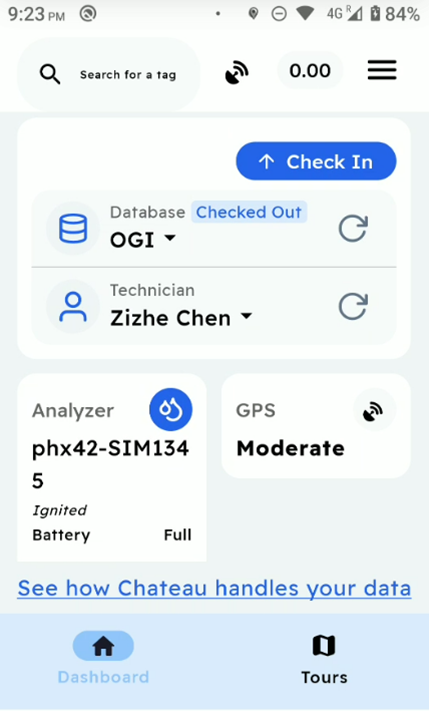
| Term | Definition |
|---|---|
| Search for a Tag | To enter a tag number and search for it. You will have to check out a tour to use this function. Here you can look up tags regardless of whether they are in a tour. |
| GPS Signal | To view the strength of your current GPS signal. |
| Analyzer Reading | The number on top indicates the real-time analyzer reading, if an analyzer was connected. It is also a shortcut for setting the background if you tap it. |
| Main Menu | The hamburger icon (three horizontal lines) menu. See the section below for details. |
| Analyzer | Tap to connect to an analyzer or manage a connected analyzer. |
| Camera | Shows the connected OGI camera and its state — for example FLIR OGI Camera / Connected. Tap the camera button on the card to manage the connection. |
| Database | The database you are checked out to, with a Checked Out badge and a refresh control for pulling the list again. |
| Technician | The technician the check-out belongs to, with its own refresh control. |
| Check In | Sends your work back to Chateau. See Checking In Data above. |
| See How Chateau Handles Your Data | View and confirm the data usage notice. |
| Tours | Tap to see the tours assigned to you. |
| Dashboard | The other half of the bottom navigation — returns you here from Tours. |
Main Menu
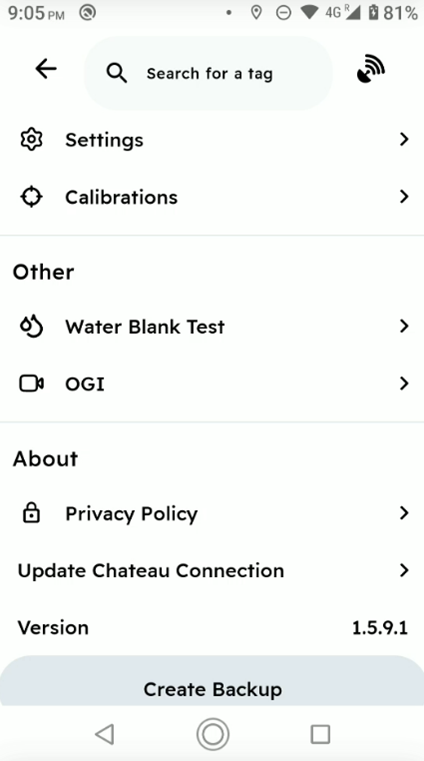
| Term | Definition |
|---|---|
| Settings | More than the Response Factor. The screen holds the Response Factor with its own Save; Advanced Network Settings with an Upload API choice of Auto (V1), V1 (Direct) or V2 (TUS) — the override Support may ask you to change on a poor connection; OGI Camera Settings; Device Storage showing free space; and OGI Upload History, where Keep records for (1, 3, 7 or 30 days) controls how long check-in keeps listing media it has already delivered, with a Clean up now button. Media that has not uploaded is never removed, whatever this is set to. |
| Calibrations | To calibrate the connected analyzer, enter confirmations and drifts. |
| Water Blank Test | To perform a water blank test. |
| OGI | Opens a submenu with three items: OGI Sensitivity Check (cylinder, gas mixture, camera make, model and serial, plus temperature and pressure), OGI Camera Settings, and Report OGI Camera Battery Change. |
| Report Issue | Sends a diagnostic report to Support in one step — it bundles device info, app logs and database files, so you do not have to retrieve logs over USB. |
| Privacy Policy | Tap to view the privacy policy in your browser. |
| Update Chateau Connection | To sign in with another set of credentials. |
| Version | The installed Chateau Mobile version, shown for reference — useful when reporting an issue. |
| Create Backup | Tap to create a backup. |